ArcLight Hub User’s Guide
Screen Descriptions for NMS Client
3-14 1081006 Rev. 001
3.3.1 Session
3.3.1.1 Log in
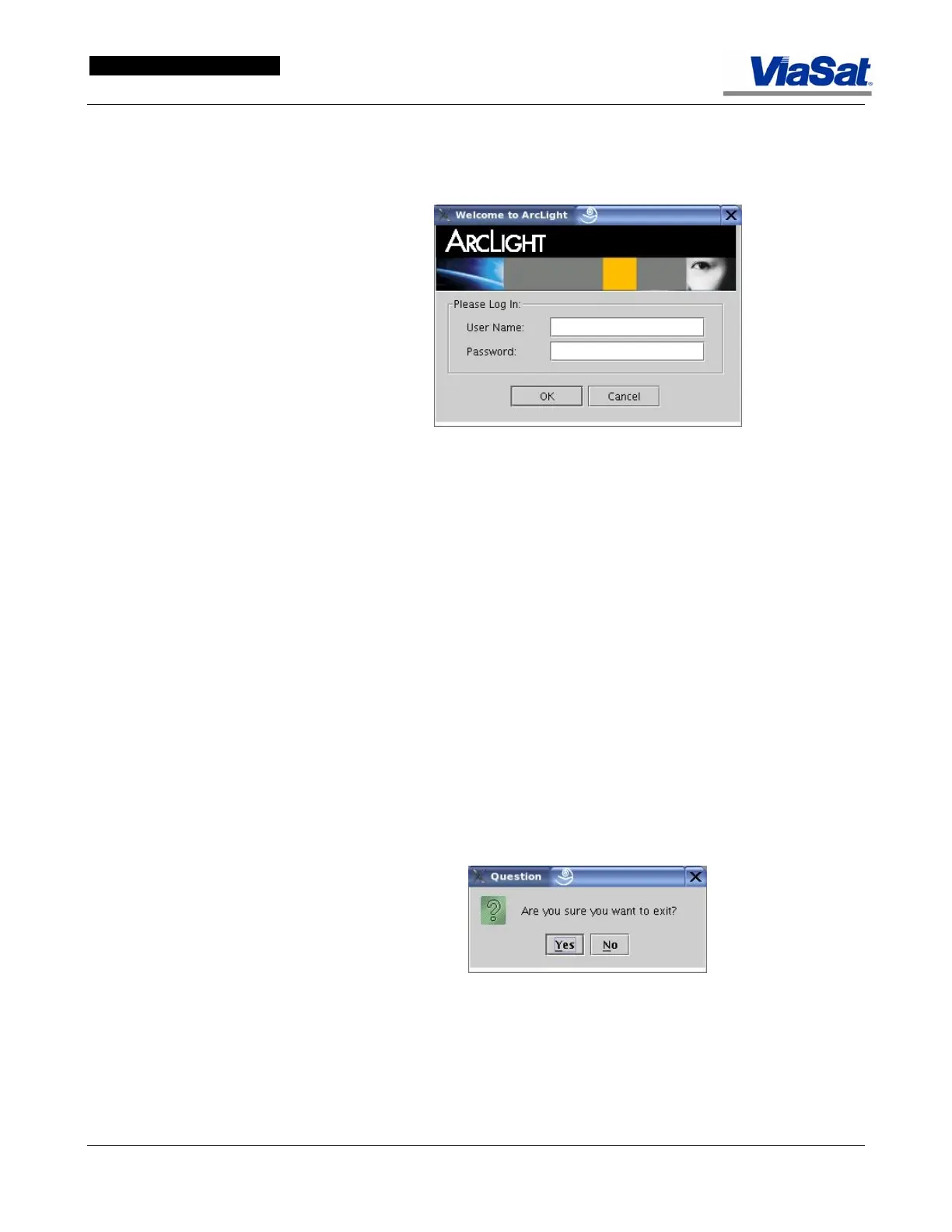
The ArcLight Login Screen is shown in
Figure 3-11.
Figure 3-11. Login Screen.
Username – type a user name in the filed provided.
Password – type a password in the field provided.
3.3.1.2 Logout
To Logout of the system, click Session on the main menu bar and
select Logout in the drop-down menu. The user will be logged out and
the ArcLight Management Client window, shown in Figure 3-9, will be
displayed.
A user should always logout when leaving the control terminal
unattended, in order to protect against unauthorized entry by
individuals not granted the same access level. Logging out also properly
saves all work.
3.3.1.3 Exit
To exit from the ArcLight Client, click Session on the main menu bar
and select Exit. A pop-up, shown in
Figure 3-12, will be displayed
requesting the user to confirm that they want to exit.
Figure 3-12. Exit Question.
To complete the exit, click the Yes button. This will terminate the
ArcLight Client software and return the user to the computer desktop,
or to some other program that is running on this computer.
To abort the exit, click the No button. This will return the user to the
screen being viewed when exit was selected.



 To Next Page