Settings
102 / 112 28.03.2022
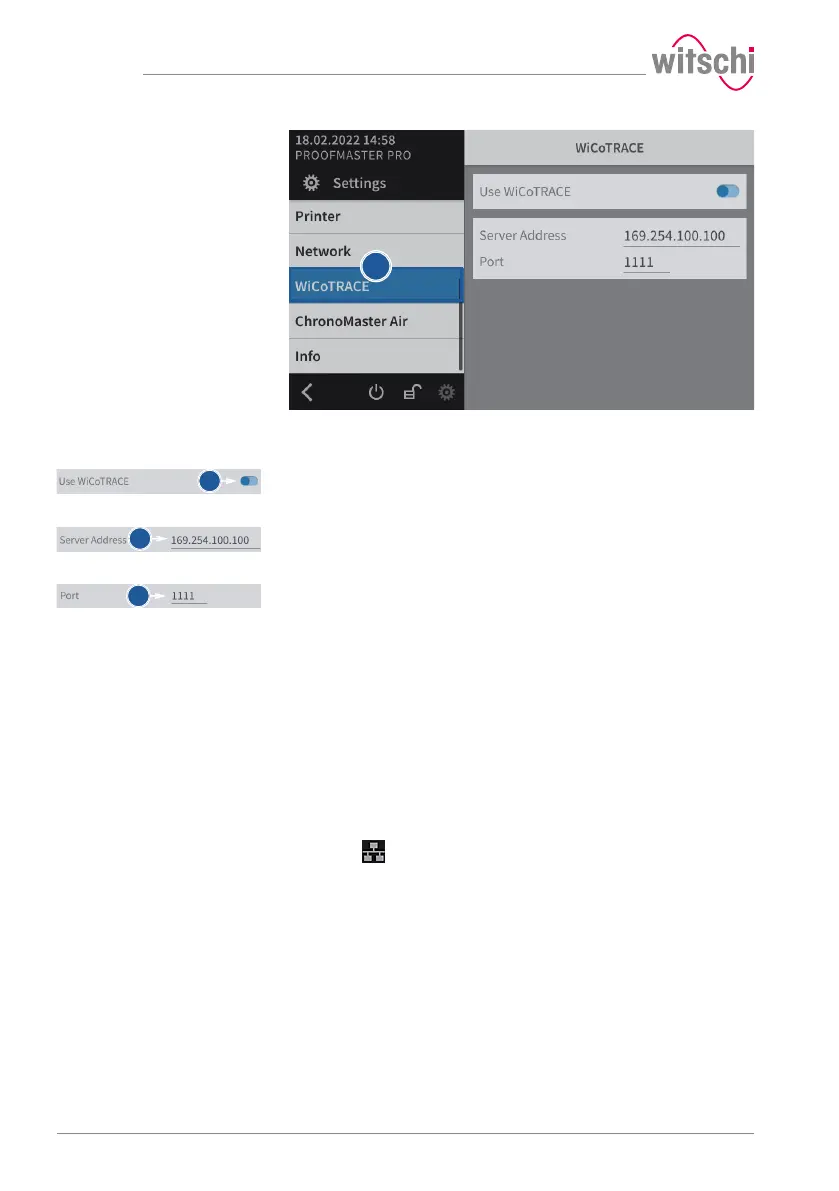
a) Select WiCoTRACE from the list.
ð WiCoTRACE is highlighted in blue and the right window
displays the options for WiCoTRACE.
b) Enable or disable the use of WiCoTRACE.
ð The button is blue when the function is enabled and grey
when it is not.
c) Enter the IP address of the PC or the server where WiCoTRACE is
located.
ð Example: IP address: 169.254.100.100.
d) Enter the port of the PC where WiCoTRACE is located.
ð By default, the communications port set up in the
WiCoTRACE software is "1111". This is a communications
port number which is generally free in computer networks.
Use
You should consult the entire documentation for the WicoTrace
software in order to find out about all the technical options available.
When using the ProofMaster in a computer network, you need technical
knowledge and administrator rights in order to configure the devices
correctly. You must also ensure that the communications port "1111" is
not blocked by a firewall. Where necessary, this port number must be
adapted in the ProofMaster and in the SMX-Service of the WicoTRACE
software.
a) Press to perform new measurements with the new programs.


 To Next Page