Settings
78 / 112 28.03.2022
7.3.2 Screen saver
If the automatic screen saver function of the ProofMaster is activated,
the bell cover closes after the "Enable after" time set on the ProofMaster
and the screen saver is displayed.
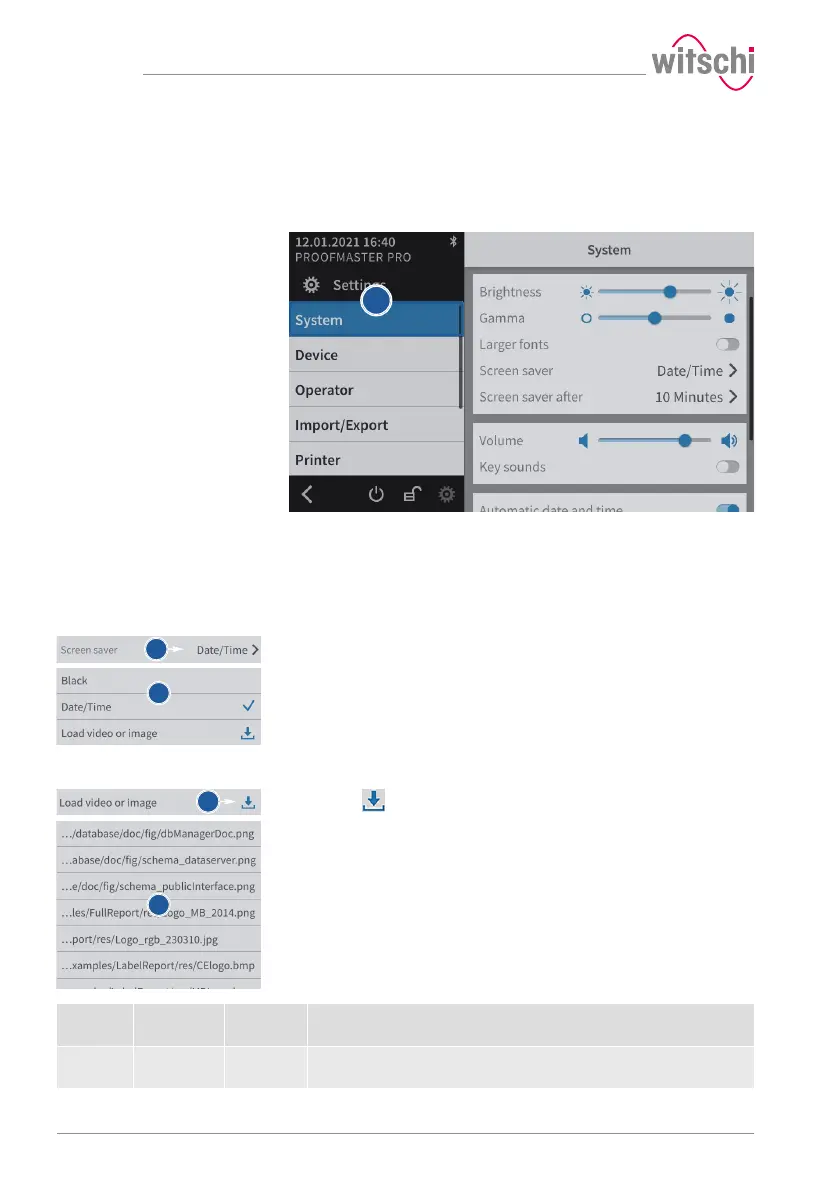
a) Select System from the list.
ð System is highlighted in blue and the right window displays
the system options.
b) Configure the automatic screen saver according to your needs.
ð See the details below for the settings of each option.
Selecting the screen saver
a) Open the screen saver selection by tapping the current selection.
b) Choose between a black screen saver and a screen saver with
date and time. Alternatively, it is possible to import a screen saver.
Importing a screen saver
a) Insert a USB stick with the desired screen saver into the
ProofMaster.
b) Press to display the pictures and videos on the USB stick.
c) Select the desired picture or video from the list.
ð The display returns to the screen saver selection screen.
ð The selected image or video appears in the screen saver
selection list.
Screen
saver
Supported
formats
Optimum
resolution
Description
Images PNG, BMP,
JPG, JPEG
800x480 Images with other resolutions must be resized.


 To Next Page