Use
38 / 112 28.03.2022
5.2.2 Enabling screen saver or standby
Switching to screen saver
or standby
ü The ProofMaster is switched on, see Switching on the
Proofmaster [}Page37].
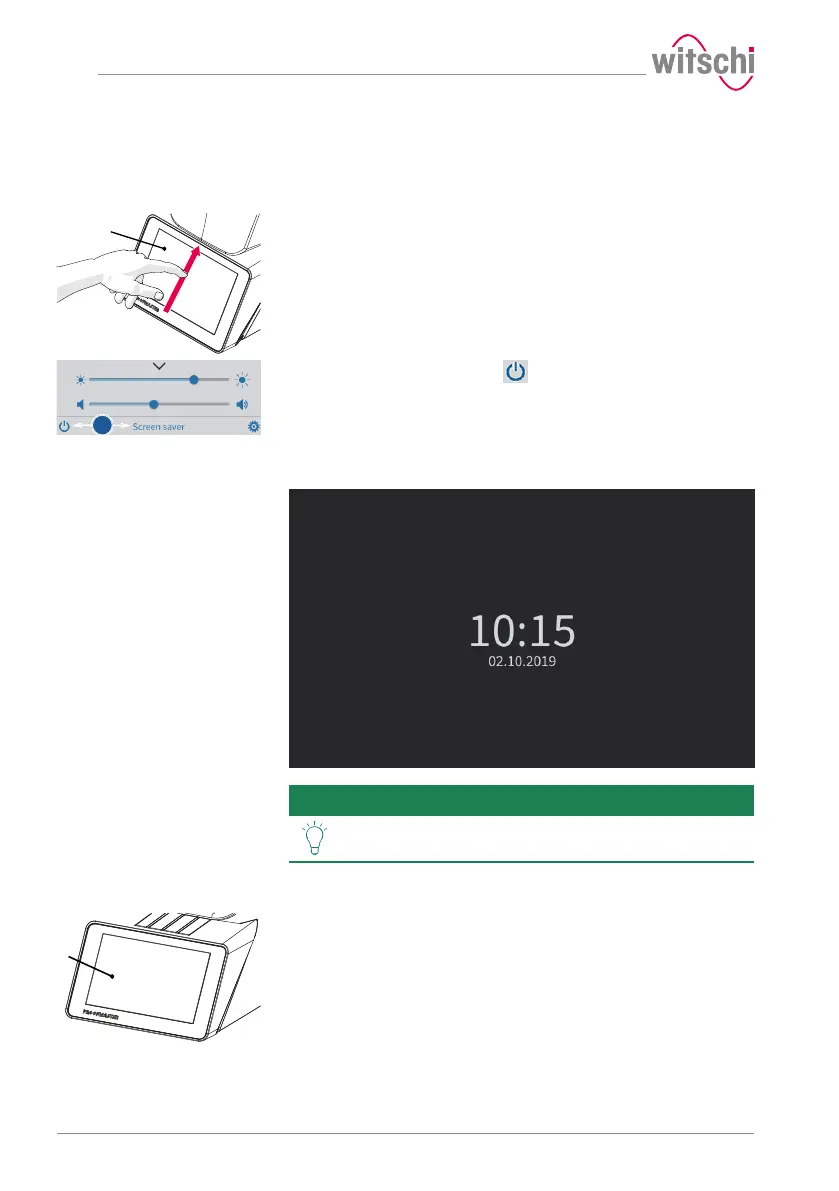
a) Swipe the touchscreen 1 with your finger in the direction of the
arrow.
ð The quick setup menu appears.
b) Press "Screen saver" or tap to switch the ProofMaster to
standby.
ð The bell cover closes and is locked.
ð The ProofMaster is in standby or screen saver mode (standby
screen is always black).
ð The screen saver is displayed (date and time in this example).
Tip
The screen saver is configurable.
See Screen saver [}Page78].
Exiting screen saver/
standby
ü The ProofMaster is in standby.
a) Touch the touchscreen 1 to exit "Standby" or "Screen saver" mode.


 To Next Page