Settings
28.03.2022 75 / 112
7 Settings
7.1 Quick settings menu
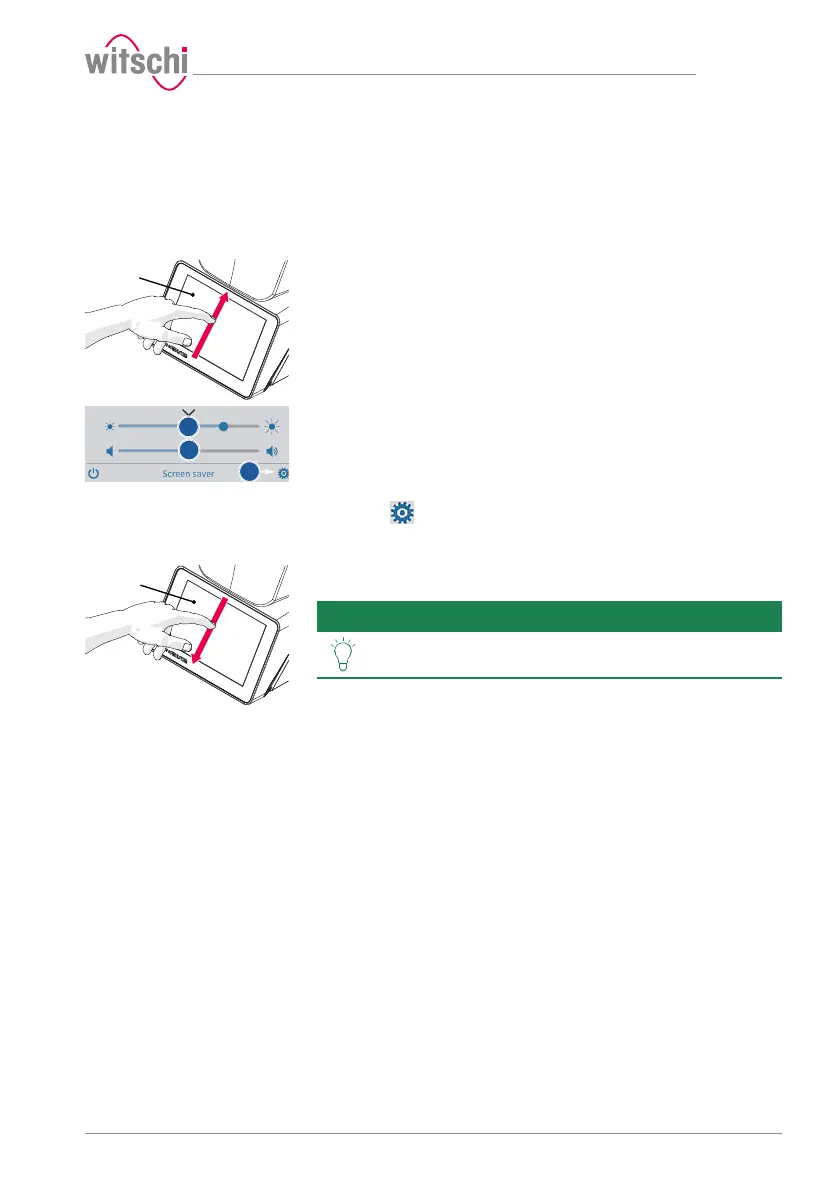
Opening the quick settings
ü The ProofMaster is switched on, see Switching on the
Proofmaster [}Page37].
a) Swipe the touchscreen 1 with your finger in the direction of the
arrow.
ð The quick settings appear.
b) Move the cursor left to decrease the brightness and right to
increase the brightness.
c) Move the cursor left to decrease the volume and right to increase
the volume.
d) Press to open the Settings menu.
Closing the quick settings
a) Swipe the touchscreen 1 with your finger in the direction of the
arrow.
ð The settings window is closed.
Tip
Additional display and audio settings can be made.
See Display and audio settings [}Page79].


 To Next Page