Use
28.03.2022 63 / 112
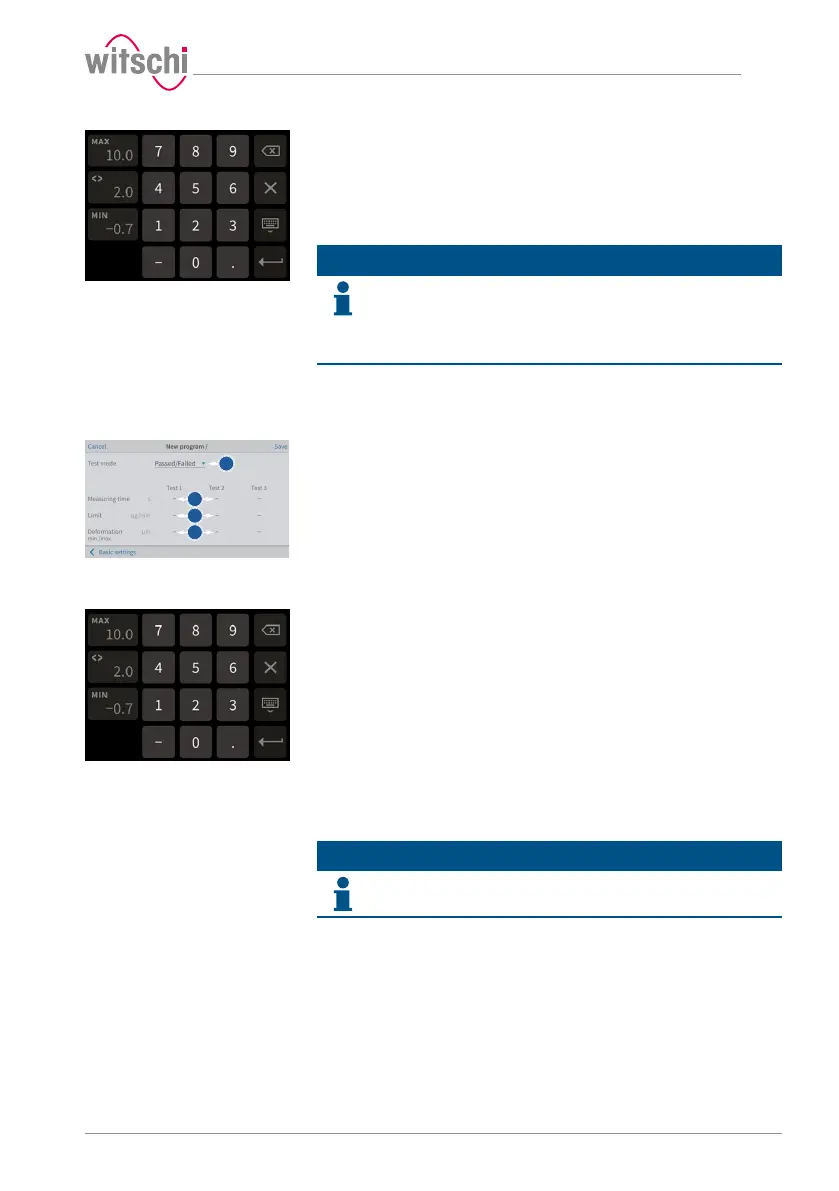
ð A number field appears for the input of the pressure.
e) If necessary, enter the pressure for the second test.
ð A number field appears for the input of the pressure.
f) If necessary, enter the pressure for the third test.
ð A number field appears for the input of the pressure.
Info
To guarantee test results, the pressure of a test must
always be greater than that of the previous test.
When saving the program, the ProofMaster arranges the test sequence
starting with the test with the lowest pressure value and ending with the
test with the highest pressure value.
g) Press Advanced parameters to enter the advanced programming
screen or Save to save the program.
Advanced programming
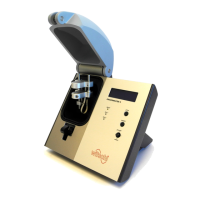
a) In test mode, select Precise to enable leak rate measurement.
ð In addition to the result of the leak test (good or bad), the leak
rate is displayed.
ð Displaying a leak rate in "Precise" test mode requires more
time for the measurement.
b) If necessary, set a test time for each test.
ð Entering a manually set measuring time may mean that the
measurement algorithm cannot identify enough measuring
points to produce a reliable measurement result. The user
must therefore ensure that the selected measuring time
enables the required test accuracy to be met.
ð A number field appears for entering the times.
c) If necessary, set a maximum leak rate test in µg/min for each test.
ð A number field appears for entering the leak rates.
d) If necessary, set the minimum and maximum deformation limit in
µm for each test.
ð A number field appears for entering the minimum and
maximum deformation.
e) Press Basic settings to enter the basic programming screen or
Save to save the program.
5.5.4 Editing a program (ProofMaster PRO)
Info
This function is available in the ProofMaster PRO software
version.
a) Select the user program to be edited.
ð See Selecting the program (ProofMaster PRO) [}Page44].


 To Next Page