Initial operation
26 / 112 28.03.2022
3.8.3 Thermal printer
The following steps are only necessary when using a thermal printer.
Info
Read and follow the instructions supplied with the thermal
printer.
Recommended printer
• See section Accessories and spare parts [}Page74].
Required equipment
• ProofMaster
• Thermal printer (not included in the scope of delivery of ProofMaster)
• Standard USB cable typeA–B or a Bluetooth set II (not included in the
scope of delivery of the ProofMaster). See Accessories and spare parts
[}Page74].
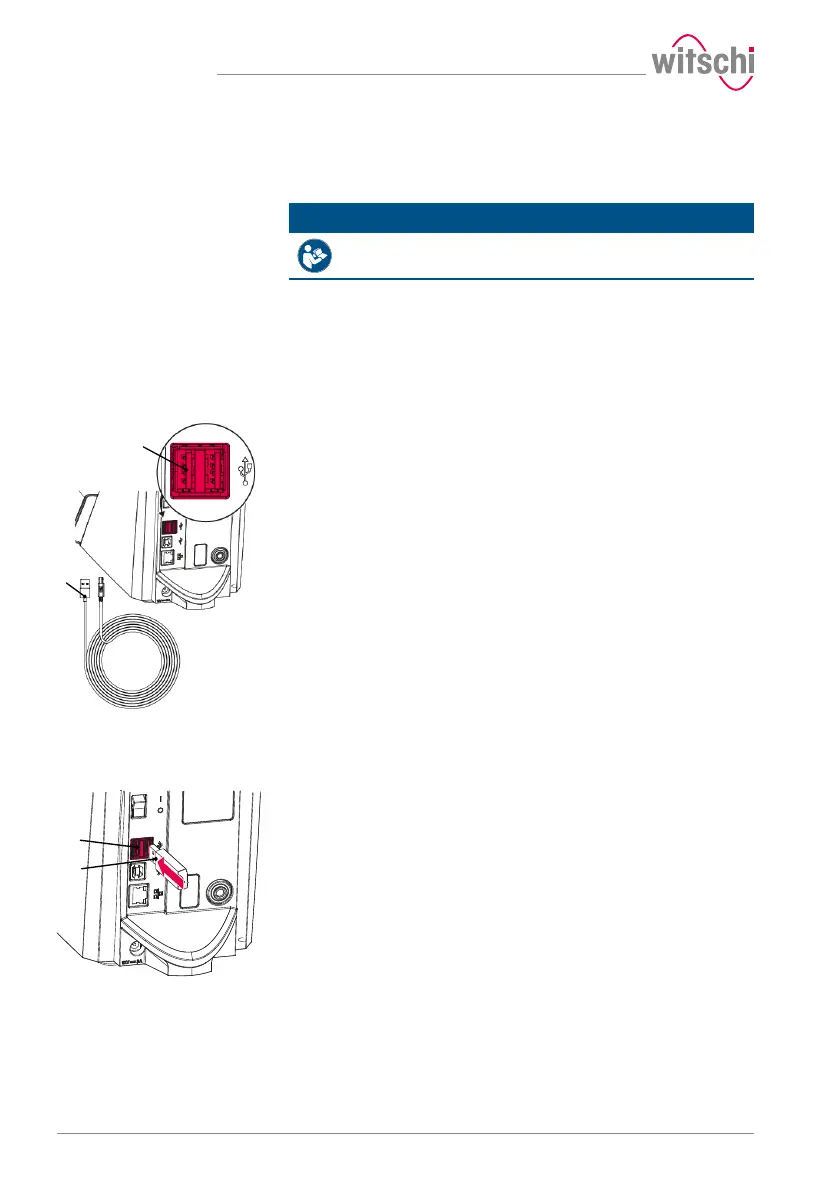
Connection with USB cable
a) Put the thermal printer into operation as specified in the
manufacturer's instructions.
b) Ensure that the thermal printer and the ProofMaster are switched
off.
c) Connect the USB cable 2 to the thermal printer USB type B inputs.
d) Connect the USB cable 2 to one of the two USB type A inputs on
the ProofMaster 1.
ð The ProofMaster is now connected to the thermal printer.
e) Switch on the ProofMaster and configure the thermal printer.
ð See Configuring the printer [}Page96].
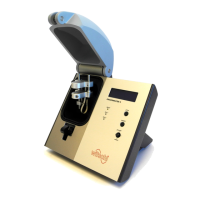
Connection via Bluetooth
dongle
a) Start the thermal printer incl. Bluetooth plug-in unit as specified in
the manufacturer's instructions.
b) Ensure that the thermal printer and the ProofMaster are switched
off.
c) Plug the USB adapter 2 into one of the two USB type A inputs of
the ProofMaster 1.
ð The Bluetooth dongle is automatically recognised by the
ProofMaster.
ð Switch on the ProofMaster and configure the thermal printer.
ð See Configuring the printer [}Page96].


 To Next Page