SEQTRAK User Guide
NOTE
・ You can use the SEQTRAK app to change the sound and volume of the metronome. There
are 5 metronome sounds to choose from. The volume can be adjusted between 0 and
127.
・ The metronome clicks in 4-step intervals, with an accented note occurring at the
beginning of Launch Quantize.
Example 1: If Launch Quantize is a 16-step cycle, the metronome clicks on steps 1
(accented), 5, 9, 13, 17 (accented), 21, etc.
Example 2: If Launch Quantize is a 17-step cycle, the metronome clicks on steps 1
(accented), 5, 9, 13, 17, 18 (accented), 22, etc.
4.6 Temporarily Saving a Project [Ver. 1.1]
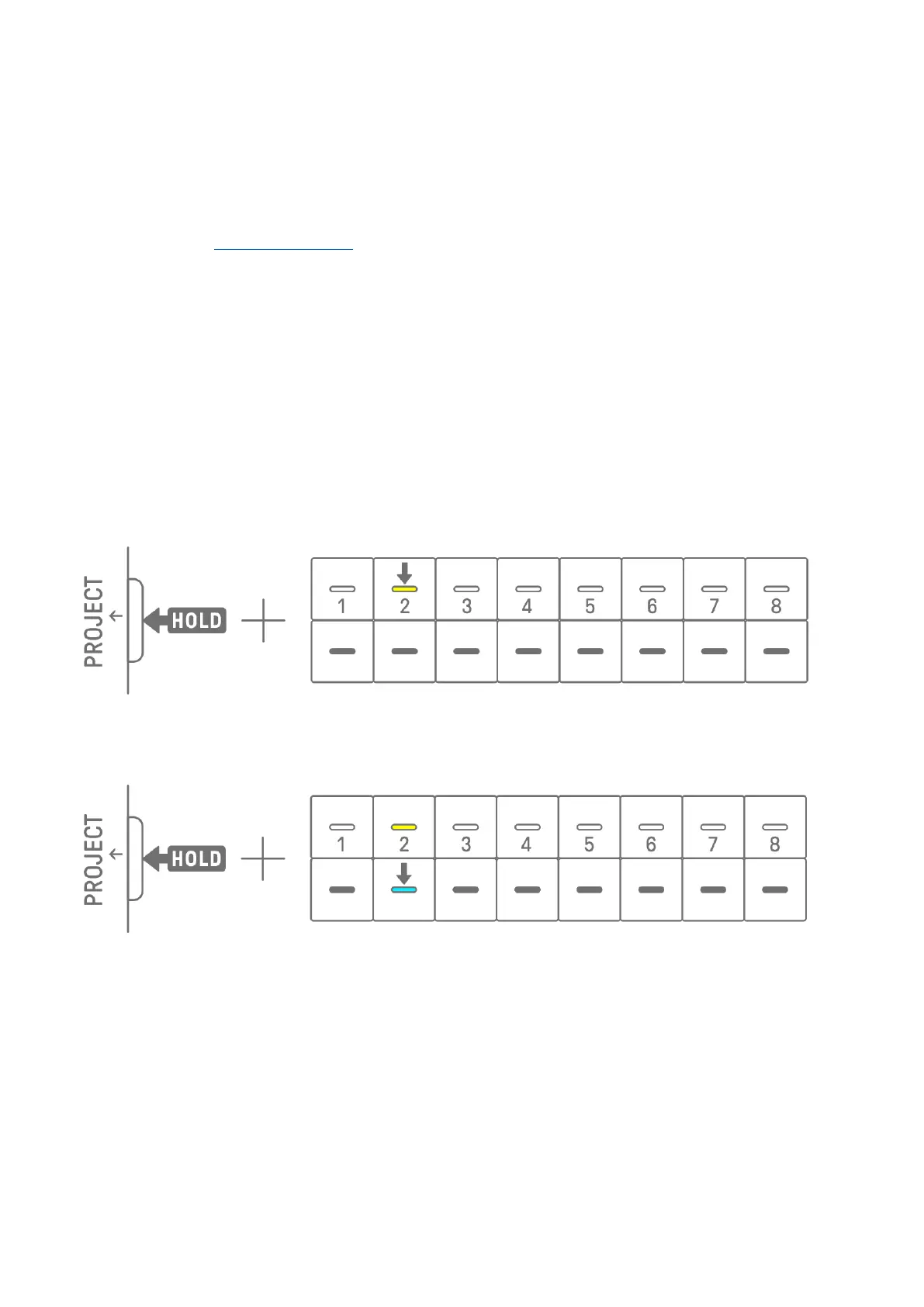
You can temporarily save a project at any time and restore its state later. To temporarily save
a project, hold down the [PROJECT↑] button and press the Drum key (lit in yellow) for the
currently selected project. At this time, the target Drum key in the lower row will light in cyan
blue.
To restore a temporarily saved project, hold down the [PROJECT↑] button and press the
Drum key that is lit in cyan blue.
NOTE
・ Only one project can be temporarily saved.
・ Temporarily saved projects are deleted when you switch projects or turn off the power.
・ If a sampled sound is not saved and another sample is saved to the same Synth key, the
sound that was overwritten will also be deleted from the temporarily saved project. Be
sure to save sampled sounds as necessary.


 To Next Page