SEQTRAK User Guide
14.1.2 Wireless connection (Bluetooth)
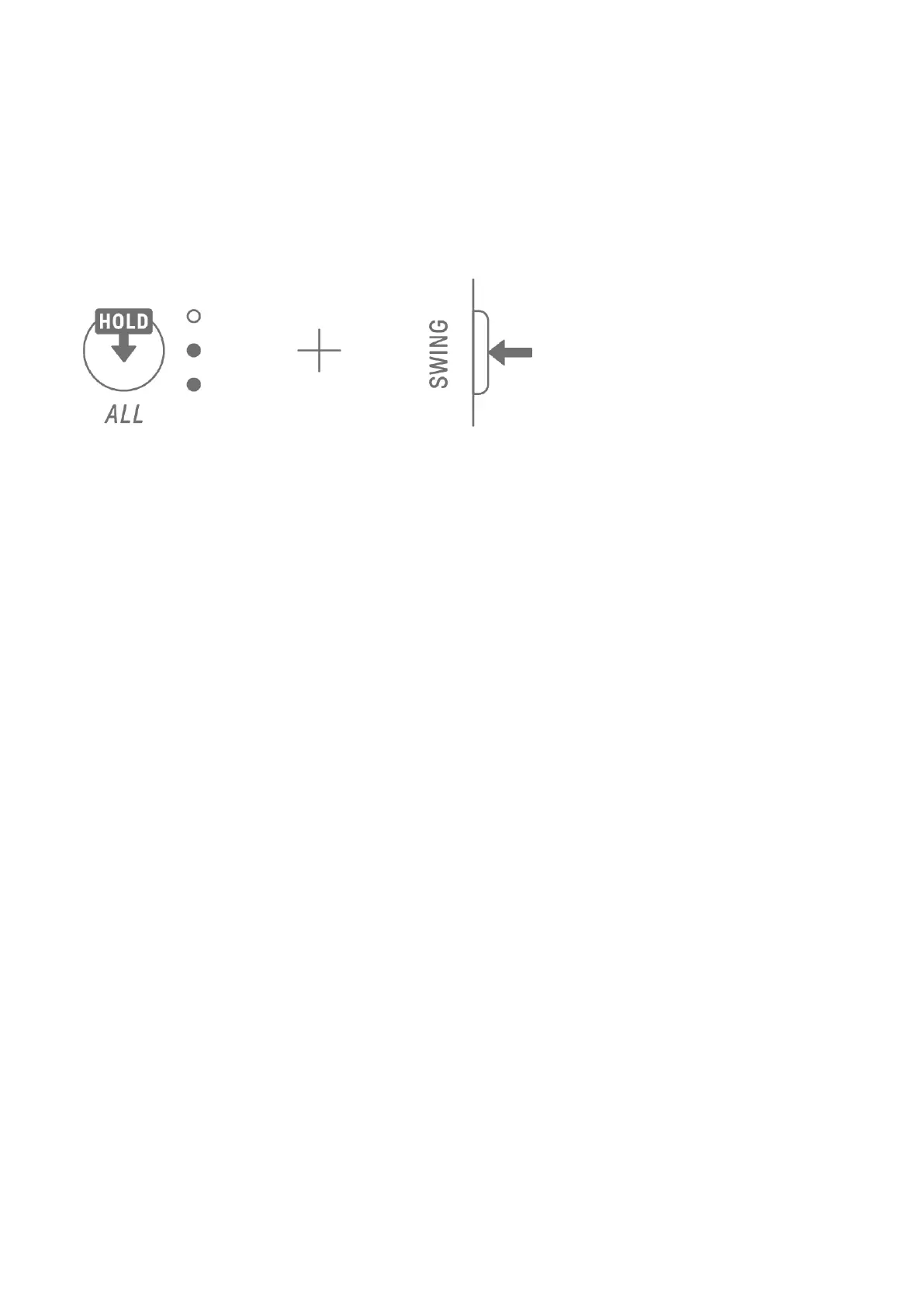
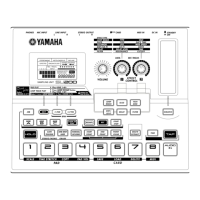
Open [DEVICE CONNECTION] in the SEQTRAK app. Hold down the [ALL] knob on SEQTRAK
and press the [SWING] button. The Global Meter will light in white for 2 seconds and then
SEQTRAK will wait 30 seconds for a Bluetooth connection. From [DEVICE CONNECTION] in
the SEQTRAK app, select [SEQTRAK_6 alphanumeric characters specific to the device] to
complete the connection.
NOTE
・ Hold down the [ALL] knob and press the [SWING] button to check the connection status
with the device. If there is a Bluetooth connection with the device, the Global Meter will
light in cyan blue for 2 seconds.
14.1.3 Wireless connection (Wi-Fi)
After making a Bluetooth connection, the SEQTRAK app has some functions that require a
Wi-Fi connection (such as the [PROJECT/SOUND MANAGER] content management
function). When a Wi-Fi connection is required, the SEQTRAK app will display a connection
setup screen.
There are two modes: direct connection between SEQTRAK and the device, and connection
between SEQTRAK and the device via an external access point. Select the appropriate mode
according to your network environment and then follow the onscreen instructions in the
SEQTRAK app to make a Wi-Fi connection.
NOTE
・ SEQTRAK supports the 2.4 GHz band.


 To Next Page