4
Basic Operations
- 4.11
History Management
29
4
Touch the "History " icon in the "Home" screen.
Touch the "Left
" and "Right " icons to switch between each "History" screen.
Inspection Results Screen Inspection History Screen
Error History Screen Operation History Screen
Calibration Results Screen
Except for the error history, the histories can be stored in USB memory.
Refer to "
5.2. Storing the Results and the History
"
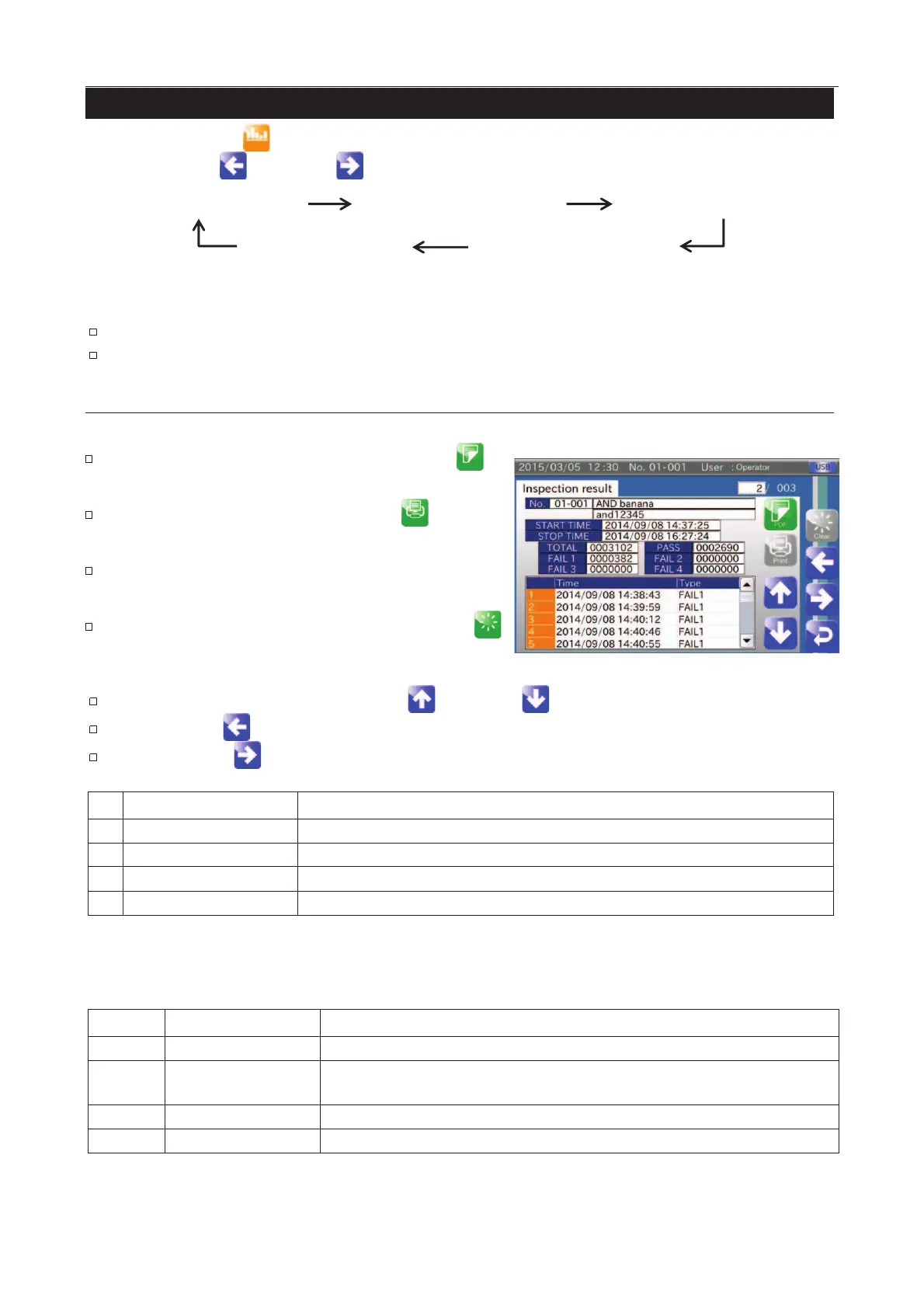
Inspection Results Screen
The screen can display a maximum of the last 100 items of the inspection results.
When connecting the USB flash drive, touch the "PDF
icon to store the inspection results.
When connecting the printer, touch the "Print
print the inspection results.
When inputting the Display No., the inspection result is
displayed.
If the "Quality Manager" or higher user touches the "Clear
" icon, all of the inspection results are deleted.
Fig. 331 IInspection Results Screen
The inspection results are switched using the "Up " and "Down " icons.
Touch the "Left " icon to display the "Error history" screen.
Touch the "Right " icon to display the "Inspection history" screen.
Time that the inspection is started.
Time that the inspection is stopped.
Time that a defective product is detected.
Type of defective product detected.
The AD4971 has four ways to detect the defective product.
Table 44 TTypes of Inspection Results
Failure when a defective product is detected.
Failure with the PE sensor
out of range
Failure when a defective product is detected and the PE sensor gives no response.
Failure when two products are detected at the same time.
Failure when the AD-4971 has received a FAIL signal from peripherals.


 To Next Page