Service Manual i2000SR interface module
625798100.APS.5.doc Page 173 of 212
STEPS REFERENCES
8 Place a tube without a barcode
label into a routine input carrier.
When the carrier is routed to the
barcode position, a red beam will be
emitted.
Move the body of the BCR around
its axis to orient it.
The right alignment of the BCR is
obtained when the red laser beam
strikes the center of the tube
cylinder
9 If scan time was not enough to
complete alignment, repeat the
process.
9a
Alternate Method
The following steps can be used to
aid in the alignment by using the
SICK CLV Assistance application.
The CLV Assist software for the 422-0010 scanner
can be obtained from the following SICK website.
http://www.sick.com/home/factory/downloads/dow
nloads_auto_ident/en.html
NOTE:
Web sites change over time and in the future the
above location may change. As SICK is an
established vendor, an alternate location and/or
application can be resourced from their site. If
desired, contact your local Accelerator APS area
support group.
9a.
1
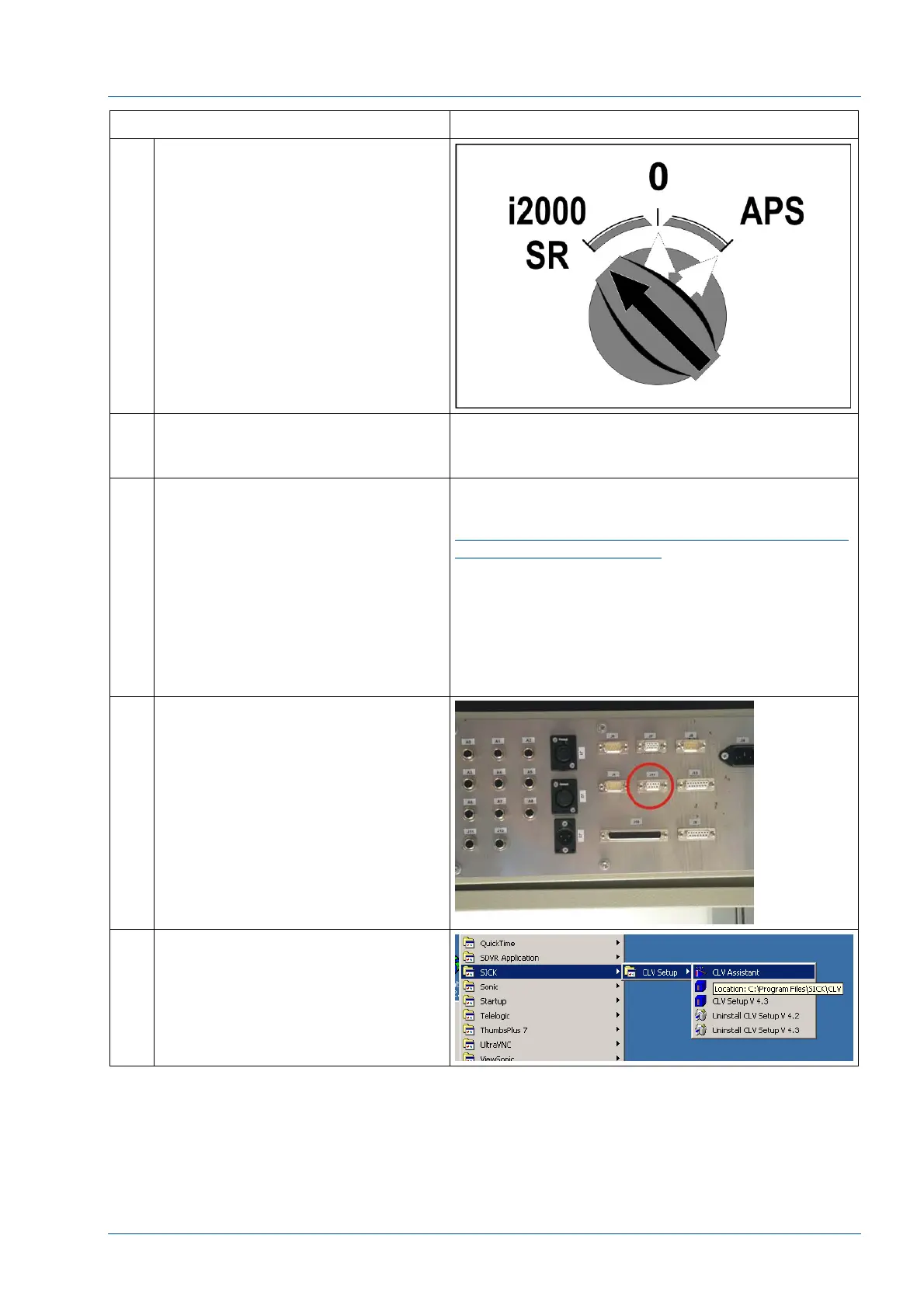
Connect Laptop RS-232 cable to J14
on the electronic box.
Requires a PC running BARCODE
SICK SCANNER CLV 422-0010
software and a standard serial null
modem cable connected between
PC serial port and J14 on top of the
electrical box.
During the procedure, follow
software instructions
9a.
2
At laptop open SICK CLV Assistant
software.
NOTE:
Do not open the CLV Setup V 4.X
application


 To Next Page