Touch Screen Devices
Telligence
7PM000224A / 10 August 2022 / Ver. H
Touch Screen Tab Icons
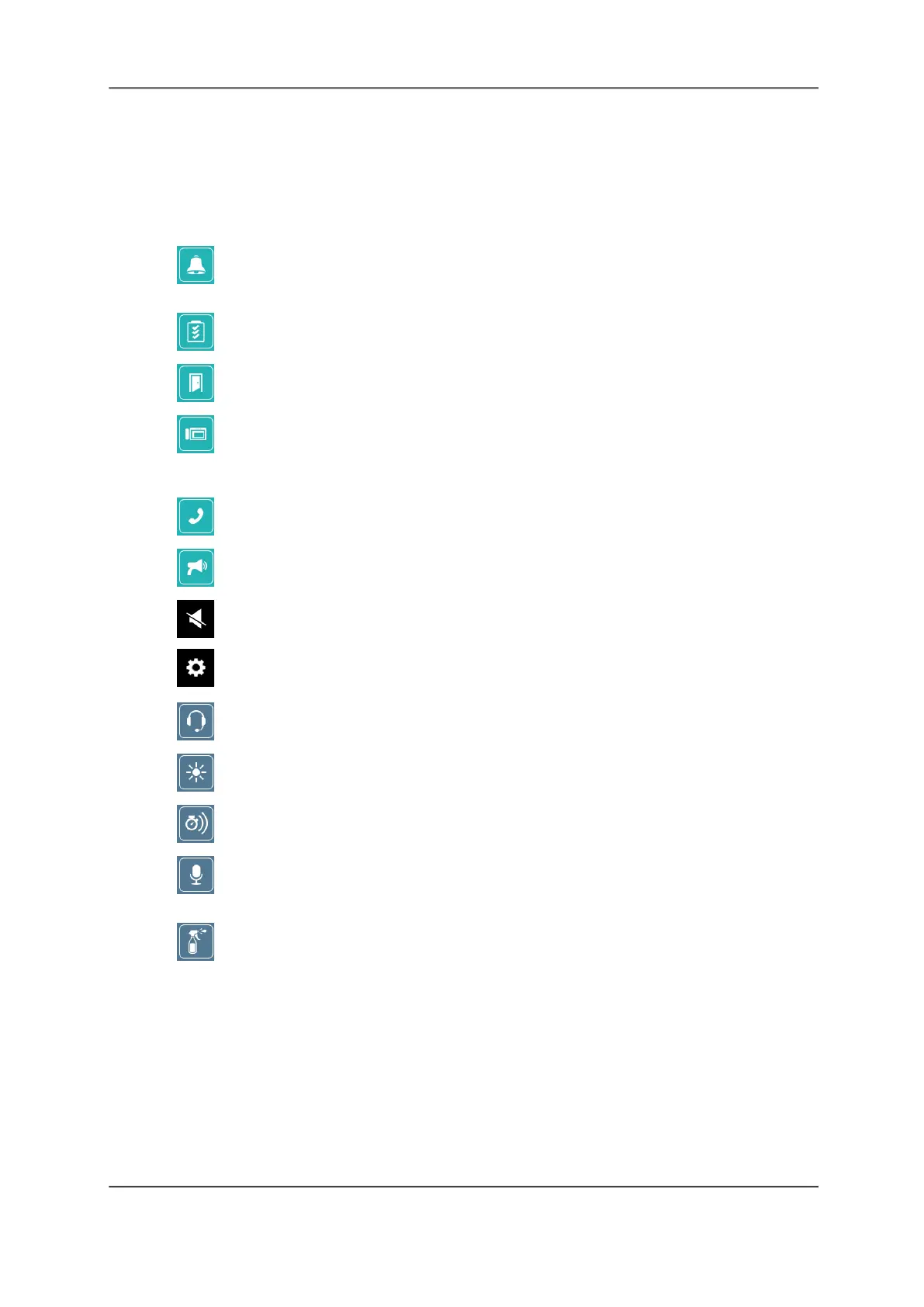
To change the screens displayed on the staff consoles or annunciators, tap the tab icon. Tab
icons display continuously on the left side of the display screen.
Depending on your system configuration, some of the icons shown below may not be
available.
Alert List: Displays a prioritized list of alerts from patient devices and other staff
consoles and annunciators.
Task List: Displays a list of tasks for a monitored duty area.
Room List: Displays a list of rooms covered by this device.
Console: Displays a list of alerts from the covered area, or shared alerts from other staff
consoles and annunciators. From this screen, you can also switch between Daytime and
Nighttime modes.
Phone: Displays a keypad for making calls.
Page: Displays the screen to broadcast pages to duty areas, nursing units, or staff levels.
Tone Silence: Silence or enable all alert tones.
Settings: Access to console-specific settings.
Speakerphone/Headset: Switch between the speakerphone and headset.
Screen Brightness: Adjust the screen brightness to suit your surroundings.
Alert Tone Silence Time: Set the time when alarms will sound after being silenced.
Enhanced Audio Configuration: Configure the audio to automatically activate when
audio tolerances fall below predefined levels.
Clean Screen: Place the device in Cleaning mode to deactivate the touch screen while
cleaning it.



 To Next Page