Touch Screen Devices
Telligence
16PM000224A / 10 August 2022 / Ver. H
Edit a task
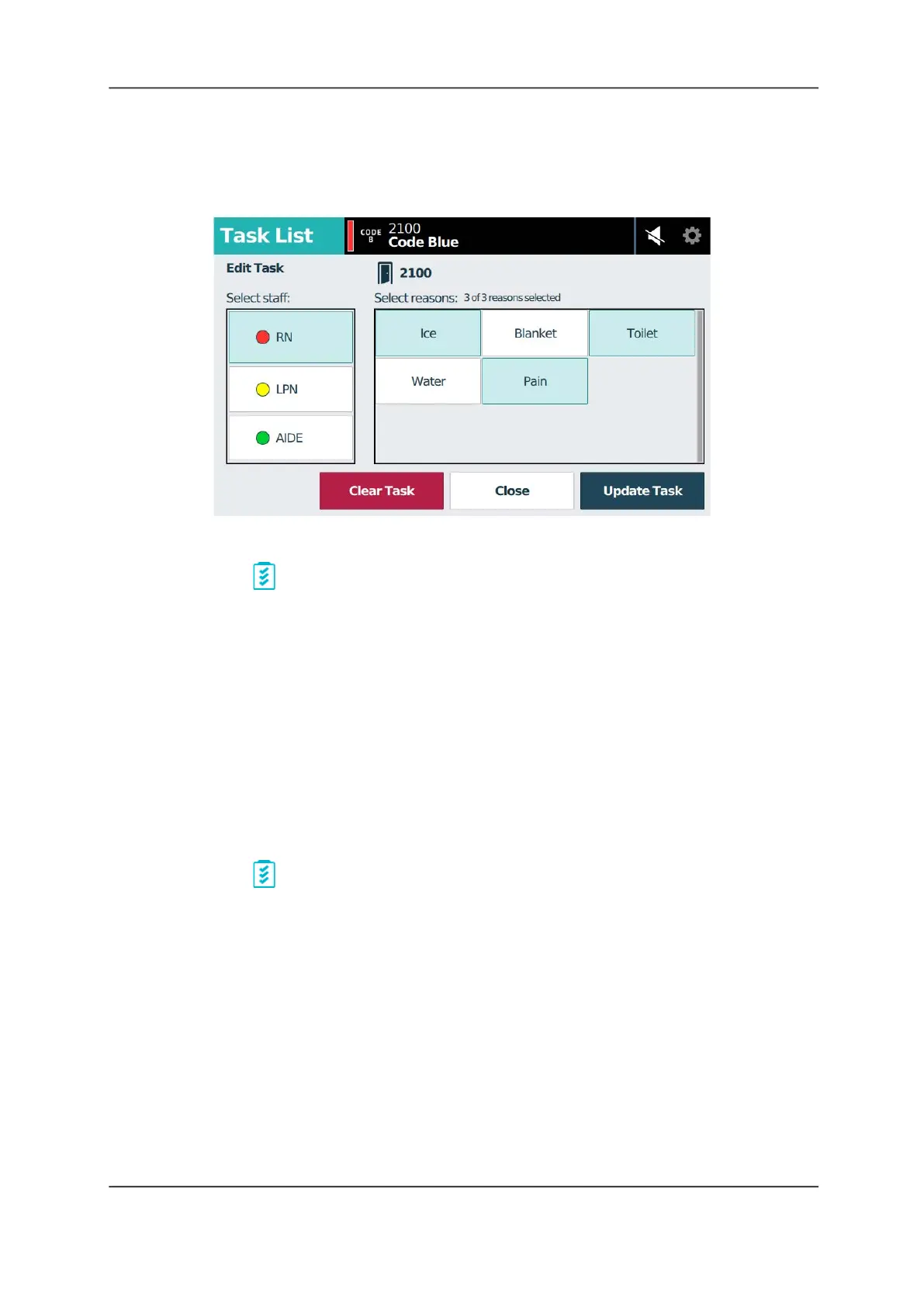
You can edit an existing task by selecting it from the Task List.
Figure 19: Edit Task Screen
To edit a task:
1. Tap the Task tab.
2. Tap the task in the Task list to select it.
3. Tap the appropriate staff or reasons buttons to add or remove staff and/or reasons.
4. Tap Update Task to save your changes, or Close to return to the Task List without saving
changes.
Clear a Task
Tasks can be cleared by tapping the Clear Task button on the console, or by registering
presence or pressing a Cancel button in the room where the call originated. Clearing a task
clears it from the task list and corridor and zone lights stop flashing.
Note: For tasks to clear automatically, you must enable presence detection at your facility.
To clear a task:
1. Tap the Task tab.
2. Tap a task in the Task list to select it.
3. In the Edit Task screen, tap Clear Task, and then tap Yes to confirm.
The Room List Screen
The Room List screen lists all the rooms and beds currently displayed on the staff console or
annunciator. From this screen you can place calls, create tasks, change default priorities, and
swing rooms.
Note: Depending on your system configuration, this screen may not be available.



 To Next Page