Touch Screen Devices
Telligence
20PM000224A / 10 August 2022 / Ver. H
Swing a Room
Rooms that have been configured with an alternate duty area or ward can swing from one area
to another as needed. The room must be enabled for swinging by the installer.
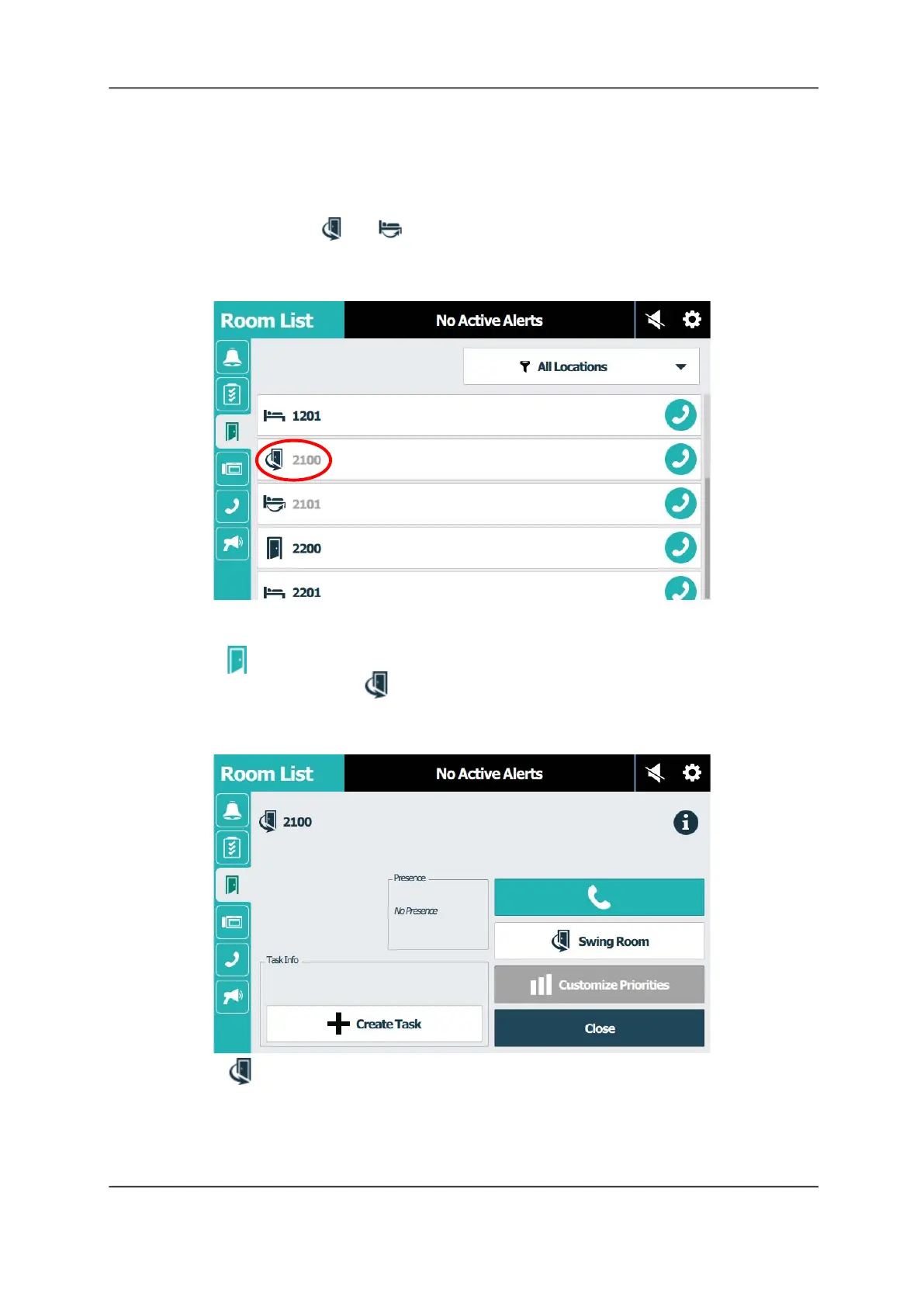
Rooms, and their associated beds, that are configured for swinging appear in the Room List
with the swing icons ( and ). The swing room and bed numbers appear gray in the list to
indicate that they are available for swinging from the other duty area. A Swing button toggles
the room and its associated beds between its default duty area and its alternate duty area.
Figure 25: Room List Screen
To swing a room:
1. Tap Room List.
2. To select a room, tap its Room icon.
The Room screen displays.
Figure 26: Room List Screen
3. Tap Swing Room.



 To Next Page