Touch Screen Devices
Telligence
10PM000224A / 10 August 2022 / Ver. H
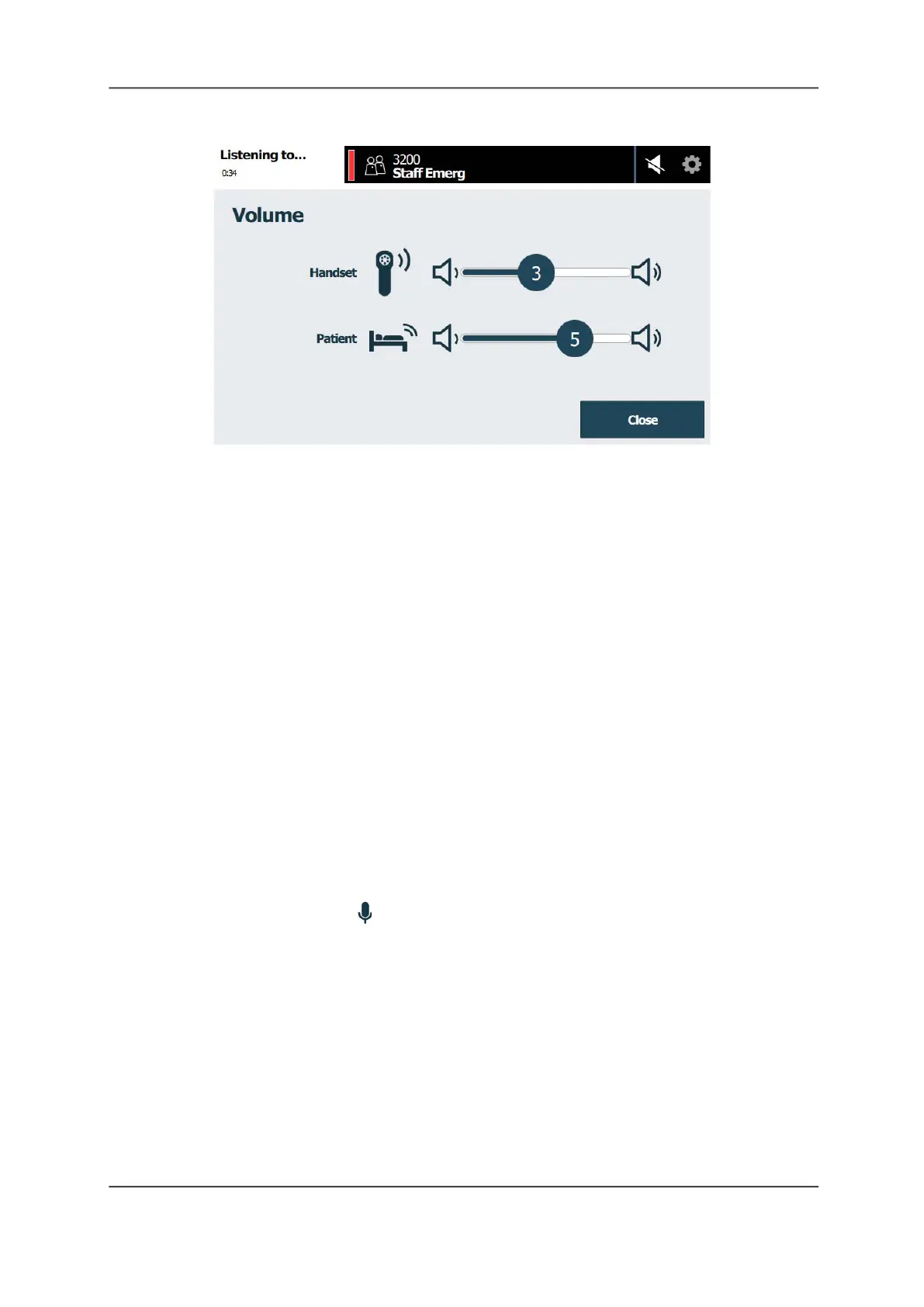
Figure 10: Volume Screen
2. Do the following:
• Touch and drag the Speakerphone or Handset slider to adjust the console
speakerphone or handset volume.
• Touch and drag the Patient slider to adjust the patient’s speakerphone volume.
3. When done, tap Close.
The volume settings remain at the selected levels until you change them again.
Note: If you continue to have trouble hearing the patient after adjusting the call volume,
increase the microphone’s sensitivity by switching to Enhanced Audio mode.
Enhanced Audio/Auto Enhanced Audio
Enhanced Audio and Auto Enhanced Audio modes improve the sensitivity of the caller’s
microphone making it easier for you to hear and understand the caller in noisy environments.
Enhanced Audio Mode
In Enhanced Audio mode both parties can talk to each other, but not at the same time; the
communication is one direction at a time. Touching and holding the Enhanced Audio button
lets you talk to the patient. Releasing the button lets you listen to the patient.
Note: When in Enhanced Audio mode the Mute feature is no longer available.
To switch to Enhanced Audio mode during a call:
1. On the Call screen, tap Enhanced Audio. The Enhanced Audio button changes to Press
To Talk/Release To Listen.



 To Next Page