Touch Screen Devices
Telligence
19PM000224A / 10 August 2022 / Ver. H
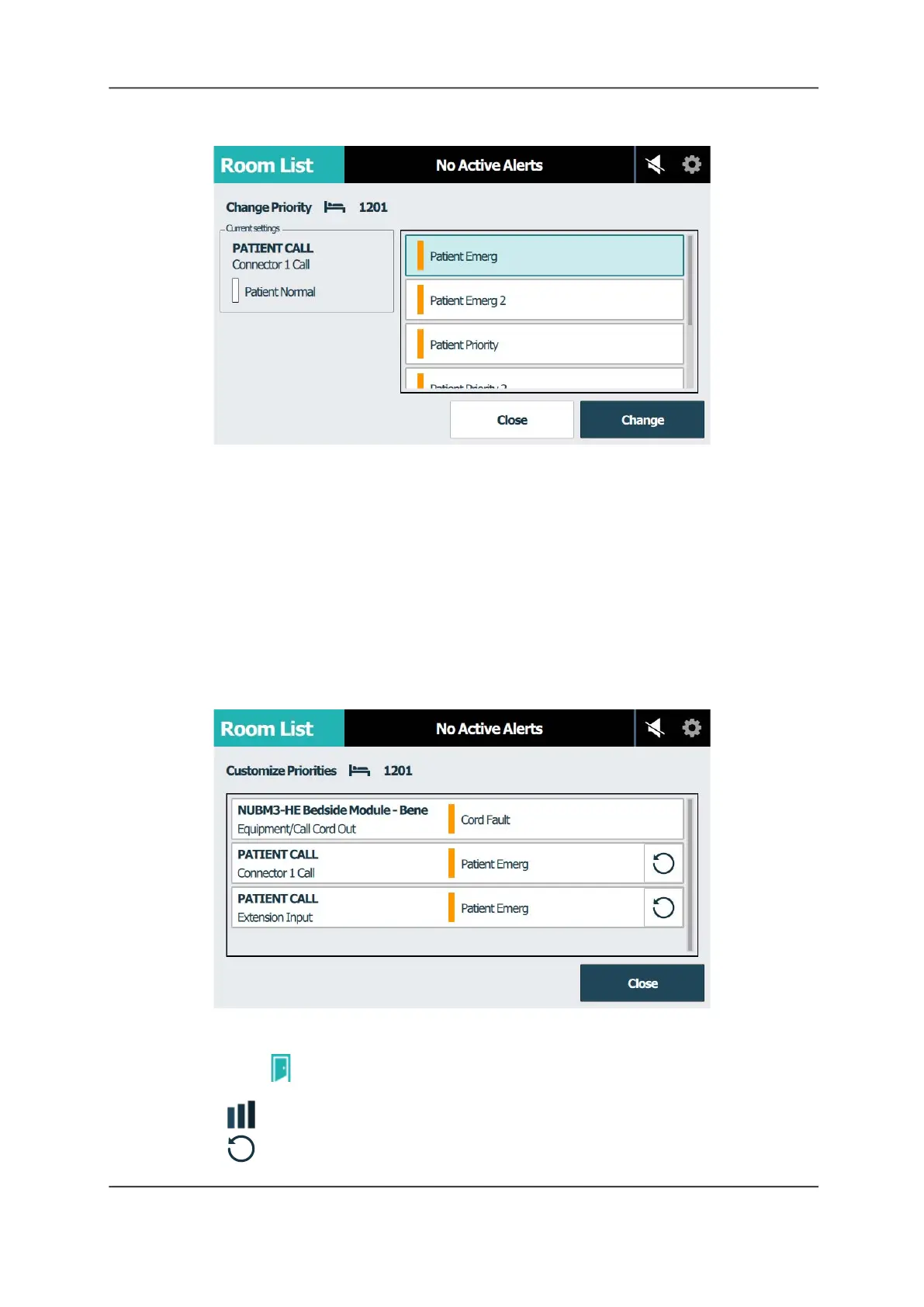
Figure 23: Room List Screen- Change Priority
5. Tap the new call priority that you want to assign.
Note: When you change the event priority for a device, all devices at that location (room)
that are configured with the same event priority will change as well. For example, if you
change Patient Normal for the selected device to Patient Priority, then all devices at the
same location configured with Patient Normal will be changed to Patient Priority.
6. Tap Change.
• To cancel and discard changes, tap Close.
Reset a Call Priority to its Default
You can change a call priority back to its default priority.
Figure 24: Room List Screen- Reset Priority
To reset a call priority to its default:
1. Select the Room List tab, and then select the room or bed where the priority was
changed.
2. Tap Customize Priorities.
3. Tap Reset next to the customized device in the Customize Priorities list.



 To Next Page