Touch Screen Devices
Telligence
17PM000224A / 10 August 2022 / Ver. H
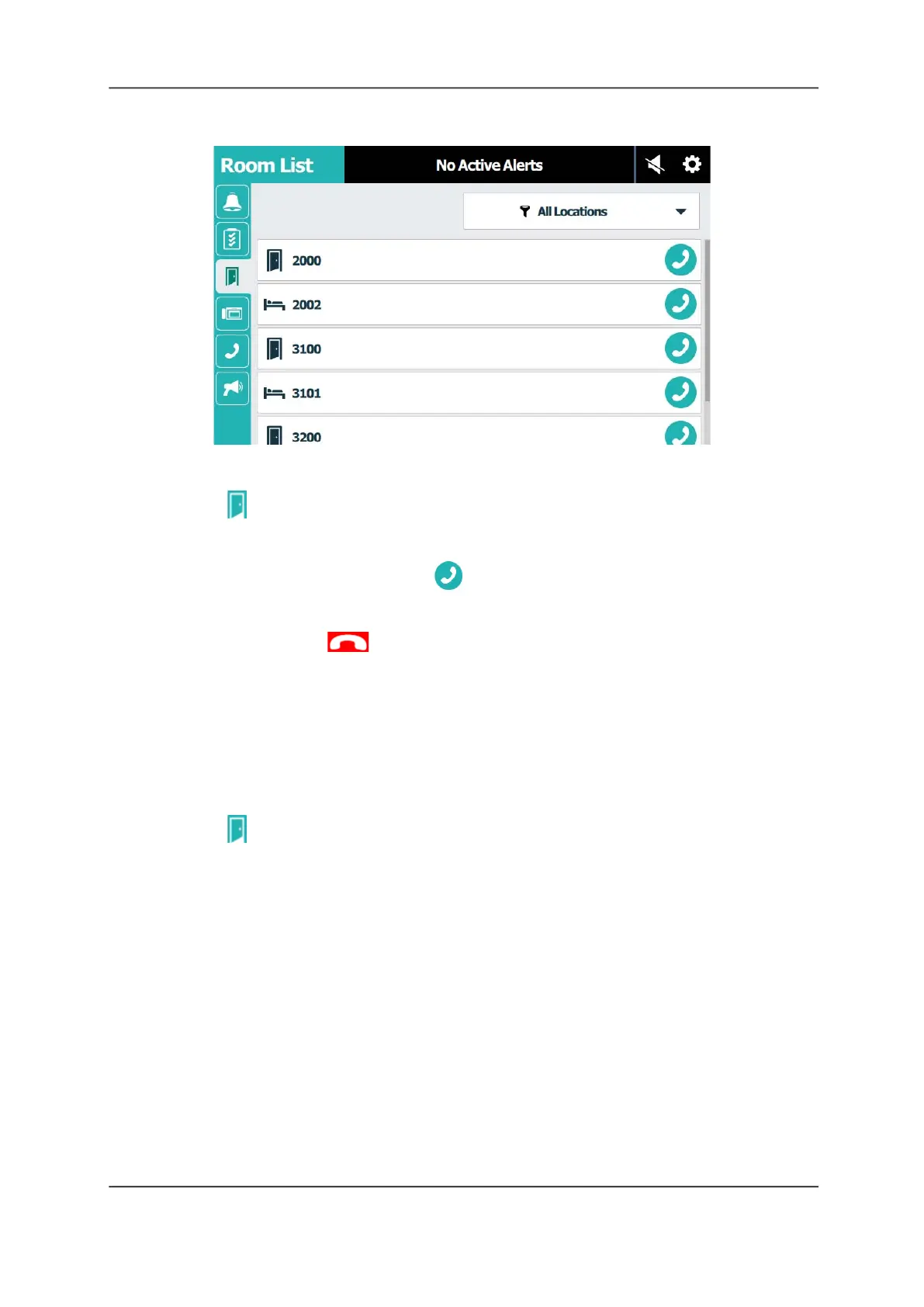
Figure 20: Room List Screen
To place a call from the Room List:
1. Tap Room List.
Note: You can filter the list by tapping the Locations drop-down menu, and then selecting
to display by: All Locations, Covered Rooms, Nursing Units, or Duty Areas.
2. Scroll though the list, and then tap Connect for the room, bed, staff console, or
annunciator that you want to call.
3. Lift the handset or use the speakerphone and begin talking.
4. When finished, tap End Call or return the handset to the cradle.
Customize Priorities
Call devices such as handsets have the same call priority as the bedside modules that they
connect to. However, you may assign different call priorities to the call devices so that they
annunciate differently at the console.
To customize a call priority:
1. Tap Room List.
2. Tap a room or bed on the list to change its priority. The Room screen displays, as shown in
the following figure.



 To Next Page