Touch Screen Devices
Telligence
35PM000224A / 10 August 2022 / Ver. H
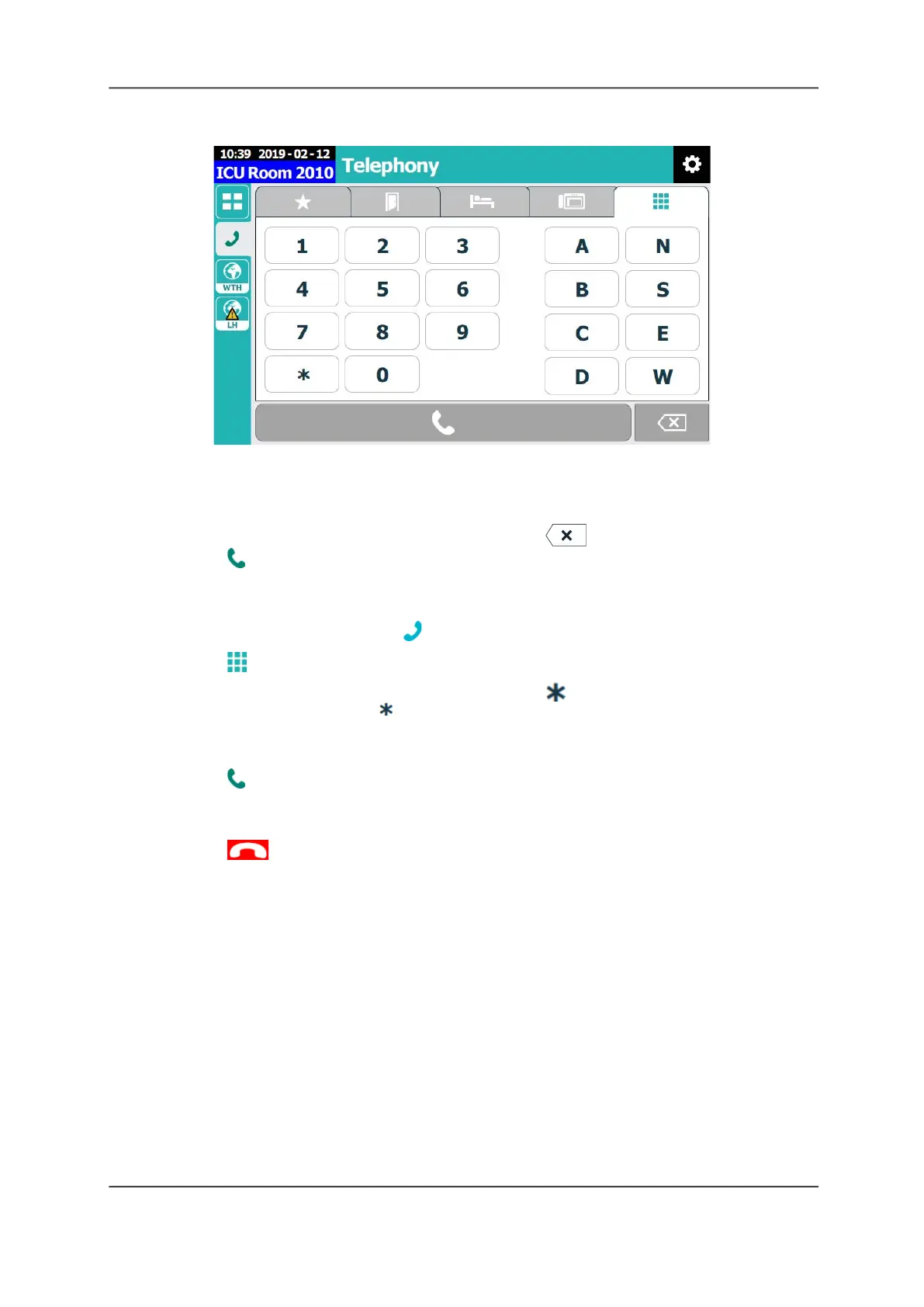
3. Enter the numbers and/or characters on the dial pad. The number string displays next to the
Call button.
If your facility uses characters as identifiers in its room or bed extensions, enter A, B, C, D
(e.g., bed 1030A) or N, S, E, W for North, South, East, or West (e.g., room 1020W).
If you make a mistake while entering a number, tap Backspace to clear the numbers.
4. Tap Call to place the call.
To place a call to a Myco or Innovaphone wireless phone:
1. From a Nurse Call screen, tap Phone.
2. Tap Dial Pad.
3. Enter the dial extension number(s), followed by the , and then the wireless phone
extension number (e.g., 32 5871).
Check with your system administrator if you do not know the dial extension number for your
facility.
4. Tap Call to place the call.
To end your call:
Tap when you are ready to end your call.
Active Call Screen
When you are on an active call, the screen automatically displays who you are talking to and
provides you with additional buttons to control the call.



 To Next Page