Touch Screen Devices
Telligence
38PM000224A / 10 August 2022 / Ver. H
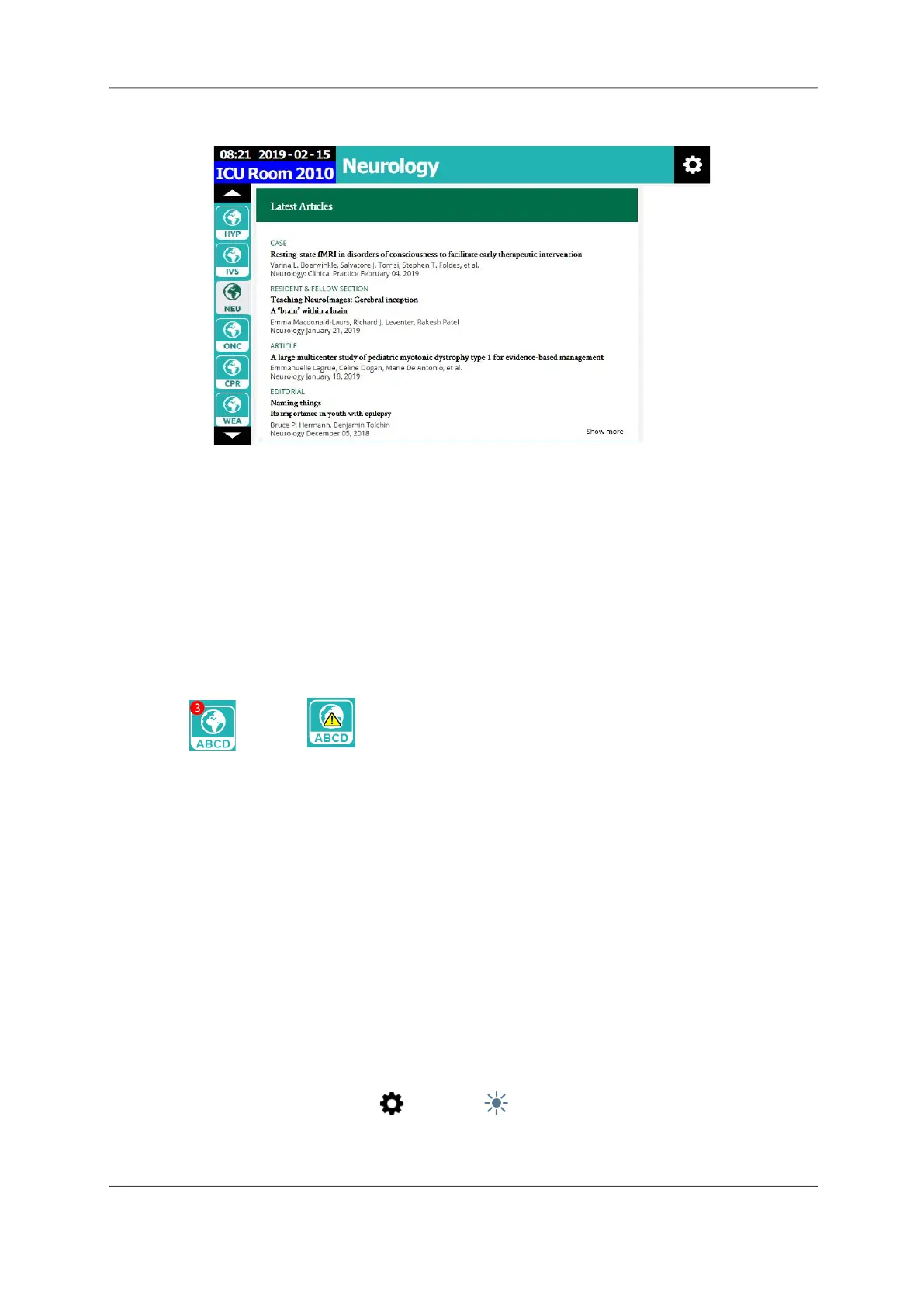
To access apps:
1. From a main screen, swipe up or down on the Apps list to access the apps.
2. Tap the icon for the app you want to launch.
Note: The apps you see here are for illustration purposes only. Your apps selections will differ.
App Badges and Error Notification
The apps icons that display on the screen may include a badge number on the icon. This
indicates that the application has sent a number of notifications that may require your attention.
Apps displaying a warning triangle indicate that the application has lost connectivity with the
Telligence system.
To view the notifications:
Tap the App icon to display the application, and then follow any instructions displayed on
the application.
TelliConnect Settings
You can configure the TelliConnect station settings, enter Clean mode, and display license and
hardware information from the Settings screen.
Screen Brightness
Adjust the screen brightness to suit your surroundings or personal preference.
To adjust the screen’s brightness:
1. From the main screen, tap Settings > Screen Brightness.
2. Touch and drag the Brightness slider to set a custom brightness level.
App Badge App Warning



 To Next Page