92 BD High Throughput Sampler User’s Guide
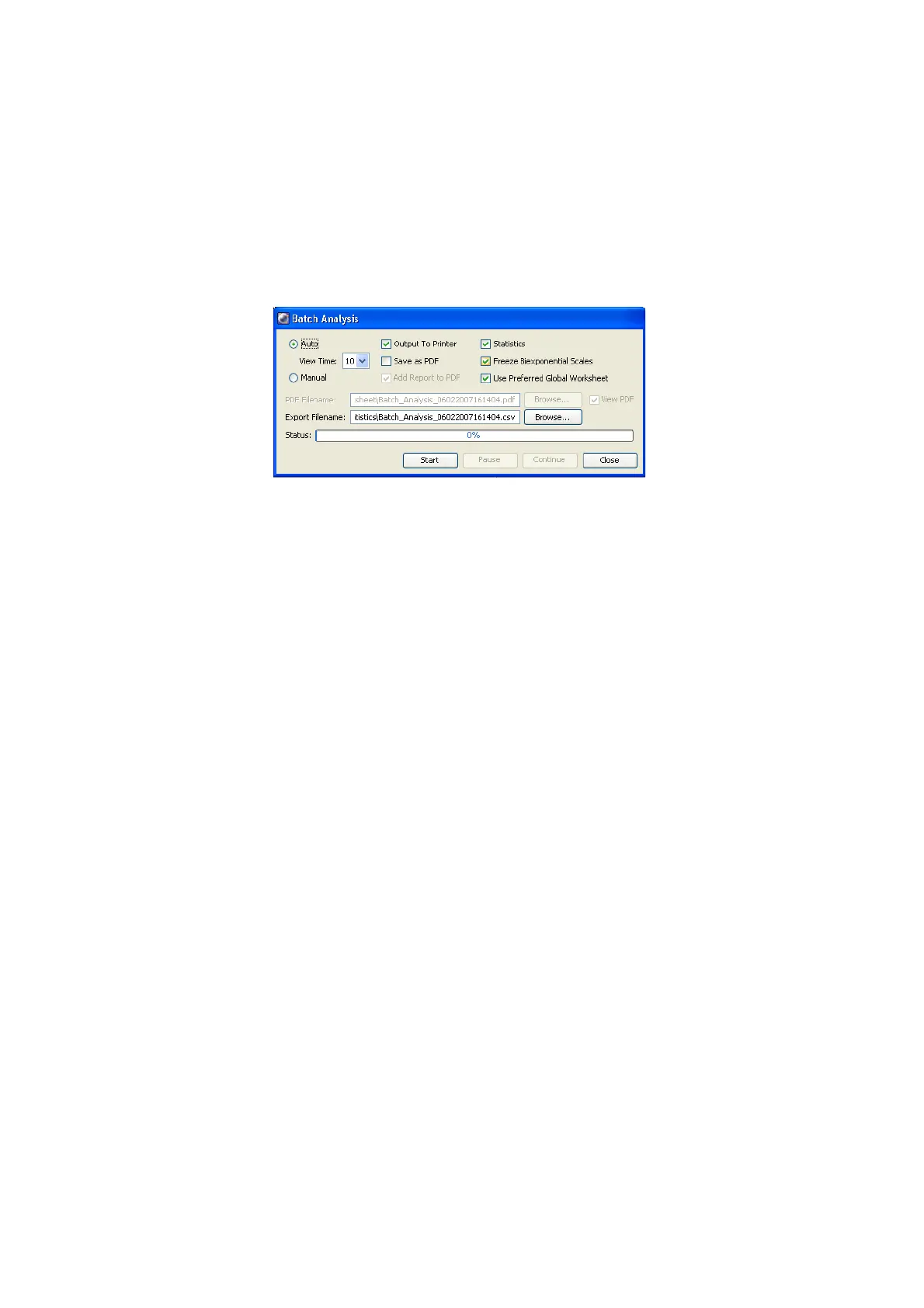
The Batch Analysis dialog appears.
6 Select the type of analysis to be done.
- Select Auto to analyze all files with no user intervention. Data is
displayed in the global worksheet for the amount of time specified in
the View Time field (in seconds) before analysis of the next well begins.
Make adjustments to your analysis during this pause or let analysis
proceed automatically. Choose zero only if you want to process the
batch without reviewing the data between wells.
- Select Manual to pause the batch after data is loaded for each well.
Click the Continue button to proceed with analysis of the next well.
The View Time field is disabled when you select Manual analysis.
- You can print worksheets or export statistics before data for the next
well is loaded.
Output to Printer—Print a copy of the analysis for each well.
Statistics—Export statistics to a single CSV file for the batch. The
resulting file can be opened with a spreadsheet application such as
Microsoft Excel. Depending on the auto export format selected in User
Preferences, each well adds a new row or column of results to the file.
For each population in the statistics view, the software adds parameter
statistics in the order in which they appear in the view. A new header
row is added if you add or delete statistics or parameters during batch
analysis. You cannot add, remove, or edit statistics views while the
batch is running.








 To Next Page