59
Chapter 7 - BITS Parameters
Pattern
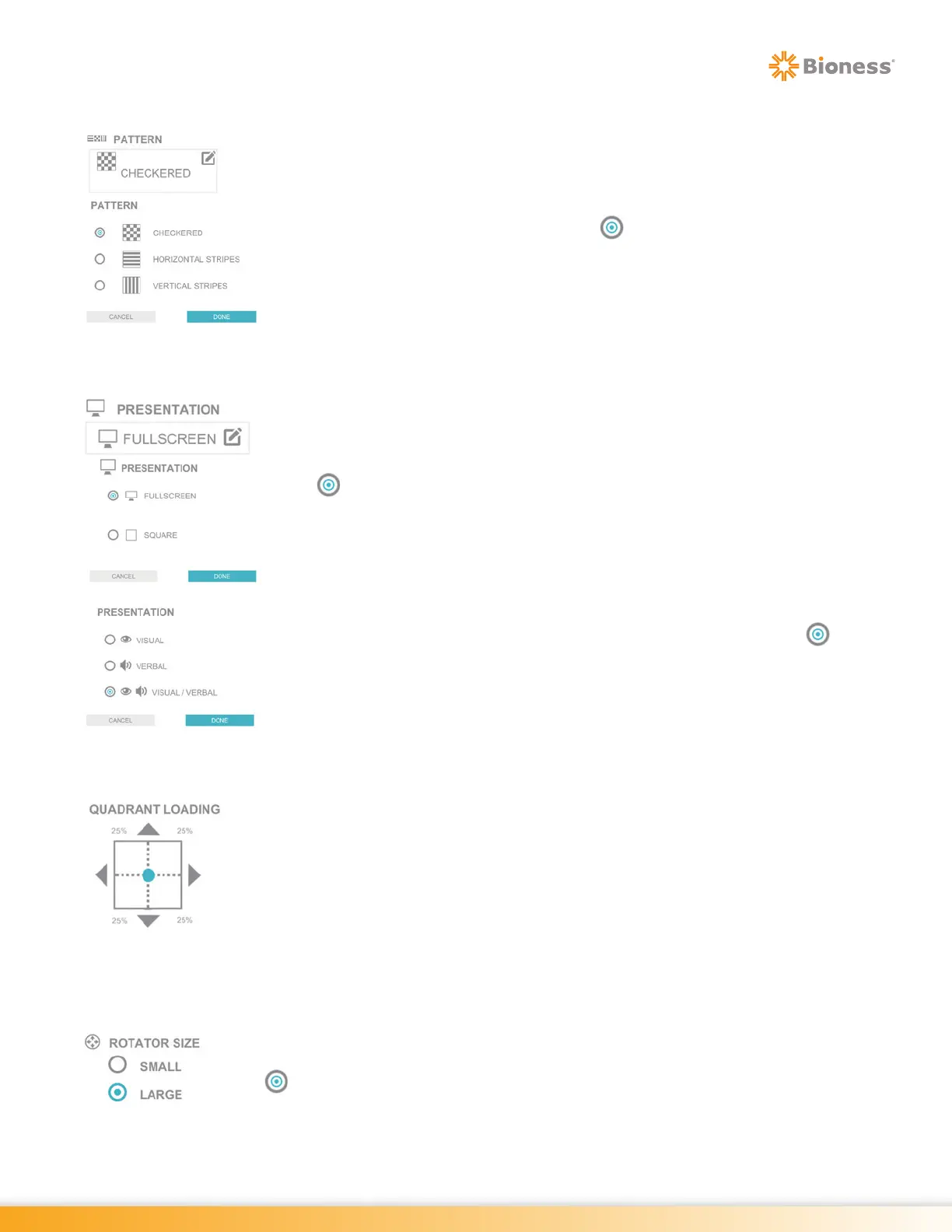
The Pattern Parameter in Optokinetic Static and Optokinetic Dynamic Therapy
Category controls the type of pattern available for optokinetic stimulation. Options
include checkered, horizontal stripes and vertical stripes. To change the setting,
press the Pattern Parameter Icon. The Pattern pop up window will open displaying
the pattern options. Press the radio button appropriate box for next to the
desired option to enable it. Press the Done Button to close the window.
Presentation
For Visual Pursuit Programs, the Presentation Parameter controls the way that
the program is displayed during the therapy session. The Presentation Parameter
options are Fullscreen and Square. To change the setting, press the Movement
Parameter Icon. A pop up window will open displaying the options. Press the radio
button next to the desired option to enable it. Press the Done Button to close
the window.
For Cognitive Programs, the Presentation Parameter determines how the target
is presented during the therapy session. The Presentation Parameter options are:
Visual, Verbal and Visual/Verbal.
To change this setting, press the Presentation Parameter Icon. The Presentation
pop up window will open displaying the options. Press the radio button next
to the desired option to enable it. Press the Done Button to close the window.
Quadrant Loading
The Quadrant Loading Parameter allows the user to bias the appearance of the
target stimuli toward specific quadrants in the visual field. By default, the target
stimuli appear within the visual field with equal probability. Adjusting the Quadrant
Loading Parameter changes the probability with which the stimuli appear within
each quadrant of the visual field. The target stimuli can be equally displayed
throughout the display screen or focused in a specific quadrant.
To change the Quadrant Loading Parameter drag the blue indicator to the preferred
position or press any of the 4 gray triangles.
Rotator Size
The Rotator Size Parameter controls the size of the rotator that will appear on the
display screen. The parameter options are: Small or Large. Press the radio button
next to the desired option to enable it.



 To Next Page