58
Clinician's Guide
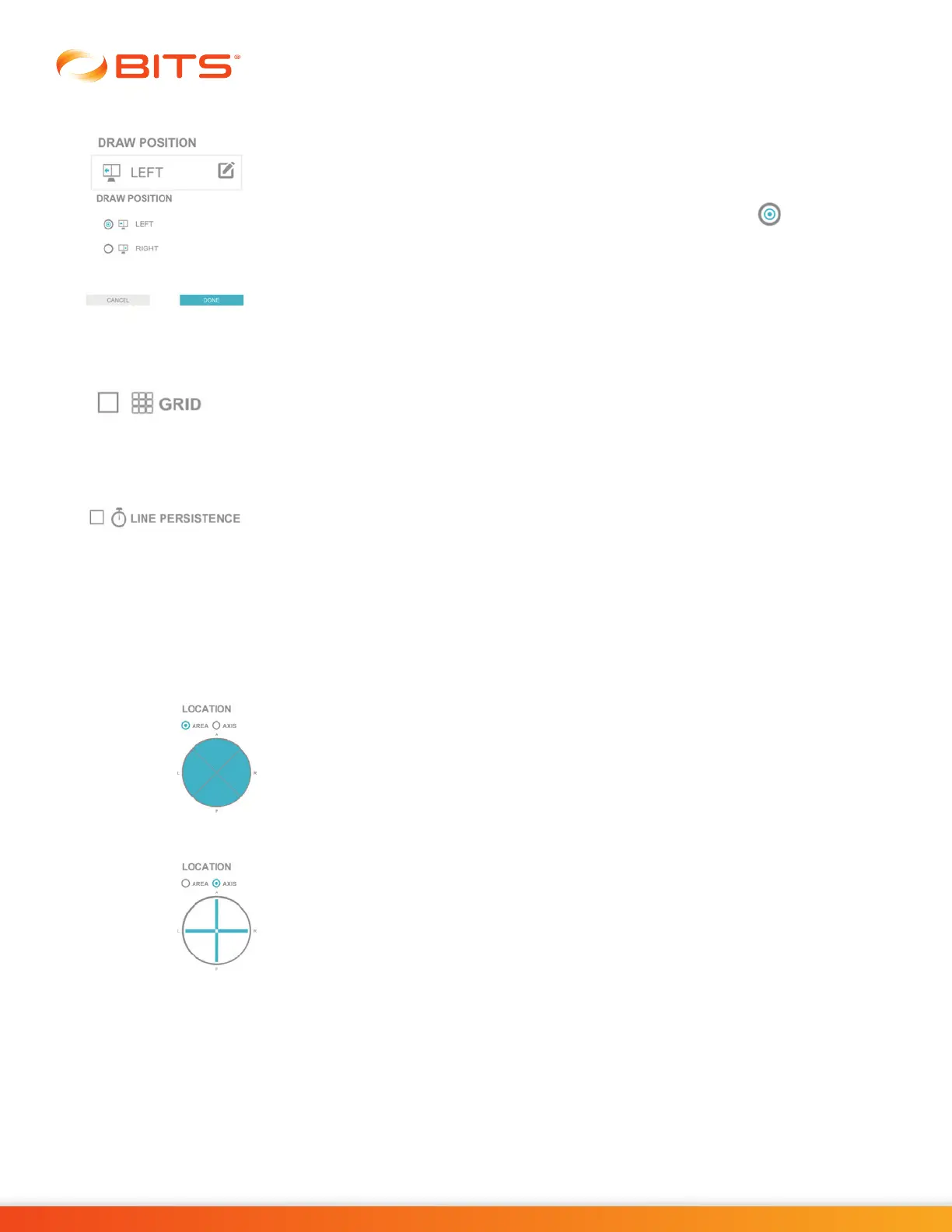
Draw Position
The Draw Position Parameter controls which side of the display screen the user
will draw the pattern on. The default setting is left.
To change this setting, press the Draw Position Parameter Icon. A pop up window
will open displaying Left or Right options. Press the radio button next to the
desired option to enable it. Press the Done Button to close the window.
Grid
When enabled the Grid Parameter places a grid on the display screen during the
therapy program session. To turn the Grid Parameter on press the white box. The
box will turn blue and a checkmark will appear.
Line Persistence
The Line Persistence Parameter controls the appearance of the center line separating
the left and right hand sides of the display screen.
Location
The Location Parameter allows the user to bias the appearance of the target stimuli within an Area or Axis
and is related to specific movement in the anterior, posterior and lateral directions. Adjusting the Area or
Axis Parameter changes the where the stimuli appear.
Area Parameter bias the appearance of the target stimuli in a 90° pie slice for
anterior, posterior, left and right movements. The target stimuli can be equally
displayed for all directions or focused on a specific direction, such as anterior
movement. To change the Area parameter, select the slice for the area where
stimuli should appear. When the slice is blue, it means stimuli will appear within
the selected area. Conversely, when the slice is white, the stimuli will not appear
in that area.
Axis Parameter limits the target stimuli to appear only within the limited straight-
line axis for anterior, posterior, left and right movements. To adjust stimuli location
to Axis only, click the radio button for Axis and then select the appropriate line for
anterior, posterior, left, right or all axis.



 To Next Page