EasyManua.ls Logo

Canon EOS 600D - Page 155

Canon EOS 600D
328 pages
Print Icon
To Next Page IconTo Next Page
To Previous Page IconTo Previous Page
Loading...
155
3 Taking Video Snapshots
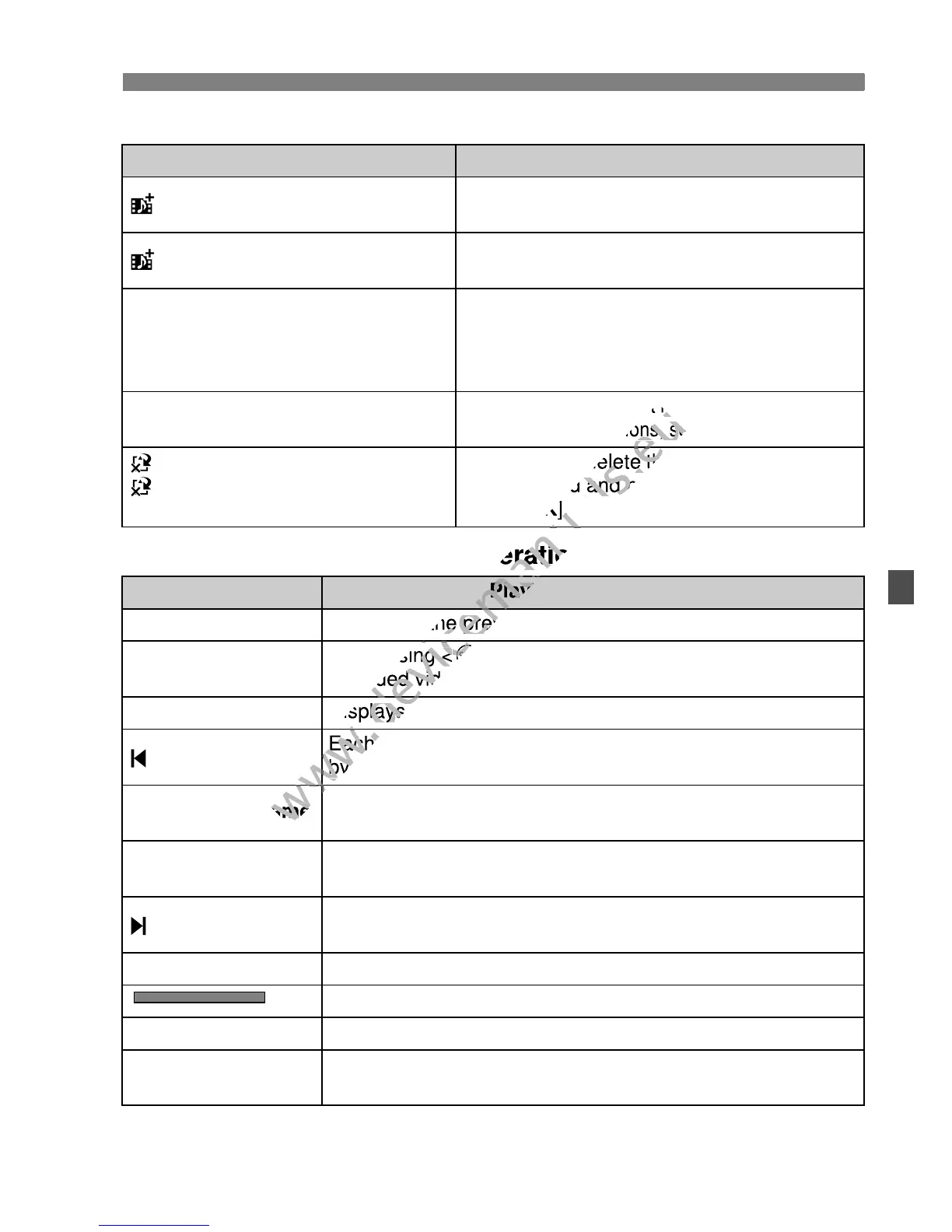
Options in Steps 4 and 5
[Playback video snapshot] Operations
* With [Skip backward/Skip forward], the skipping duration will correspond to the
number of seconds set under [Video snapshot] (approx. 2 sec., 4 sec., or 8 sec.).
Option Description
Save as album (Step 4)
The movie clip will be saved as the video
snapshot album’s first video snapshot.
Add to album (Step 5)
The video snapshot just recorded will be added
to the album recorded immediately before.
W Save as a new album (Step 5)
A new video snapshot album is created and
the movie clip is saved as the first video
snapshot. The new album will be a different
file from the previously recorded album.
1 Playback video snapshot
(Steps 4 and 5)
The video snapshot just recorded will be played.
For playback operations, see the table below.
Do not save to album (Step 4)
Delete without saving to
album (Step 5)
If you want to delete the video snapshot you
just recorded and not save it to the album,
select [OK].
Operation Playback Description
2 Exit Returns to the previous screen.
7 Play
By pressing <0>, you can play or pause the just-
recorded video snapshot.
5 First frame Displays the first scene of the album’s first video snapshot.
Skip backward*
Each time you press <0>, the video snapshot skips back
by a few seconds.
3 Previous frame
Each time you press <0>, a single previous frame is
displayed. If you hold down <0>, it will rewind the movie.
6 Next frame
Each time you press <
0
>, the movie will play frame-by-
frame. If you hold down <
0
>, it will fast forward the movie.
Skip forward*
Each time you press <0>, the video snapshot skips
forward by a few seconds.
4 Last frame Displays the last scene of the album’s last video snapshot.
Playback position
mm’ ss” Playback time (minutes:seconds)
9 Volume
You can adjust the built-in speaker’s (p.210) sound volume
by turning the <6> dial.

www.devicemanuals.eu
[Playback video snapshot] Operations
www.devicemanuals.eu
[Playback video snapshot] Operations
www.devicemanuals.eu
The video snapshot just recorded will be played.
www.devicemanuals.eu
The video snapshot just recorded will be played.
For playback operations, see the table below.
www.devicemanuals.eu
For playback operations, see the table below.
www.devicemanuals.eu
If you want to delete the video snapshot you
www.devicemanuals.eu
If you want to delete the video snapshot you
just recorded and not save it to the album,
www.devicemanuals.eu
just recorded and not save it to the album,
OK
www.devicemanuals.eu
OK
].
www.devicemanuals.eu
].
www.devicemanuals.eu
Playback Description
www.devicemanuals.eu
Playback Description
www.devicemanuals.eu
Returns to the previous screen.
www.devicemanuals.eu
Returns to the previous screen.
www.devicemanuals.eu
By pressing <
www.devicemanuals.eu
By pressing <
0
www.devicemanuals.eu
0
recorded video snapshot.
www.devicemanuals.eu
recorded video snapshot.
www.devicemanuals.eu
Displays the first scene of the album’s first video snapshot.
www.devicemanuals.eu
Displays the first scene of the album’s first video snapshot.
www.devicemanuals.eu
Skip backward*
www.devicemanuals.eu
Skip backward*
www.devicemanuals.eu
Each time you press <
www.devicemanuals.eu
Each time you press <
by a few seconds.
www.devicemanuals.eu
by a few seconds.
www.devicemanuals.eu
Previous frame
www.devicemanuals.eu
Previous frame
www.devicemanuals.eu

Table of Contents

Other manuals for Canon EOS 600D

Related product manuals