C Shooting Information Display
228
About the Highlight Alert
When the shooting information is displayed, any overexposed areas of the
image will blink. To obtain more image detail in the overexposed areas, set
the exposure compensation to a negative amount and shoot again.
About the Histogram
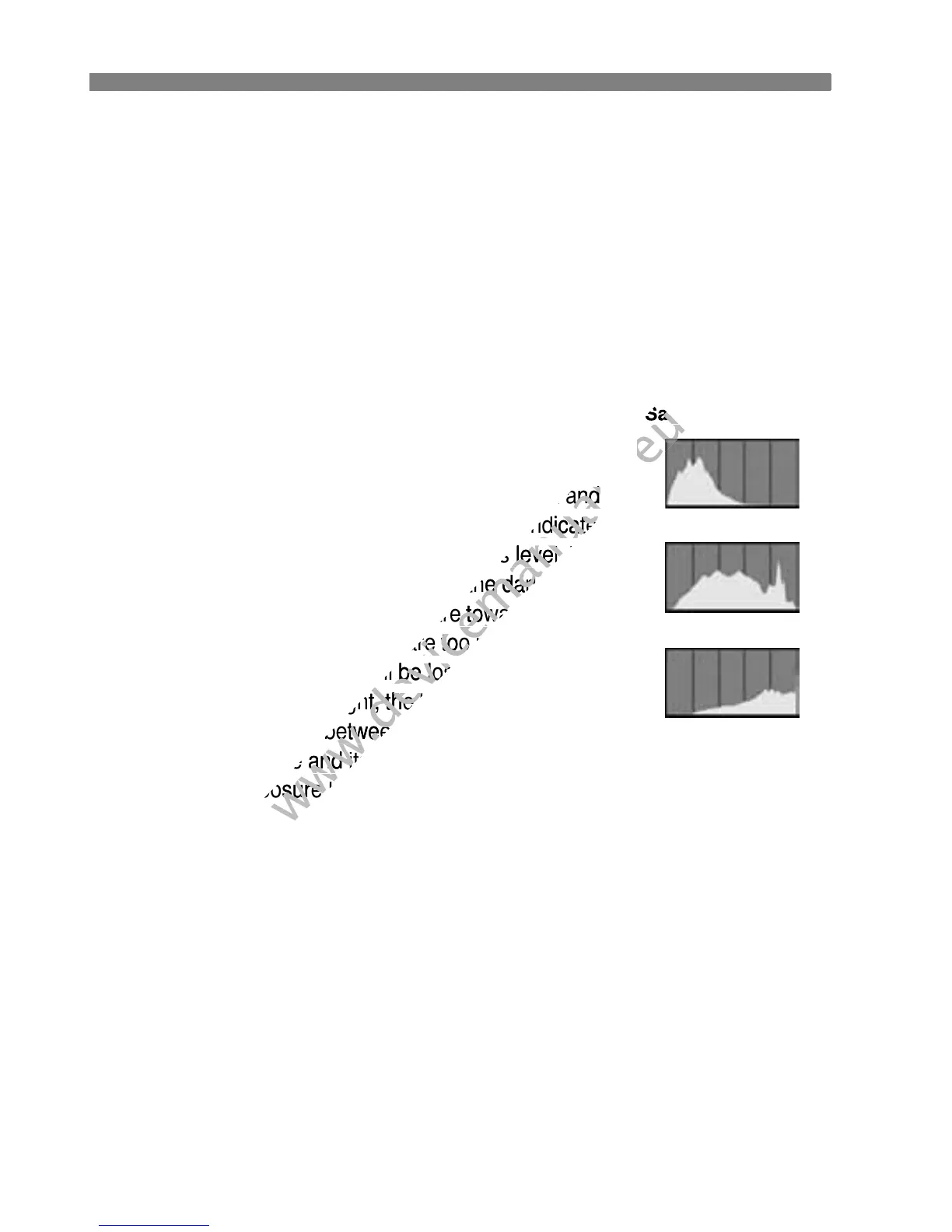
The brightness histogram shows the exposure level distribution and
overall brightness. The RGB histogram is for checking the color
saturation and gradation. The display can be switched with [4
Histogram].
[Brightness] Display
This histogram is a graph showing the distribution of
the image’s brightness level. The horizontal axis
indicates the brightness level (darker on the left and
brighter on the right), while the vertical axis indicates
how many pixels exist for each brightness level. The
more pixels there are toward the left, the darker the
image. And the more pixels there are toward the right,
the brighter the image. If there are too many pixels on
the left, the shadow detail will be lost. And if there are
too many pixels on the right, the highlight detail will be
lost. The gradation in-between will be reproduced. By
checking the image and its brightness histogram, you
can see the exposure level inclination and the overall gradation.
[RGB] Display
This histogram is a graph showing the distribution of each primary color’s
brightness level in the image (RGB or red, green, and blue). The horizontal
axis indicates the color’s brightness level (darker on the left and brighter
on the right), while the vertical axis indicates how many pixels exist for
each color brightness level. The more pixels there are toward the left, the
darker and less prominent the color. And the more pixels there are toward
the right, the brighter and denser the color. If there are too many pixels on
the left, the respective color information will be lacking. And if there are too
many pixels on the right, the color will be too saturated with no detail. By
checking the image’s RGB histogram, you can see the color’s saturation
and gradation condition and white balance inclination.
Sample Histograms
Dark image
Normal brightness
Bright image



 To Next Page