Print quality and color settings
Printing Ofce Documents (Mac OS X)
This topic describes how to print of ce documents based on the following example.
• Document: Of ce document created using word-processing or spreadsheet programs
• Page size: A4 (210.0×297.0 mm)/Letter (8.3 × 1 1.7 in)
• Paper: Sheets ( Cassette )
• Paper type: Plain Paper
• Paper size: A4 (210.0×297.0 mm)/Letter (8.3×1 1.7 in)/Letter (8.3 × 1 1.7 in)
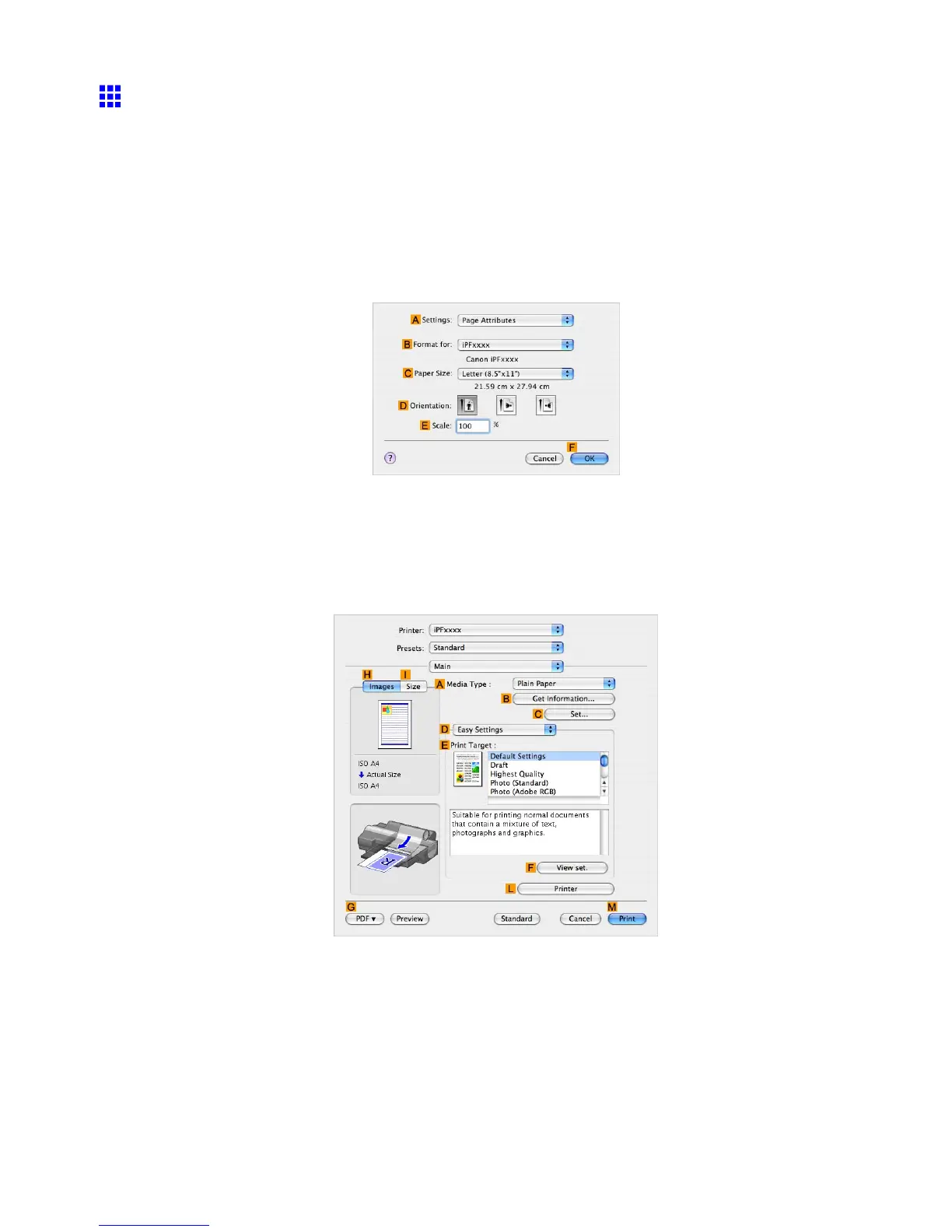
1. Choose Page Setup in the application menu to display the Page Attribute dialog box.
2. Select the printer in the B Format for list.
3. In the C Paper Size list, click the size of the original. In this case, click ISO A4 .
4. Click F OK to close the dialog box.
5. Choose Print in the application menu.
6. Access the Main pane.
7. In the A Media T ype list, select the type of paper that is loaded. In this case, click Plain Paper .
Enhanced Printing Options 253


 To Next Page
 Loading...