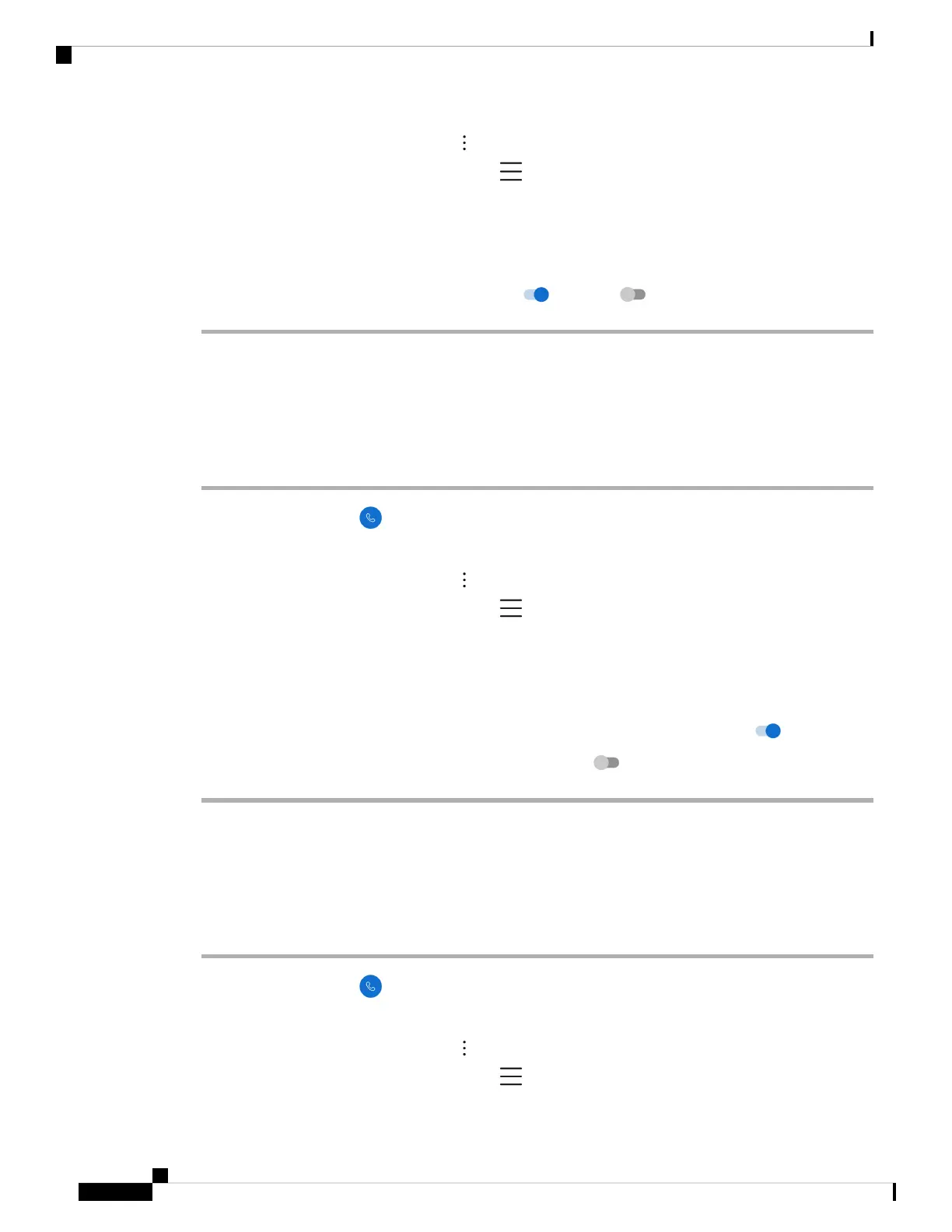
• For release 1.2(0), tap the Overflow menu.
• For release 1.3(0) or later, tap the Drawer menu.
Step 3 Choose one of the following based on your phone's software version:
• For release 1.2(0), tap Settings.
• For release 1.3(0) or later, tap User settings.
Step 4 Use the Vibrate before ring slider to either enable or disable the vibrate before ring feature.
Set the phone to fade in ring
You can set the Cisco Phone app ring tone to become gradually louder as the phone rings.
Procedure
Step 1 Access the Cisco Phone app.
Step 2 Choose one of the following based on your phone's software version:
• For release 1.2(0), tap the Overflow menu.
• For release 1.3(0) or later, tap the Drawer menu.
Step 3 Choose one of the following based on your phone's software version:
• For release 1.2(0), tap Settings.
• For release 1.3(0) or later, tap User settings.
Step 4 To set the ring tone to become gradually louder, slide the Fade in ring slider to the right .
Step 5 To turn off this feature, slide the Fade in ring slider to the left .
Set the phone to autodial
You can set the Cisco Phone app to automatically dial a number.
Procedure
Step 1 Access the Cisco Phone app.
Step 2 Choose one of the following based on your phone's software version:
• For release 1.2(0), tap the Overflow menu.
• For release 1.3(0) or later, tap the Drawer menu.
Cisco Wireless Phone 840 and 860 User Guide
108
Settings
Set the phone to fade in ring


 To Next Page