Procedure
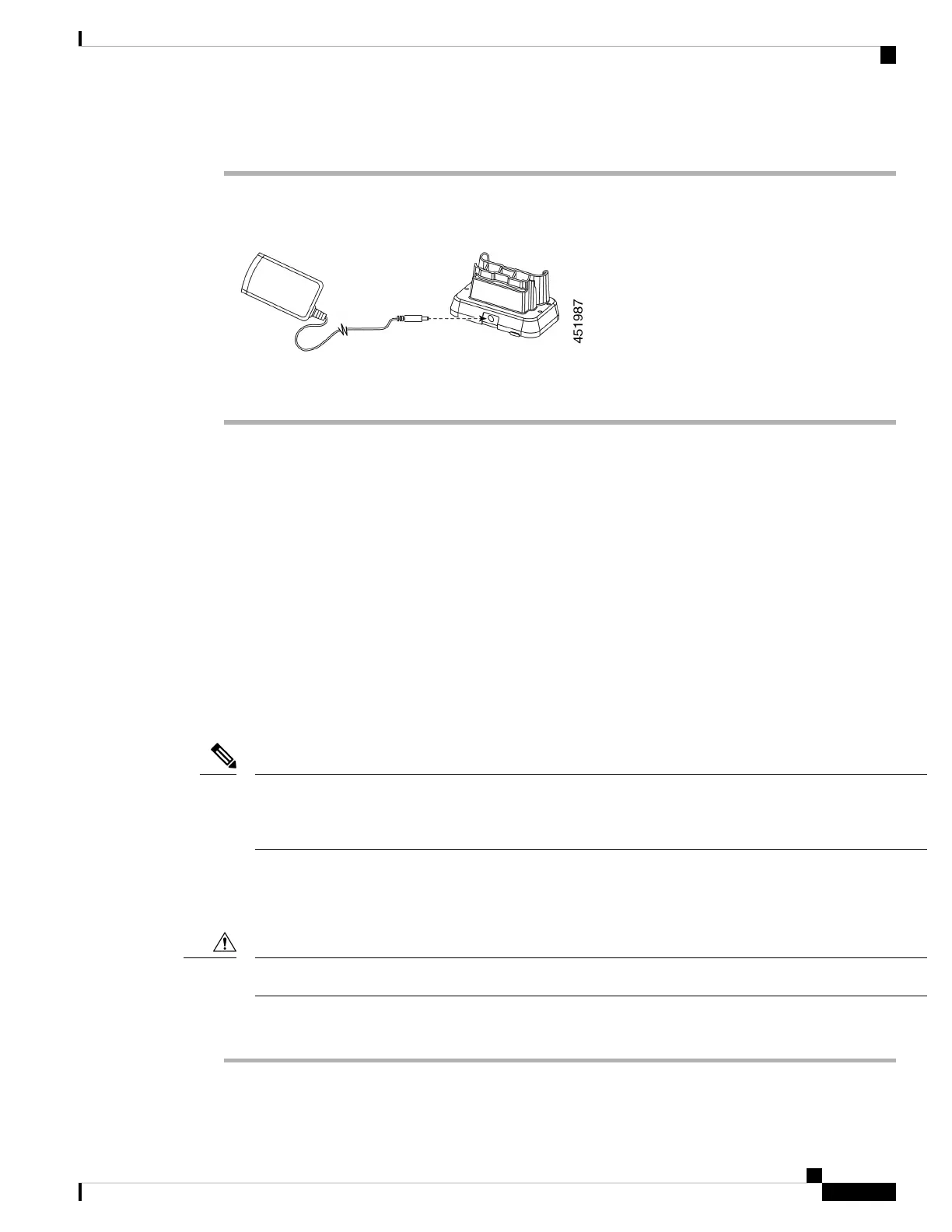
Step 1 Place the module on a flat surface within reach of a power outlet.
Step 2 Plug the power supply into the module.
Step 3 Plug the other end of the power supply into a power outlet.
Related Topics
Cisco accessory part numbers, on page 127
Charge your phone and battery with desktop dual charger
You can charge your phone and one spare battery with the desktop dual charger.
If both the phone and battery are in the charger, the phone takes priority. So it may take longer to charge the
battery.
There are two LEDs: one for the phone and one for the battery. The LEDs turn on when you properly seat the
phone and battery.
• A solid red LED indicates that the item is charging.
• A solid green LED indicates that the item is fully charged.
• An LED that is off indicates an empty slot or an error condition.
These steps are the same for both the Cisco Wireless Phone 840 Desktop Dual Charger and Cisco Wireless
Phone 860 Desktop Dual Charger Module. The illustration is of the Cisco Wireless Phone 860 Desktop Dual
Charger Module.
Note
Before you begin
Ensure that you properly set up the desktop charger.
Use only the approved chargers and power supplies for your phone.
Caution
Procedure
Step 1 With the battery charging contacts down, insert a spare battery into the dual charger rear slot.
Cisco Wireless Phone 840 and 860 User Guide
119
Accessories
Charge your phone and battery with desktop dual charger


 To Next Page