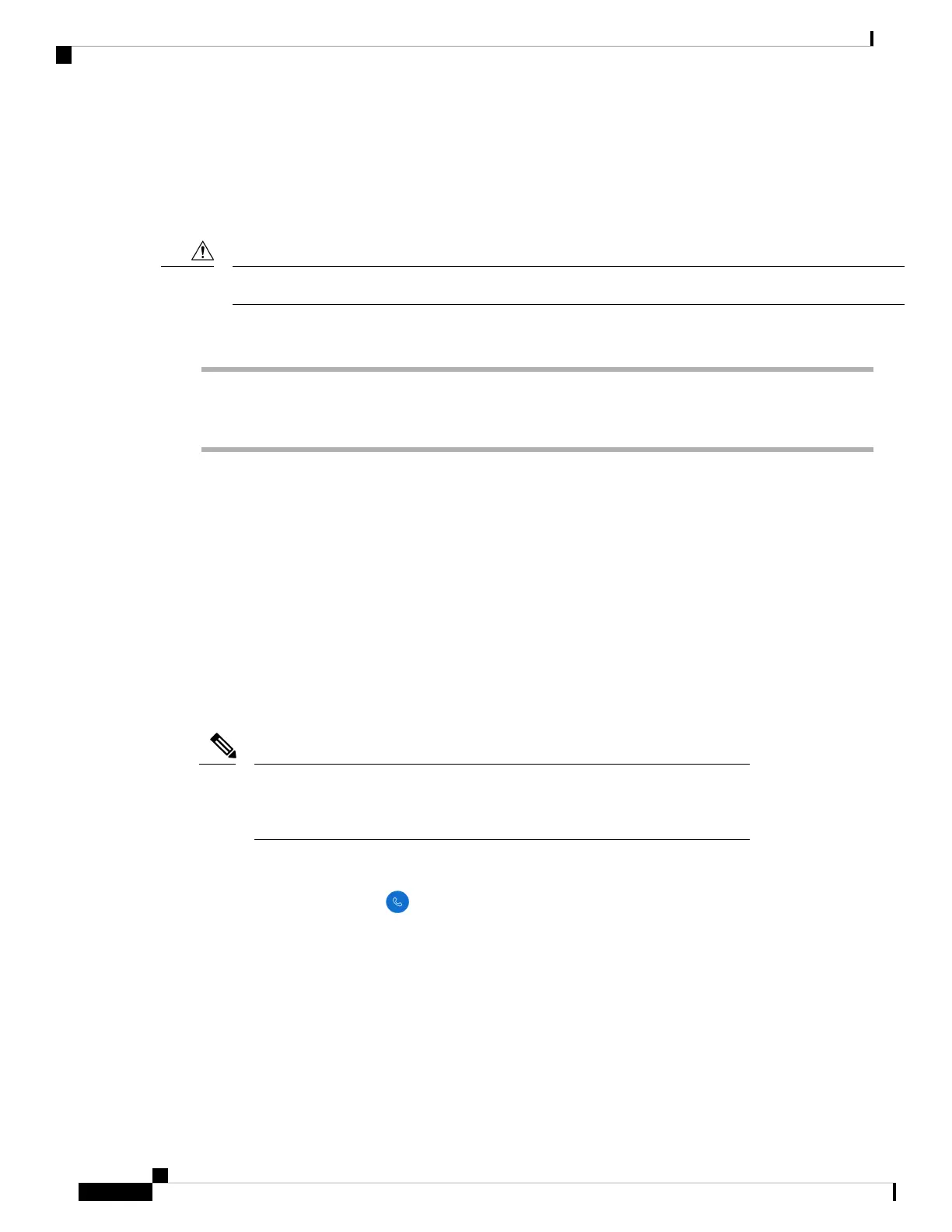
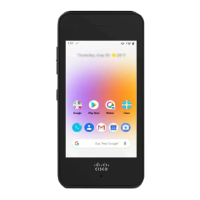
Charge the battery with the USB cable and a USB port on your computer
If you don't have a desktop charger, multicharger, or USB cable and AC power adapter, you can charge your
phone with a USB cable and computer. However, this method takes more time to charge your phone than the
other methods.
Use only the approved USB cable for the Cisco Wireless Phone 840 and 860.
Caution
Procedure
Step 1 Plug the USB cable into the bottom of the phone with the pins aligned.
Step 2 Plug the USB cable into a USB port on a computer.
Related Topics
Cisco accessory part numbers, on page 127
Phone configuration
For your phone to work, it must connect to your organization's Wi-Fi network and call control system.
Phone configuration uses one of these methods:
• Your administrator sets up the phone—You don't need to do any manual configuration. Your administrator
may even lock your access to the configuration menus.
• You set up the phone for your Wi-Fi network and connect to the call control system—Your administrator
gives you the information that you need to add your phone to the Wi-Fi network and call control system.
If your organization's Wi-Fi network does not contain DHCP Option 150 to direct
your phone to the call control system, then you can manually point the phone to
the TFTP server for your call control system environment.
Note
Once your phone is connected to the Wi-Fi network and call control system, you may want to:
• Configure Cisco Phone app User settings, such as ringtones and automatic noise cancellation.
• Pair your Bluetooth
®
device to the phone.
See Settings for detailed directions.
Wi-Fi profile configuration
For an out of box or factory reset phone, you configure the Wi-Fi network through the startup wizard or select
Set up offline. How you configure the phone offline depends on whether the Wi-Fi network is either:
Cisco Wireless Phone 840 and 860 User Guide
46
Phone setup
Charge the battery with the USB cable and a USB port on your computer


 To Next Page