112 Gateway and Gateway 4 Manual v1.2
© Tieline Research Pty. Ltd. 2021
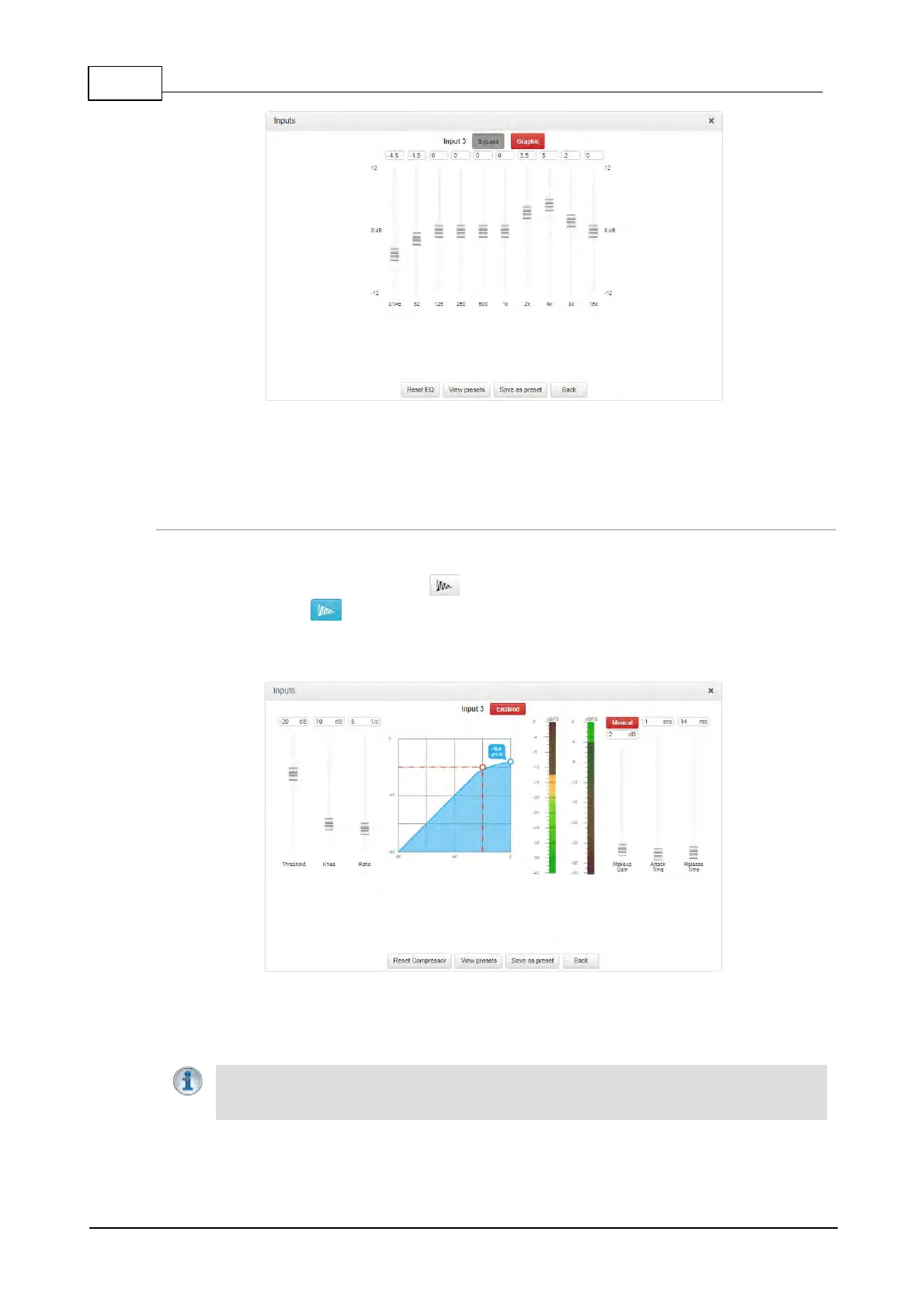
4. Click Save as preset to save an EQ preset, e.g. for a particular announcer. Click View
presets to recall a previously stored EQ preset.
5. Click Back to view all inputs.
Adjust Compression Settings
To to enable and adjust input compression settings.
1. Click the Compressor button for an input in the Inputs panel. The Compressor
button is blue when input compression is enabled.
2. Click the Disabled button to enable compression for the input if it is disabled.
3. Adjust the compression settings as required.
4. Click Save as preset to save a compressor preset, e.g. for a particular announcer. Click
View presets to recall a previously stored compressor preset.
5. Click Back to view all inputs.
Important Note: Audio signal processing occurs in the following order: IGC/Limiter
(Intelligent Gain Control limiting on the input) > Input Compression > Input EQ > Mixer >
Output AGC (Automatic Gain Control limiter).



 To Next Page