136 Gateway and Gateway 4 Manual v1.2
© Tieline Research Pty. Ltd. 2021
· SmartStream PLUS is supported for multi-unicast connections. Each additional
redundant stream is included and added in the 80 stream limit for the Gateway and
20 stream limit for the Gateway 4.
· Some drop-down menus and settings may be greyed out intentionally depending on
features available.
· It is possible to save a program at several points throughout the program wizard and
use default settings to save configuration time. The first connection in each multi-
unicast stream determines default settings (e.g. algorithm, sample rate, bit rate), for
all subsequent connections in that stream, except for dialing settings.
· All algorithms are supported for multi-unicast connections, however only one can be
used for each audio stream.
· Bidirectional audio is only available on the first connection dialed for each audio
stream.
· Renegotiation of connection bit rates is not possible when connected.
· Ensure you have sufficient connection bandwidth at the local codec to support all
the connections to which you are connecting.
· FEC is not available for multi-unicast connections.
· If a codec is answering more than one mono or stereo multi-unicast connection it is
necessary to create an answering program to suit the answering configuration and
lock this program in the codec.
Creating a Multi-Unicast Program
1. Open the HTML5 Toolbox Web-GUI and click Connect in the Menu Bar, then select Program
Manager to launch the Program Manager panel.
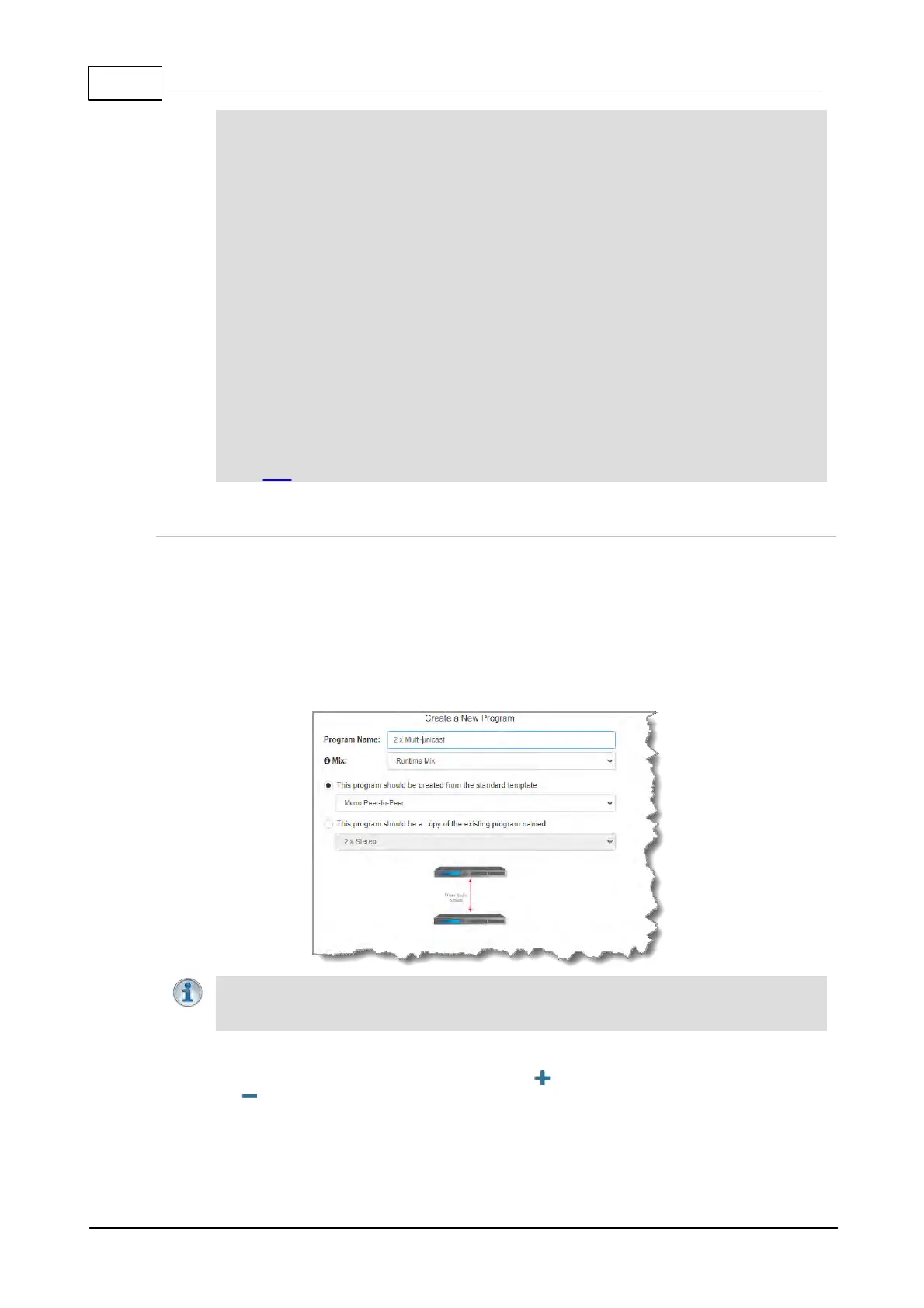
2. Click the New Program symbol to open the wizard and then:
· Click in the text box to name the new program.
· Click the Mix drop-down arrow to associate a custom matrix mix with the program if required.
· Select Multi-unicast or 2x Multi-unicast, 3 x Multi-unicast or 8 x Multi-unicast, (or 16 x
Multi-unicast in Gateway 16) or if you want to use an existing program as a template, select
this option. Then click Next. Note: In this example we create a 2 x Multi-unicast program.
Important Note: When you decide to use an existing program as a template, the new
program inherits all the settings of the template program and you can adjust these
settings as required by continuing through the program wizard.
3. To configure new program level rules click the drop-down arrow and select the preferred option
from those available. Click the blue Plus symbol to add a new rule and click the Minus
symbol to remove a rule.



 To Next Page