36 Gateway and Gateway 4 Manual v1.2
© Tieline Research Pty. Ltd. 2021
(Genie,
Merlin,
Bridge-IT,
ViA)
Nominal 0vu reference level
Level at which audio will clip/distort
Tieline G3
(Commandera
nd i-Mix)
Nominal 0vu reference level
Level at which audio will clip/distort
Nominal 0vu reference level
Level at which audio will clip/distort
Important Note: If a codec supports multiple stream programs and the Auto (default)
reference level is selected, the first codec to connect will configure the reference level
used for all subsequent connections. I.e. If a G3 codec connects first then the G3 Audio
Reference Level will be configured for all connections.
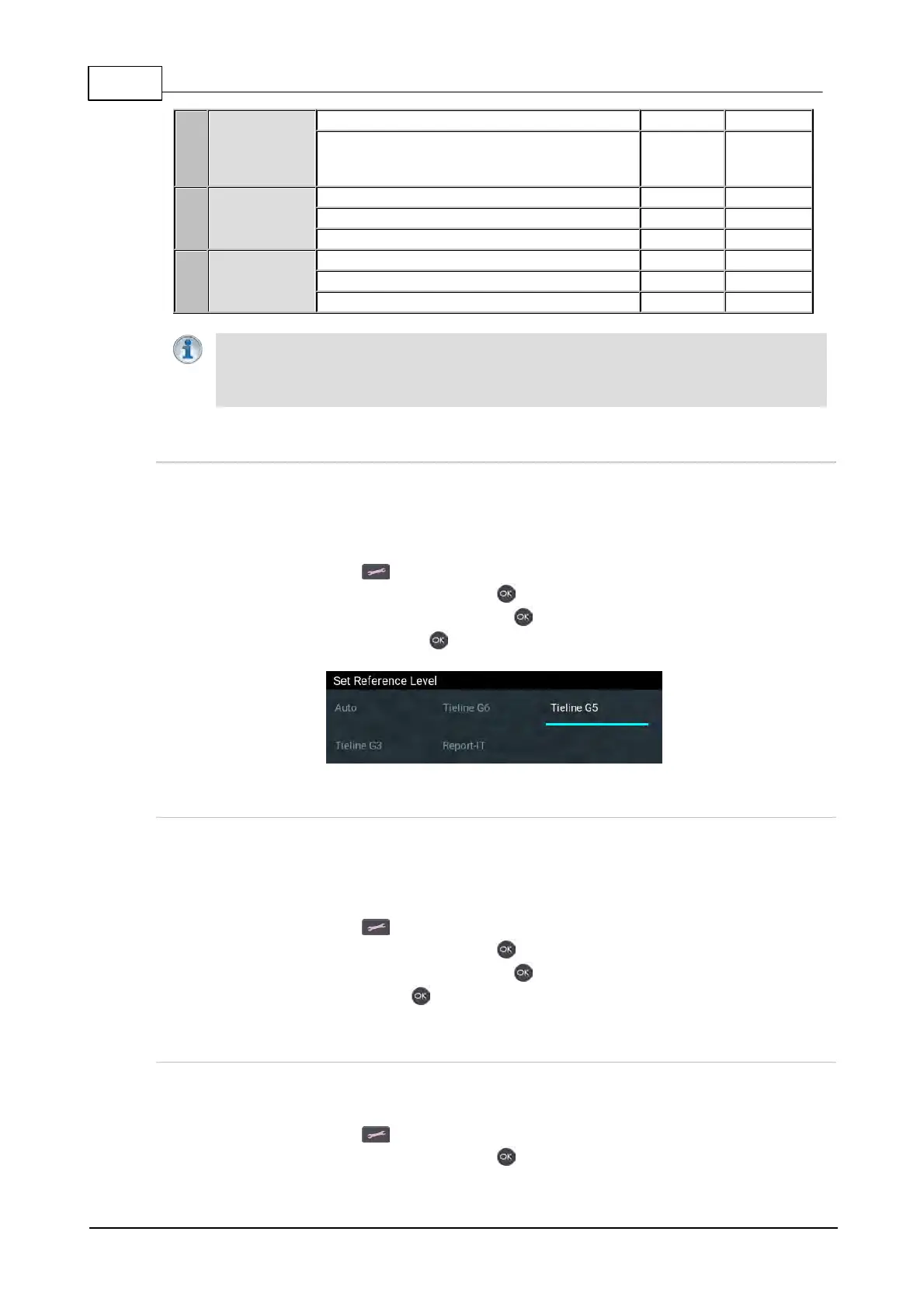
Configure Tieline G5 Audio Reference Scales
Tieline G6 codecs have slightly more headroom than Tieline G5 codecs, therefore the audio
metering reference scale needs to be adjusted when G6 codecs connect to G5 Merlin, Genie, ViA
and Bridge-IT codecs. The G5 metering scale is between -38dBFS and 0dBFS and audio levels
should average around the nominal 0vu point at -18dBFS. Audio peaks should not exceed 0dBFS.
1. Press the SETTINGS button.
2. Navigate to Audio Options and press the button.
3. Navigate to Reference Level and press the button.
4. Select Tieline G5 and press the button.
Configure Tieline G3 Audio Reference Scales
Tieline G6 and G5 codecs have more audio headroom than Tieline G3 audio codecs, therefore the
audio metering reference scale needs to be adjusted when these codecs connect to a Commander
or i-Mix G3 codec. The G3 metering scale is between -29dBFS and 0dBFS and audio levels should
average around the nominal 0vu point at -14dBFS. Audio peaks should not exceed 0dBFS.
1. Press the SETTINGS button.
2. Navigate to Audio Options and press the button.
3. Navigate to Reference Level and press the button.
4. Select Tieline G3 and press .
Configure Report-IT Audio Reference Scales
The Report-IT setting is used for compatibility when streaming audio using Tieline's Report-IT
smartphone application.
1. Press the SETTINGS button.
2. Navigate to Audio Options and press the button.



 To Next Page