User Manual: WaveLinx Lite (4.0)
93
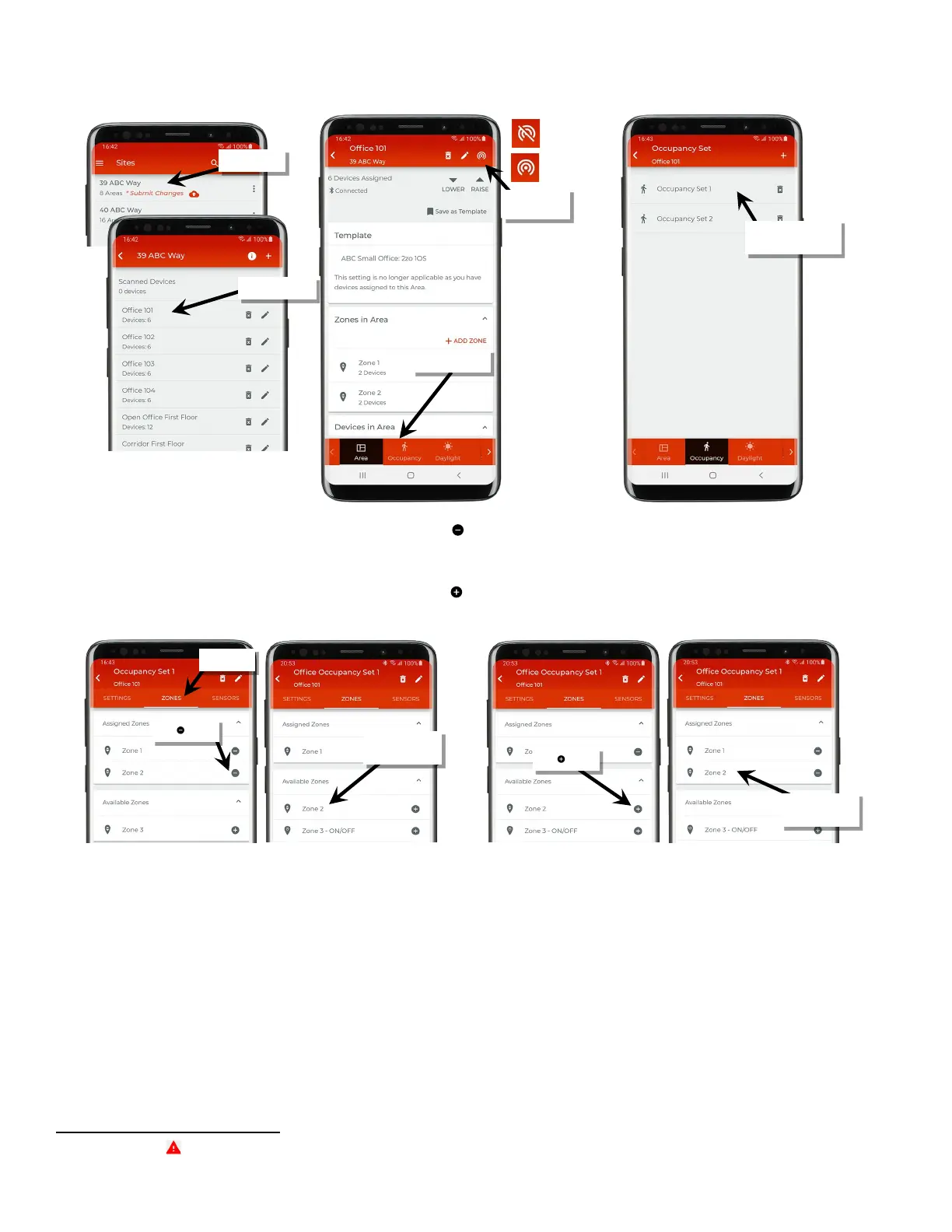
7. Tap on ‘Zones’, and then in the ‘Assigned Zones’ section, tap the ‘ ‘ in the row of the zone to unassign. Once complete, tap on the back
button. Wait a few minutes to give devices time to process the change before moving on to the next step.
73
8. In the occupancy set list, select the occupancy set that the zone will be assigned to and open it for modification.
9: Tap on ‘Zones’, and then in the ‘Available Zones’ section, tap the ‘ ‘ in the row of the zone to assign. Once complete, tap on the back button
three times to exit fully out of the occupancy set.
73
If errors or alert icons ‘ ’ display after this step, refer to the section “Resolve Mobile Application Communication Issues” on page 164 to resolve the errors before
proceeding.
set to modify
Verify network
connection
‘Assigned Zones’
‘Available Zones’



 To Next Page