RS20iInstallationandOperatingGuide
Page 53
RS20i Installation & Operating Guide Document # 9301H52900 Ver. 1.02
4.4 Audio EQ Setup
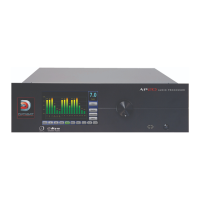
The Audio EQ Setup screen allows you to set the Audio EQ for the current Input Preset and edit the EQ.
It also provides access to menus for modifying parameters for the current Audio EQ.
Setup > EQs
Figure 32. Audio EQ Setup Screen
Controls and links on this screen are described in the table below.
Table 13. Audio EQ Setup
Control or Link Description
Current Audio EQ
This drop-down list allows you to select from the list of available EQ setups.
The selection becomes the Audio EQ Setup for the current Input Preset.
Edit EQ
Copy, Create, Rename or Delete an Audio EQ Setup. See 4.4.1 Edit, page 54.
Dirac
Optimization
Set up an audio optimization process. The button color turns light blue when
Dirac is enabled. See 4.4.2 Dirac Live Optimization, page 55.
Audio Levels
See 4.4.6 Audio Levels, page 62.
Third Octave EQ
The button color turns light blue when Third Octave EQ has been set (non-flat)
on at least one channel. See 4.4.3 Third Octave EQ, p
age 56.
Parametric
Equalization
The button color turns light blue when at least one filter has been set (non-flat)
on at least one channel. See 4.4.4 Parametric Equalization, pa
ge 60.
Copy/Clear EQ
See 4.4.5 Copy/Clear EQ, page 61.



 To Next Page