RS20iInstallationandOperatingGuide
Page 103
RS20i Installation & Operating Guide Document # 9301H52900 Ver. 1.02
4.11.2 Copy Macro
This feature is useful to create a macro similar to an existing macro without re-entering all the events.
After the macro is copied, just change or edit events that should be different.
1. To copy a Macro, first highlight the source macro, then touch the Copy Macro button. A
keyboard will appear to enter the name of the new macro.
2. After entering the new macro name, press OK to return to the Macro list with the new macro
added.
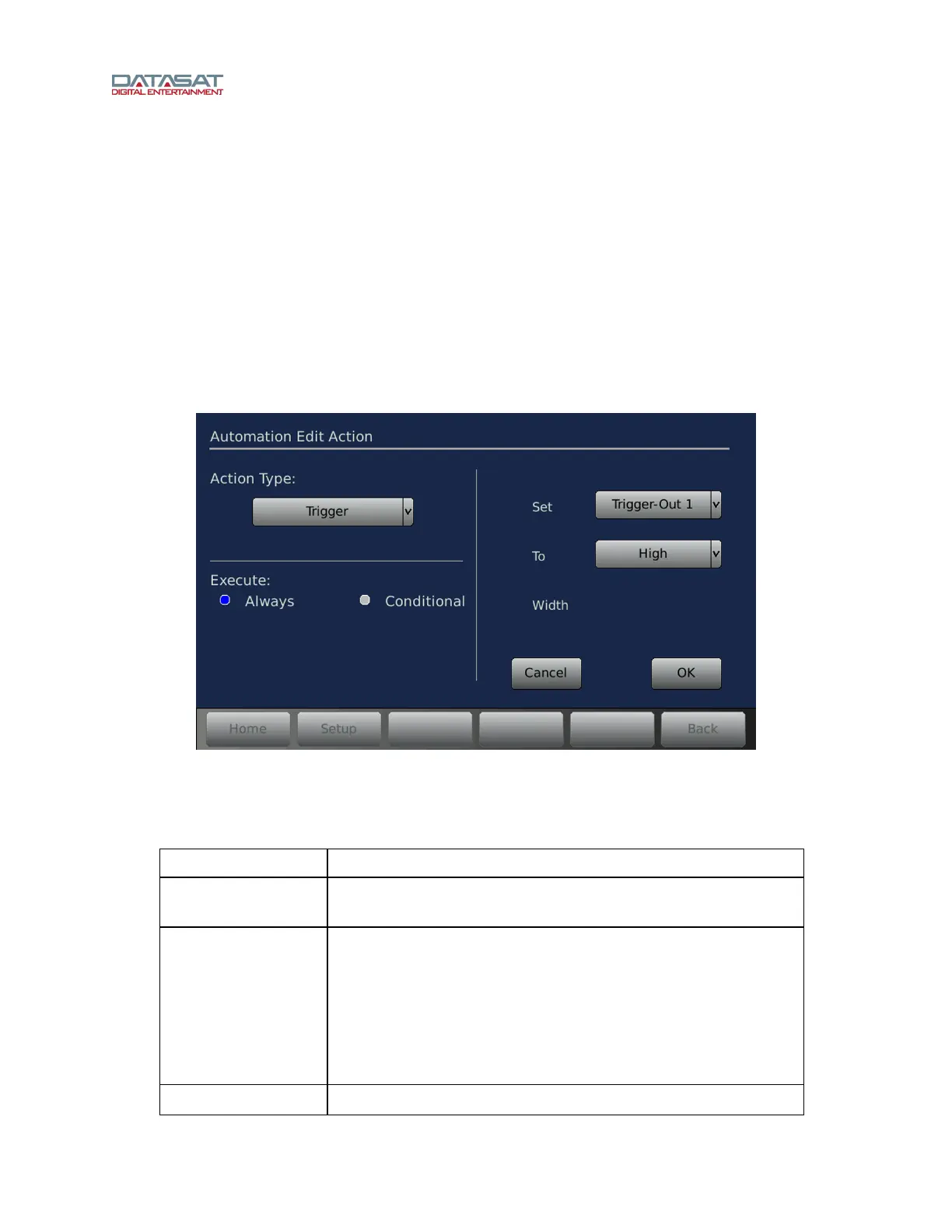
4.12 Automation Edit Action
This screen is accessed via either the Edit, Add Before, or Add After button in the Automation Macros
screen. It is also used for defining an Action for an event.
Setup > Macros > Edit
Figure 70. Automation Edit Action screen
The options on the right side of the screen depend on the Action Type selected on the left side. The
controls on this screen are described in this table.
Table 39. Automation Edit Action
Control Description
Action Type
Select an action type from the drop-down list. See the instruction
following this table.
Execute
Select Always or Conditional
Conditional means that the Action will execute based on a
Variable being assigned as True or False. When Conditional is
selected, a text box appears where the variable may be entered.
Then select True or False in the drop-down list. The conditional
variable that is used should be assigned to True or False as part
of a separate action.
Cancel / OK
When finished, touch OK to confirm or Cancel to undo.



 To Next Page