RS20iInstallationandOperatingGuide
Page 56
RS20i Installation & Operating Guide Document # 9301H52900 Ver. 1.02
4.4.3 Third Octave EQ
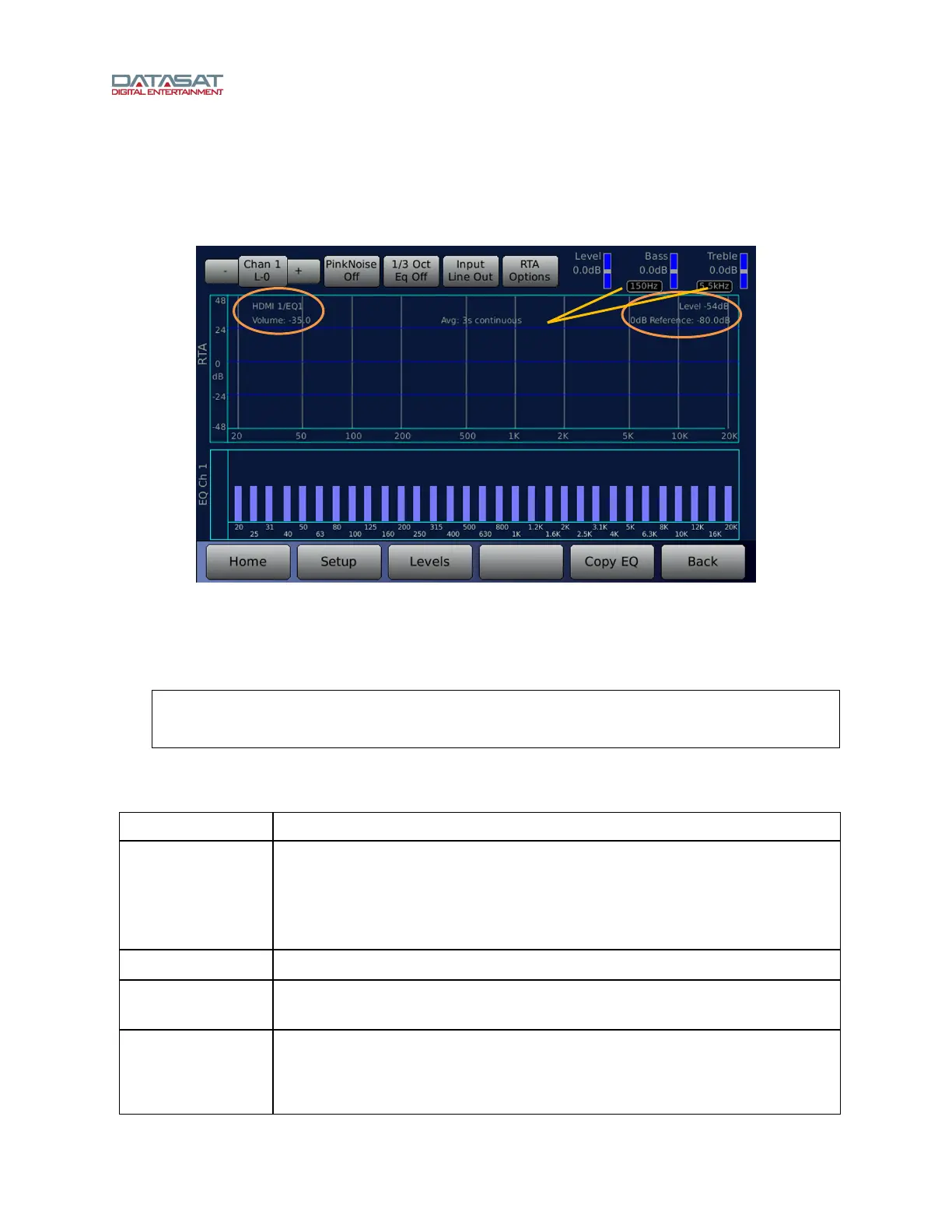
Selecting the Third Octave EQ button from the EQ Setup screen will bring up a screen similar to that
shown below.
Setup > 1/3 oct
Figure 35. 1/3 Octave EQ Screen
The screen has an RTA (real time analyzer) on the top portion, and 1/3 octave adjustments on the bottom
portion. In the upper left-hand portion of the RTA section, the current Input and current master volume
control values are shown. In the upper right-hand portion, the current audio level and the 0 dB reference
are displayed.
Note: Touching a blue bar in the EQ section (lower panel) will select that frequency
and allow you to adjust the dB level of that frequency by rotating the Volume
Control knob. (On the laptop running VNC, use the up/down arrow keys.)
Functions on this screen are described in this table.
Table 16. 1/3 Octave EQ
Function Description
Channel Number
Touch the Chan button to bring up a pop-up window showing all sixteen
channels. Select the channel you would like to equalize. You may also select
the next channel by touching the + sign button to the right of the Chan button,
or select the previous channel by touching the - sign button left of the Chan
button. See 4.4.3.1 Channel Number Selection, pa
ge 58.
Pink Noise On/Off
Turns Pink Noise on or off.
1/3 Oct Eq On/Off
Turns 1/3 octave equalization on or off. This is a global setting that affects all
channels.
Input
LineIn/LineOut/
Mic
This selects the input source for the RTA. LineIn means that the signal source
for the RTA is from the current input channel and does not have any processing
(Dirac, EQ, etc). LineOut means that the signal source for the RTA is from the
current output channel, so you would see the effects of the Dirac, EQ, etc. If
Current Input
and Volume
Corner Frequency
Adjust
Current audio
level and 0dB
reference



 To Next Page