ineo+ 650/550/451 2-111
Copy Operations
2
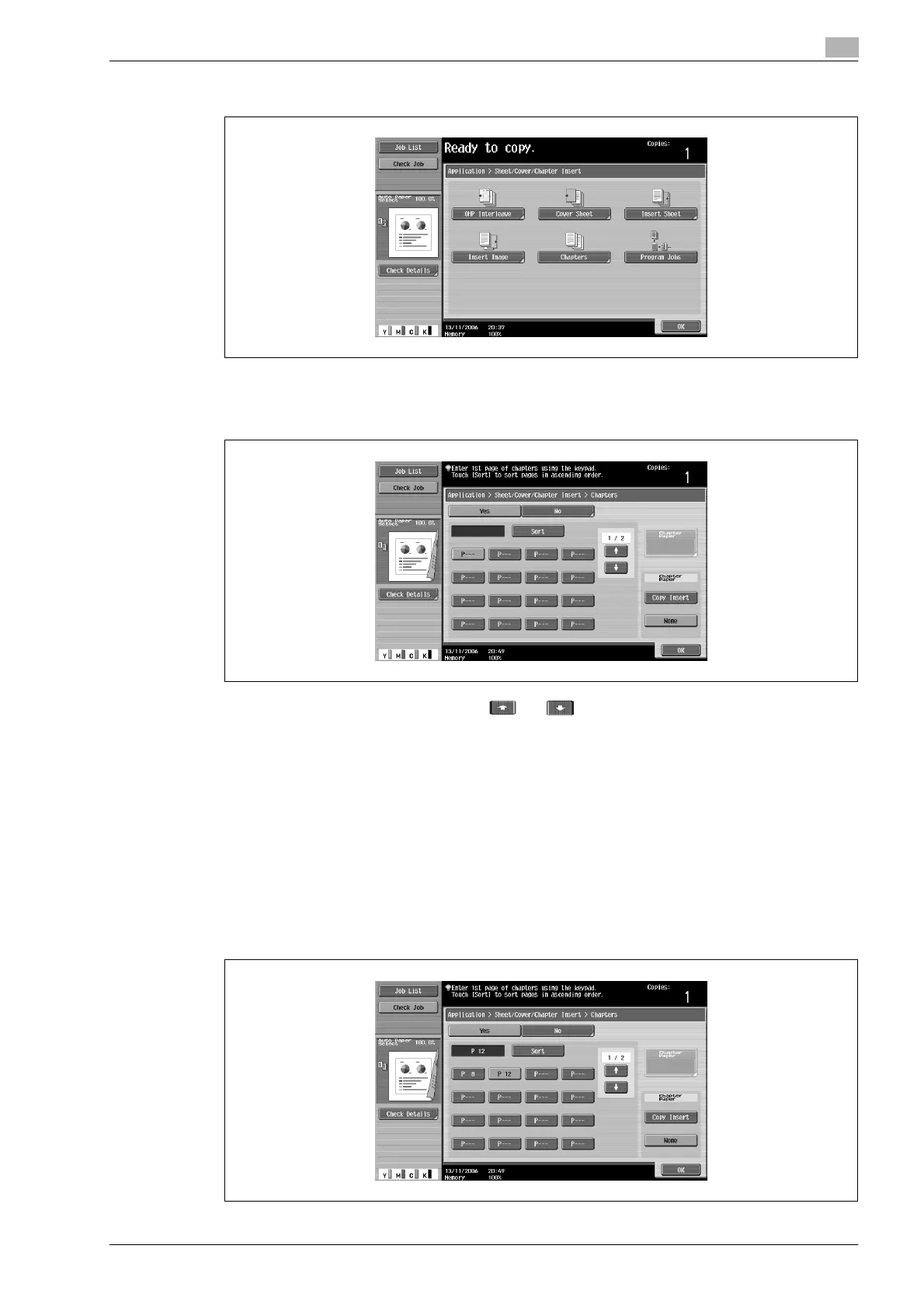
3 Touch [Chapters].
The Chapter screen (for editing) appears.
4 Using the keypad, specify the first page of the chapters.
– There are two Chapter screens. Touch and to display a different screen.
– To arrange the page numbers in order, starting with the lowest number, touch [Sort].
– To remove a page number that has been specified, touch the button for the page to be removed,
and then press the [C] (clear) key.
– Under "Original > Copy", select "1-Sided > 2-Sided".
– If the same page number is entered multiple times, copying is not possible. Delete repeated page
numbers.
– If the specified page number is greater than the number of pages in the document, that page
number is ignored.
5 Under "Chapter Paper", touch [Copy Insert] or [None].
– If "None" is selected, all pages of the copy are printed on the same paper.
– To cancel the setting and select the default, press the [Reset] key.
– To cancel the "Chapters" function, touch [No].












 To Next Page