3
Print Operations
3-20 ineo+ 650/550/451
Printing multiple pages
You can specify the print type and paper tray for each page. This comes in handy when you want to change
the paper tray during a print job when printing multiple pages.
1 Click the Cover Mode tab.
2 Select the "Per Page Setting" check box.
3 From the "Per Page Setting" drop-down list, select the desired list name.
4 Click the [Edit List] button.
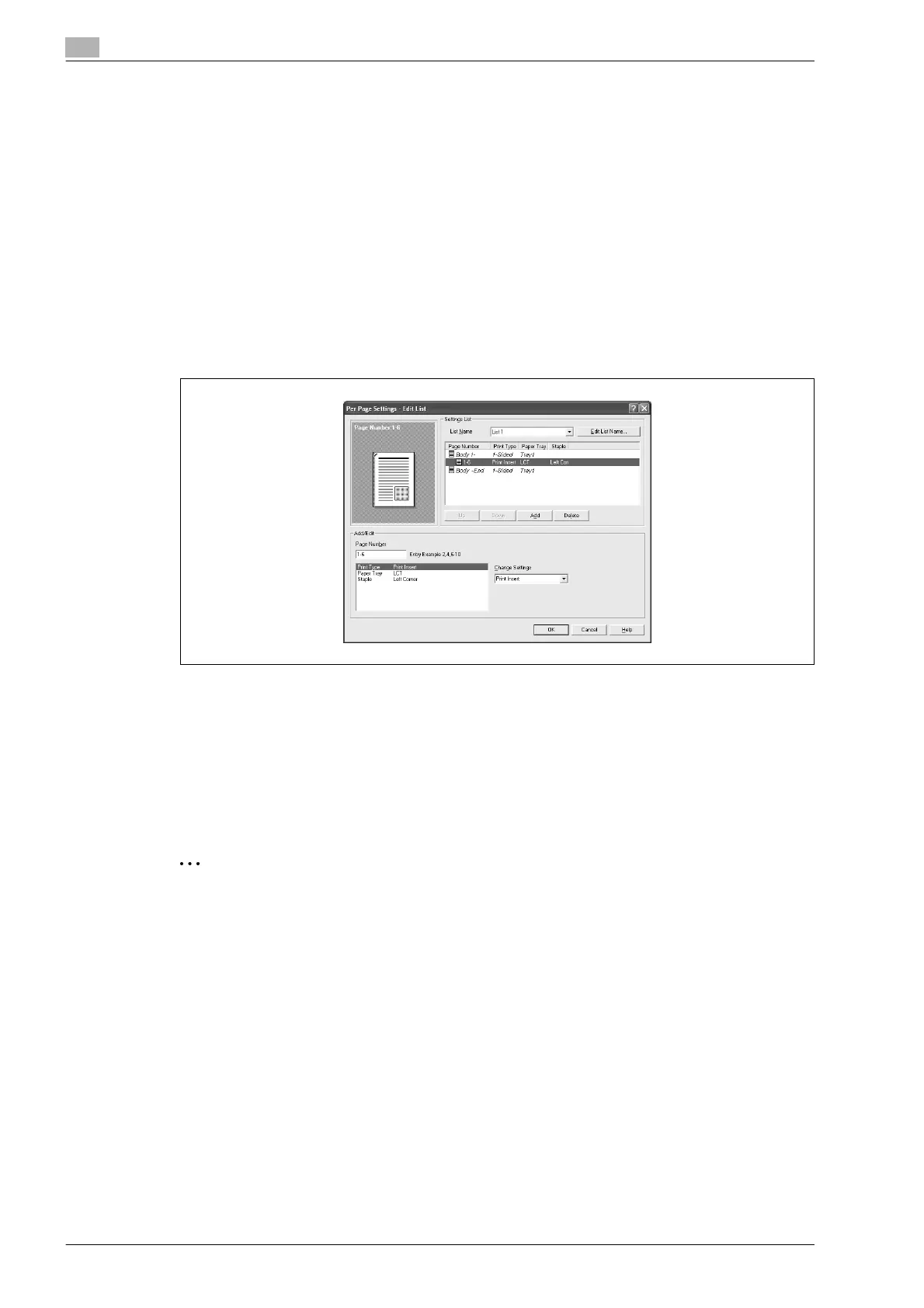
The Per Page Settings – Edit List dialog box for specifying the print settings appears.
5 Click the [Add] button.
A new row for specifying the print settings is added to "Settings List".
6 Select the row that was added to the list, and then specify the print settings in "Add/Edit".
– Page Number: Enters the page number. When entering multiple page numbers, separate the page
numbers with commas such as "2, 4, 6" or enter a page range using a hyphen such as "6-10".
– Print Type: Specifies Print Insert, Insert Blank Sheet, Print (1-Sided), and Print (2-Sided).
– Paper Tray: Specifies the paper tray.
– Staple: Specifies the number of staples and the stapling position.
7 Click the [OK] button.
2
Note
To change existing print settings, select the desired row and change the settings. To delete existing
print settings, select the desired row, and then click the [Delete] button.
Click the [Up] or the [Down] button to change the page number starting with the smallest page number.
The list name can be changed by clicking the [Edit List Name] button.












 To Next Page