ineo+ 650/550/451 3-19
Print Operations
3
3.5 Specifying the cover mode tab settings (PCL driver for Windows)
Printing documents with a front cover/back cover
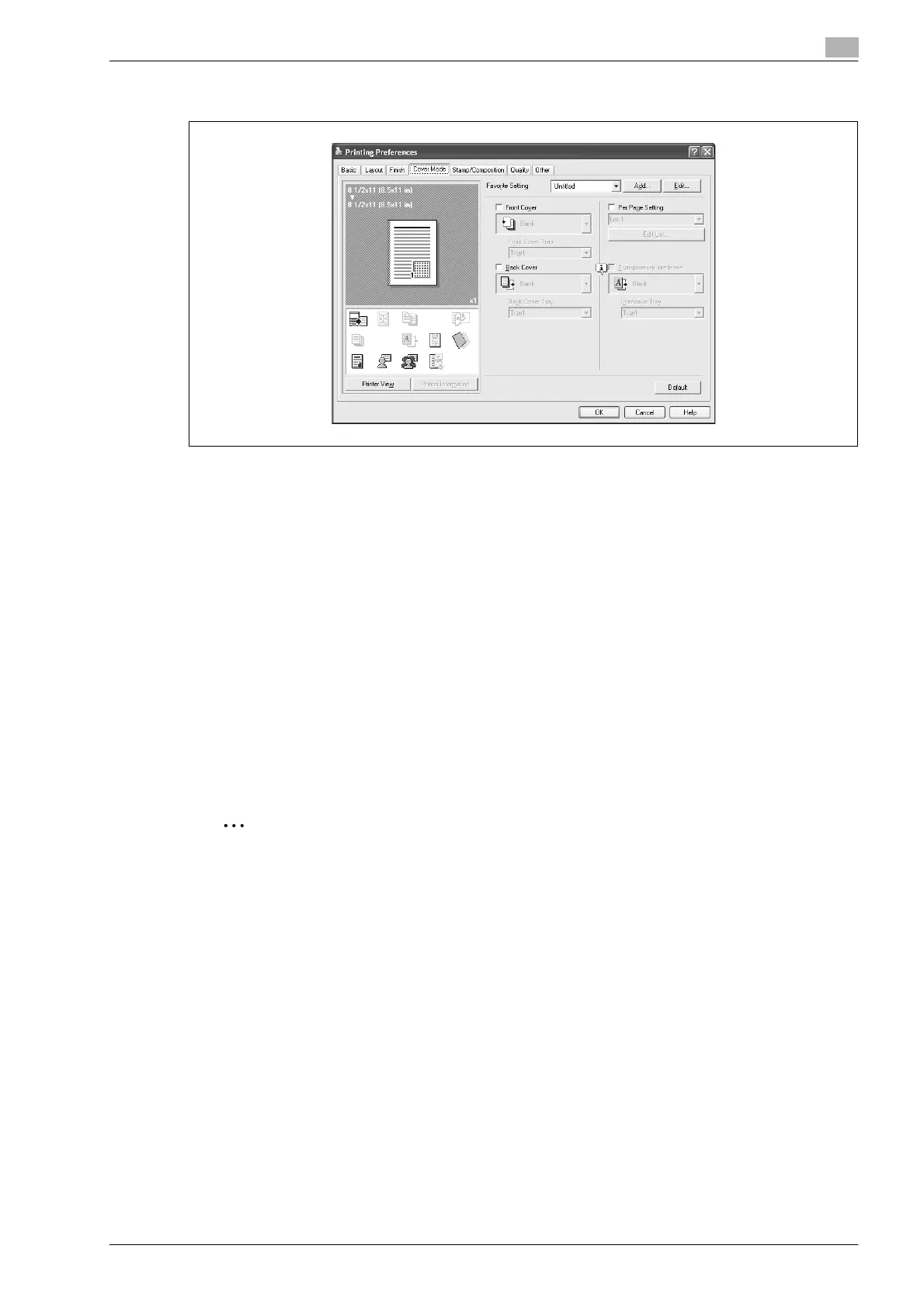
1 Click the Cover Mode tab.
2 Select the "Front Cover" and "Back Cover" check boxes.
3 From the "Front Cover" and "Back Cover" drop-down lists, select the desired print settings.
To print on the front cover and back cover, select "Print". To only add a blank page, select "Blank".
4 Select the paper tray that contains the loaded paper for the front cover and back cover.
Printing documents with a front cover/back cover from a post inserter
1 Click the Cover Mode tab.
2 Select the "Front Cover from Post Inserter" and the "Back Cover from Post Inserter" check boxes.
3 Select the PI tray that contains the loaded paper for the Front Cover from Post Inserter function and the
Back Cover from Post Inserter function.
2
Note
The Front Cover from Post Inserter function and the Back Cover from Post Inserter function are
available only when an optional post inserter is installed.
The Front Cover from Post Inserter function and the Back Cover from Post Inserter function cannot be
specified when the Front Cover function and the Back Cover function are specified.












 To Next Page