2
Copy Operations
2-110 ineo+ 650/550/451
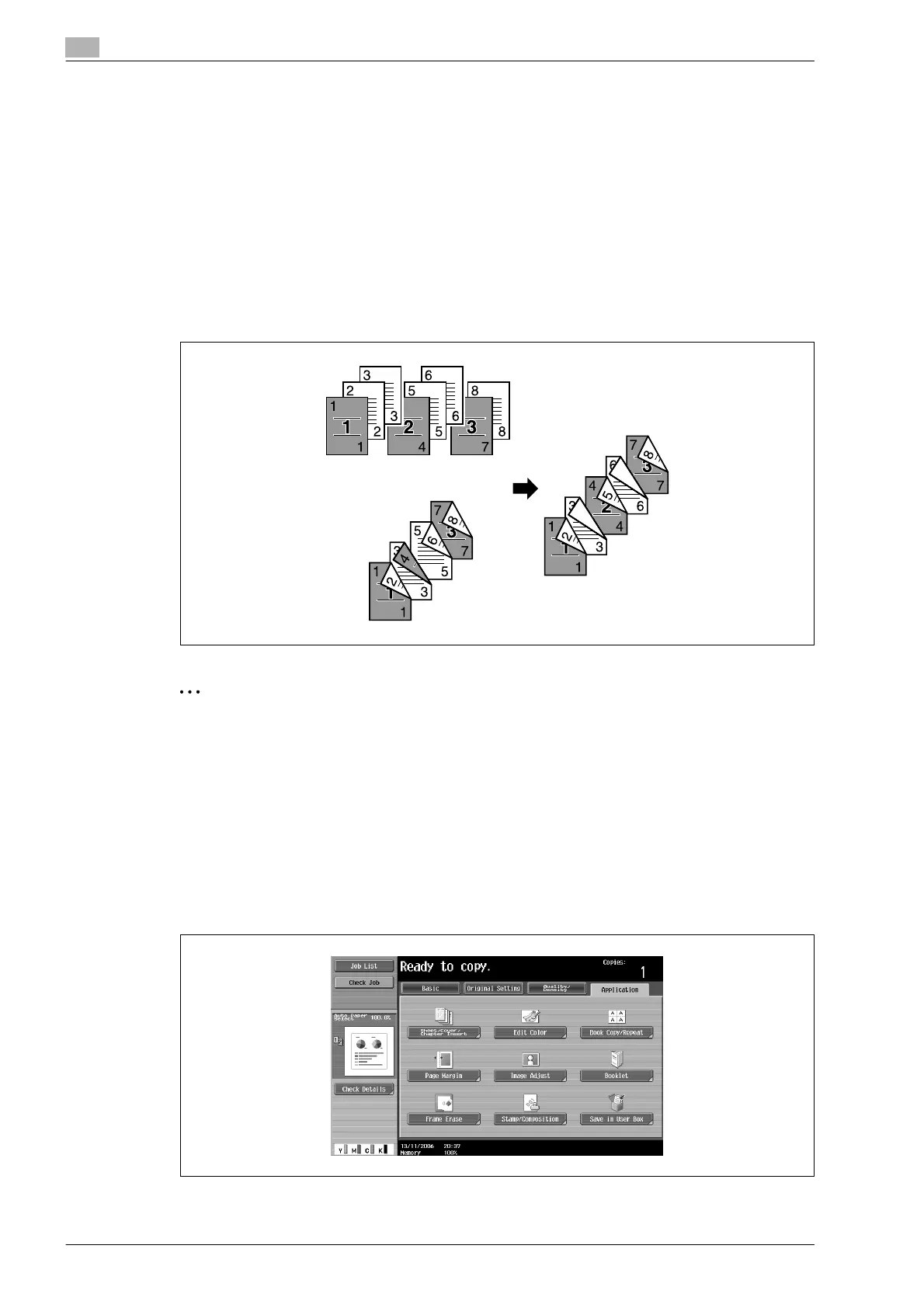
2.30 Specifying pages to be printed on the front side ("Chapters" function)
When making double-sided copies, the pages specified as the first page of a chapter can be printed on the
front side of the paper. If the document was arranged so that the specified page would be printed on the back
side of a page, the page is left blank and the specified page is printed on the front side of the next page. In
addition, the specified page can be printed on different paper.
!
Detail
A maximum of 30 pages can be specified to be printed on the front side of the paper within a document
of up to 999 pages.
In double-sided documents, one double-sided page is considered to be two pages (one for the front
and one for the back).
2
Note
Make sure that the paper loaded for the first page of the chapter and for the copy have the same size
and orientation.
1 Position the document to be copied.
– For details on positioning the document, refer to "Feeding the document" on page 2-26.
– For a document that exceeds 100 pages, refer to "Scanning the document in separate batches
("Separate Scan" setting)" on page 2-28.
2 Touch [Application], and then touch [Sheet/Cover/Chapter Insert].
– To cancel changes to the settings for all Application functions, press the [Reset] key. All changes to
the settings are canceled.
The Sheet/Cover/Chapter Insert screen appears.












 To Next Page