4
Box Operations
4-32 ineo+ 650/550/451
Preview screen operations
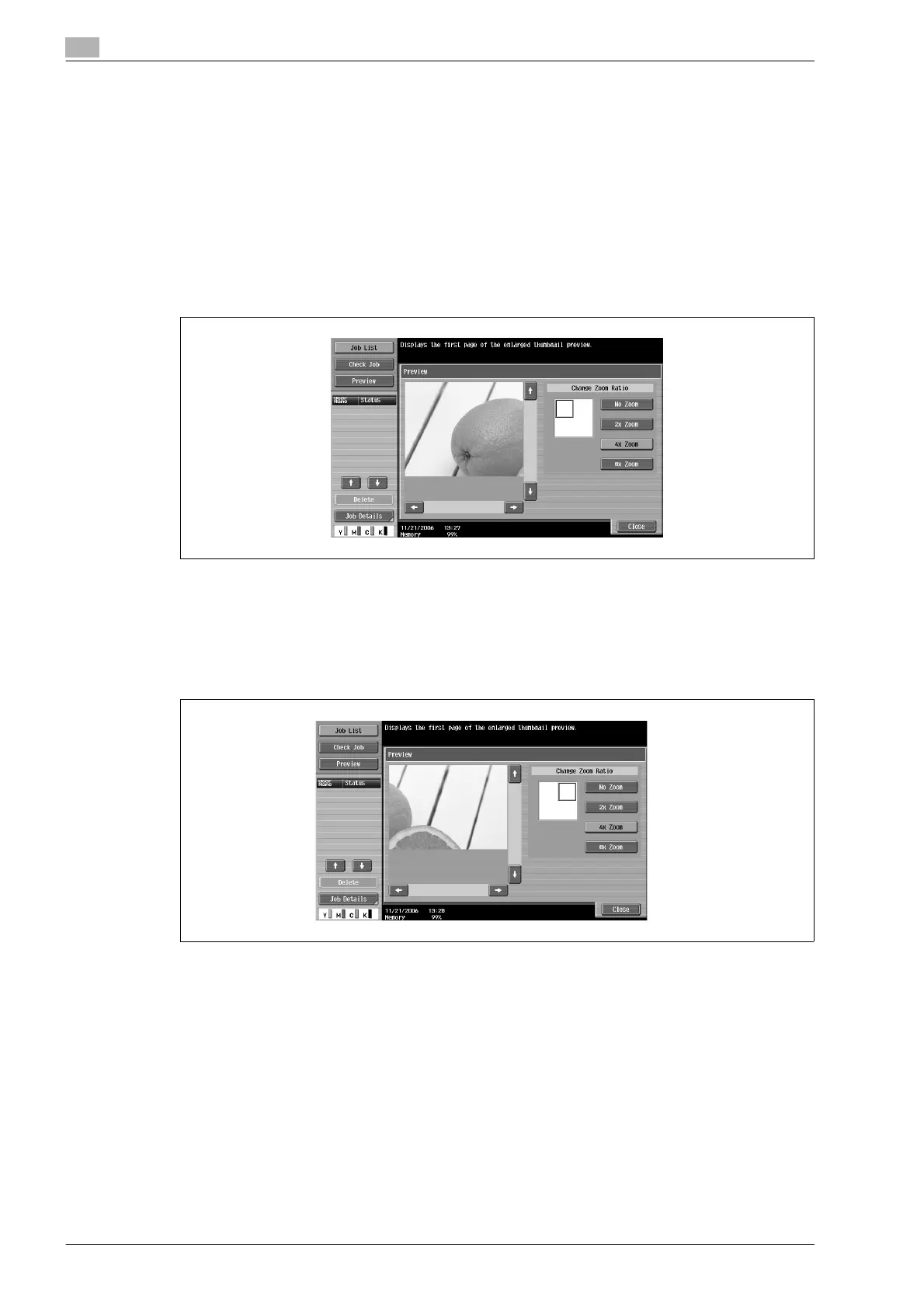
Touching [Enlarged Thumbnail View] in the Document Details screen displays the Enlarged Thumbnail View
screen. The image can be viewed at full size or at a size of 2, 4 or 8 times the normal size. The procedure for
checking the image at a size of 4 times the normal size is described below.
!
Detail
With documents containing multiple pages, only the image of the first page can be checked.
The contents of a document saved with encryption cannot be previewed.
1 The image is displayed at full size in the Enlarged Thumbnail View screen. Touch [4e Zoom].
The image is displayed at a size 4 times the normal size, and the enlarged area is indicated by a green
frame.
2 To select a different area to be enlarged, touch the scroll bar arrows on the right side and at the bottom
of the image.
– When the selection is moved to the right:












 To Next Page