ineo+ 650/550/451 2-77
Copy Operations
2
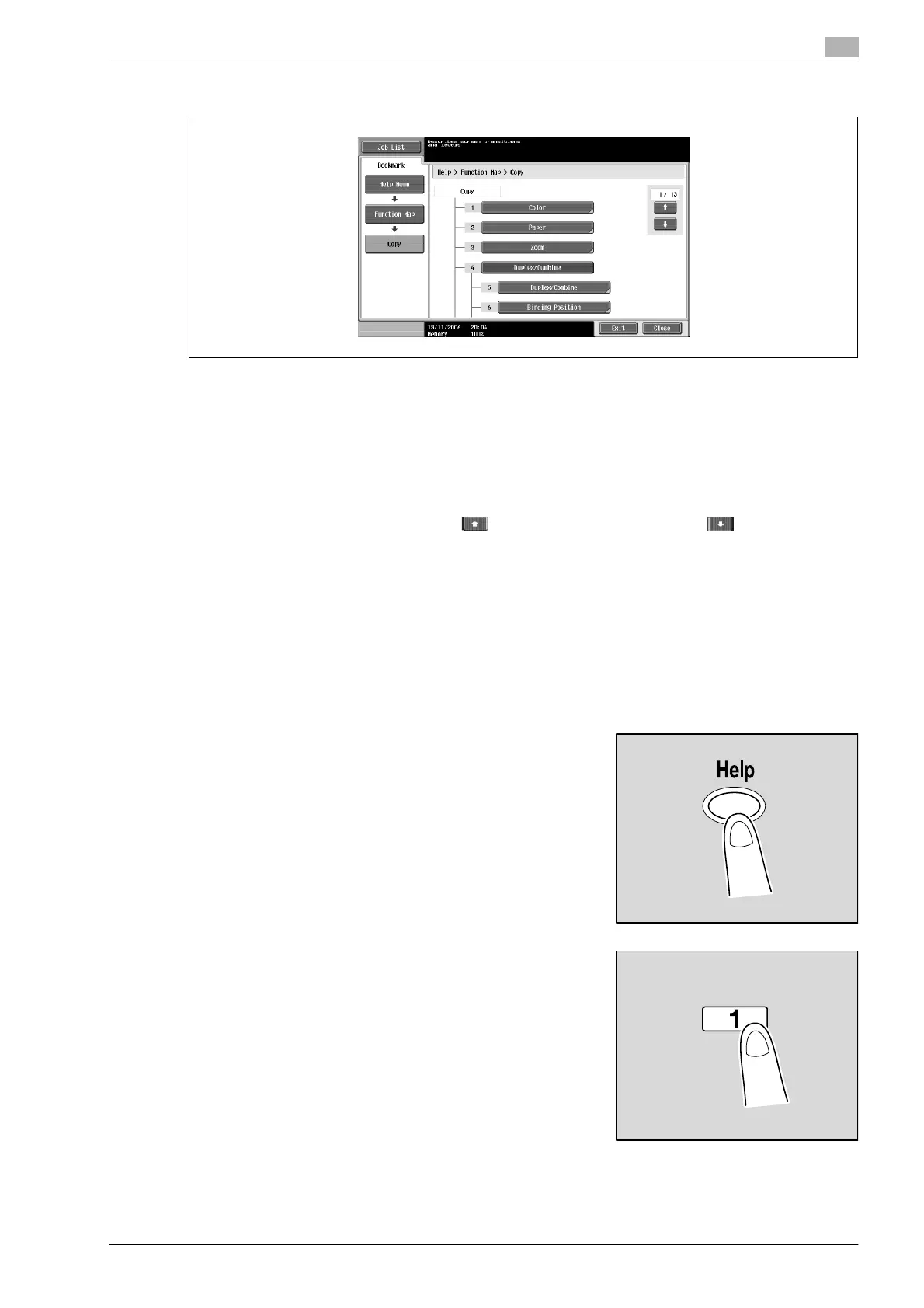
Function Map screen (Example: Copy)
A chart of the available functions and settings are displayed in the function maps. Select an item from the
chart for the Help screen that you wish to view.
!
Detail
There are 13 Function Map screens for Copy mode. The top number indicates the number of the 13
screens that is currently displayed.
To display the previous screen, touch . To display the next screen, touch .
Press the key in the keypad for the number of the desired item in the Function Map screen.
To display the Help screen for "Function" that contains the selected item, touch [Close] in the Help
screen displayed by selecting an item in a Function Map screen.
To quit the Help mode, press the [Help] key or touch [Exit].
Displaying main help screens
As an example, the following procedures describe the Help screens that are displayed for copy operations
by using "Function".
1 With the Basic screen displayed, press the [Help] key.
The Help Menu screen appears.
2 Touch [Function] or press the [1] key in the keypad.












 To Next Page