6.1.6 Zigbee Peripherals
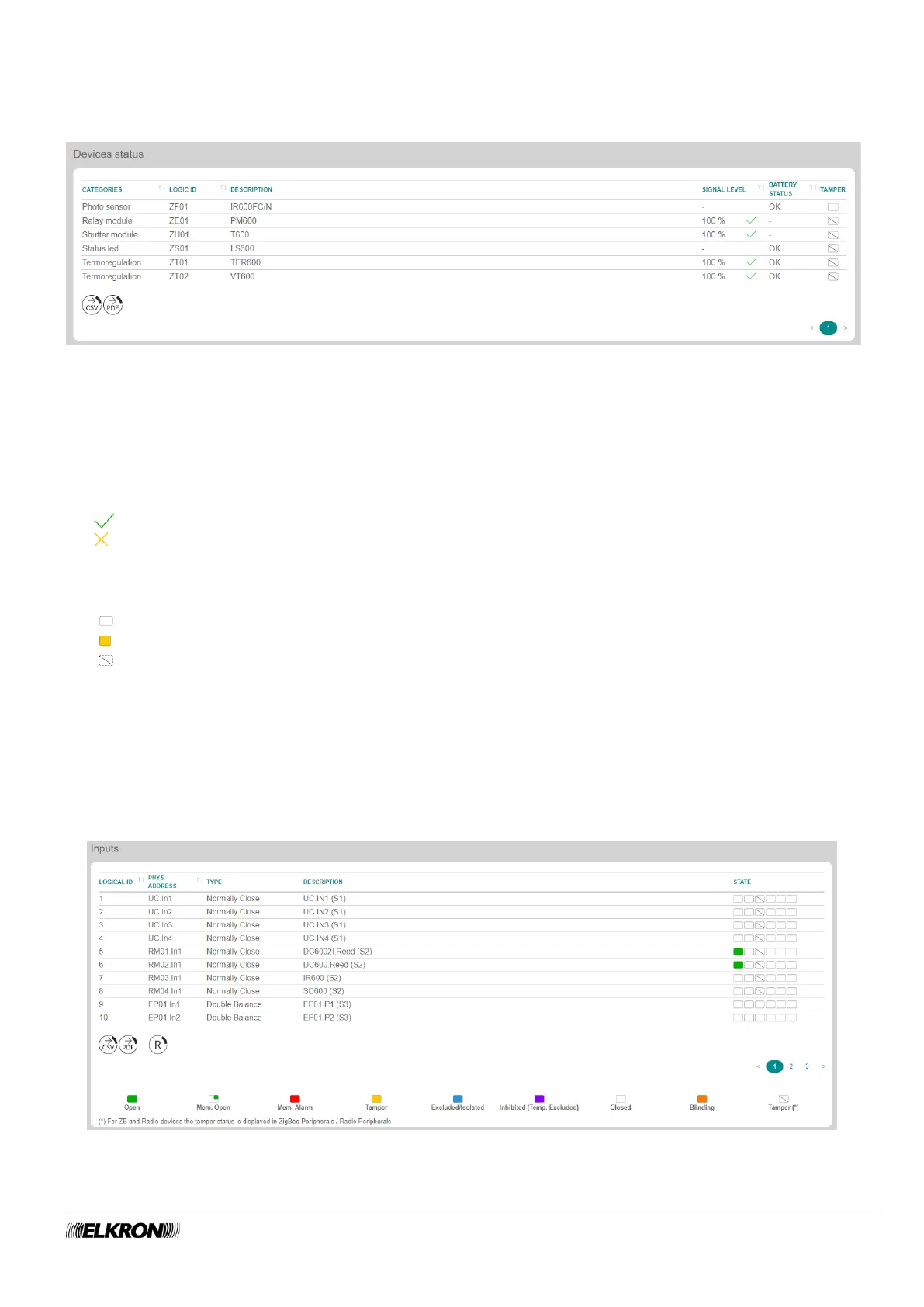
This can be used to view all information and values related to Zigbee devices.
It is accessed through the DIAGNOSTIC → Zigbee Peripherals menu.
Figure 115 - Zigbee devices
The ZigBee Peripherals table shows the following values:
• CATEGORIES: This shows the ZigBee device type.
• LOGIC ID: This shows the logical address assigned to the Zigbee device.
• DESCRIPTION: This is the alphanumeric label used to identify the device more easily.
• SEGNAL LIVEL: This indicates the quality of data transmission between the control panel and the
peripheral device. The range goes from 0 to 100 expressed as a percentage.
This indicates that communication is optimal (values between 50 and 100).
This indicates that the communication with the control panel is not optimal (values between 0 and
49).
• BATTERY STATUS: This indicates the battery status of the wireless devices.
• TAMPER: This indicates whether there is a tamper condition on the device,
= Tamper OK
= Tamper open
= Tamper not available
The following buttons appear under underneath:
• CSV: This can be used to export the inputs list to a “.csv” file, which can be opened with a spreadsheet.
• PDF, which exports the list of inputs to a PDF file.
6.1.7 Menu Input/Output
This allows the real-time monitoring of the status of the inputs and outputs. Outputs can also be controlled
(change of status).
It is accessed through the DIAGNOSTIC→ INPUT/OUTPUT menu.
Figure 116 - Inputs


 To Next Page