4.1.2 Date and Time
It is accessed through the CONFIGURATION → Central Unit → Global Parameters menu.
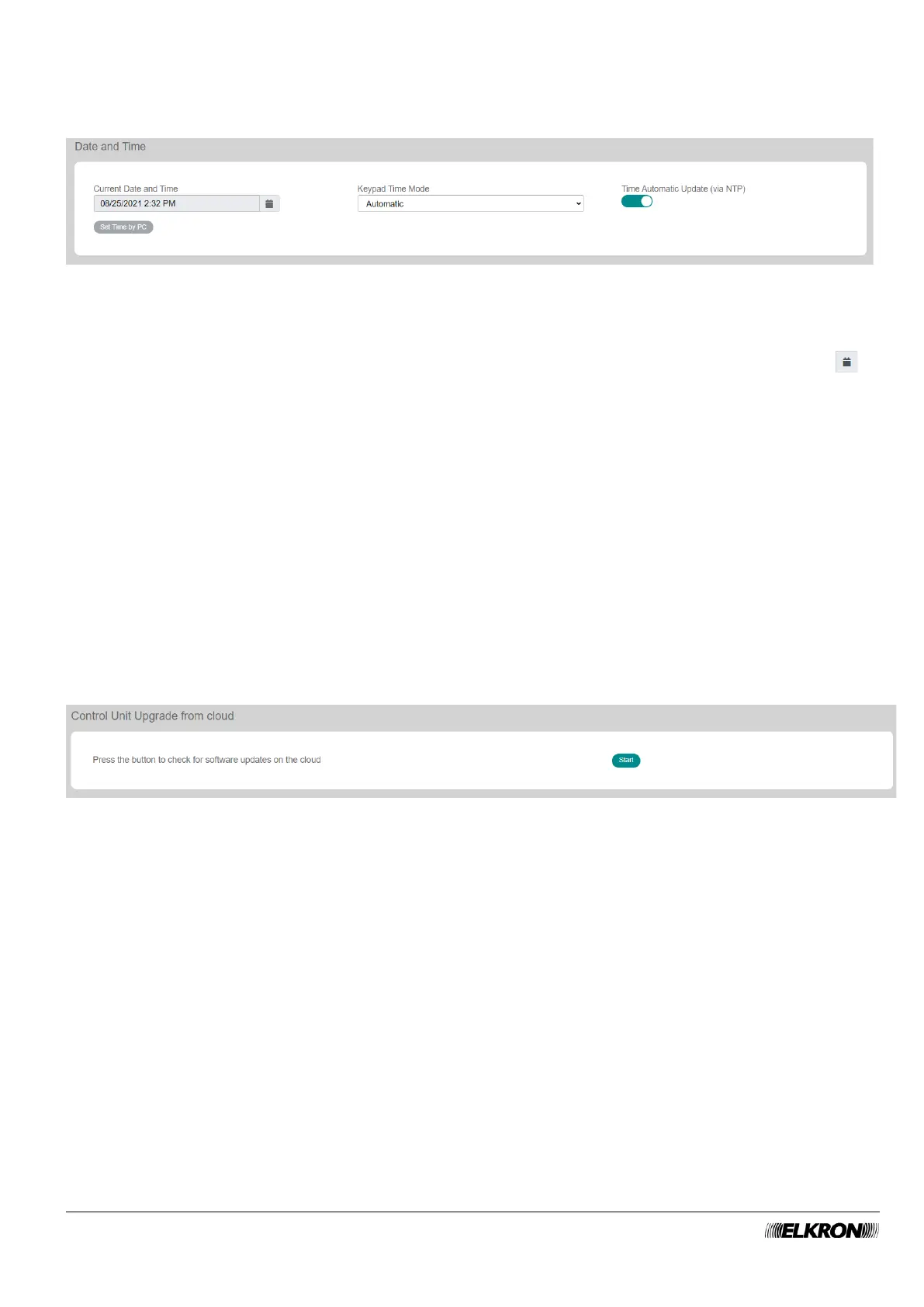
Figure 7 - Date and time entry
The following items are displayed and can be configured:
• Current Date and Time. Time automatic Update must be disabled to enter the date and time.
manually. The date can be entered manually or selected from the calendar that opens by clicking
The time is set by acquiring it from the connected device by clicking the Set Time by PC button.
• Keypad Time Mode: This can be used to select the format of the displayed time. The options are:
o Automatic: The time display format is determined by the c set in the Parameter menu.
o Anglosaxone: The time is displayed in 12-hour format, e.g. 3:30 PM.
o European: The time is displayed in 24-hour format, e.g. 15:30.
• Time Automatic Update: The clock is synchronised using an NTP (Network Time Protocol) server.
The server address is predefined and the control panel must be connected to the Internet. The time
display format is determined by the Geographic Zone set in the Parameters menu. In this mode, the
switch from winter time to summer time and vice versa takes place automatically.
• Set Time by PC: By deactivating the function Time Automatic Update and after having clicked on
the set Time by PC button, it is possible to assign to the control panel the current time set on the
device with which you are connected to the control panel.
4.1.3 Control Unit Upgrade from cloud
It is accessed through the CONFIGURATION → Central Unit → Global Parameters menu.
Figure 8 - Software update from cloud


 To Next Page