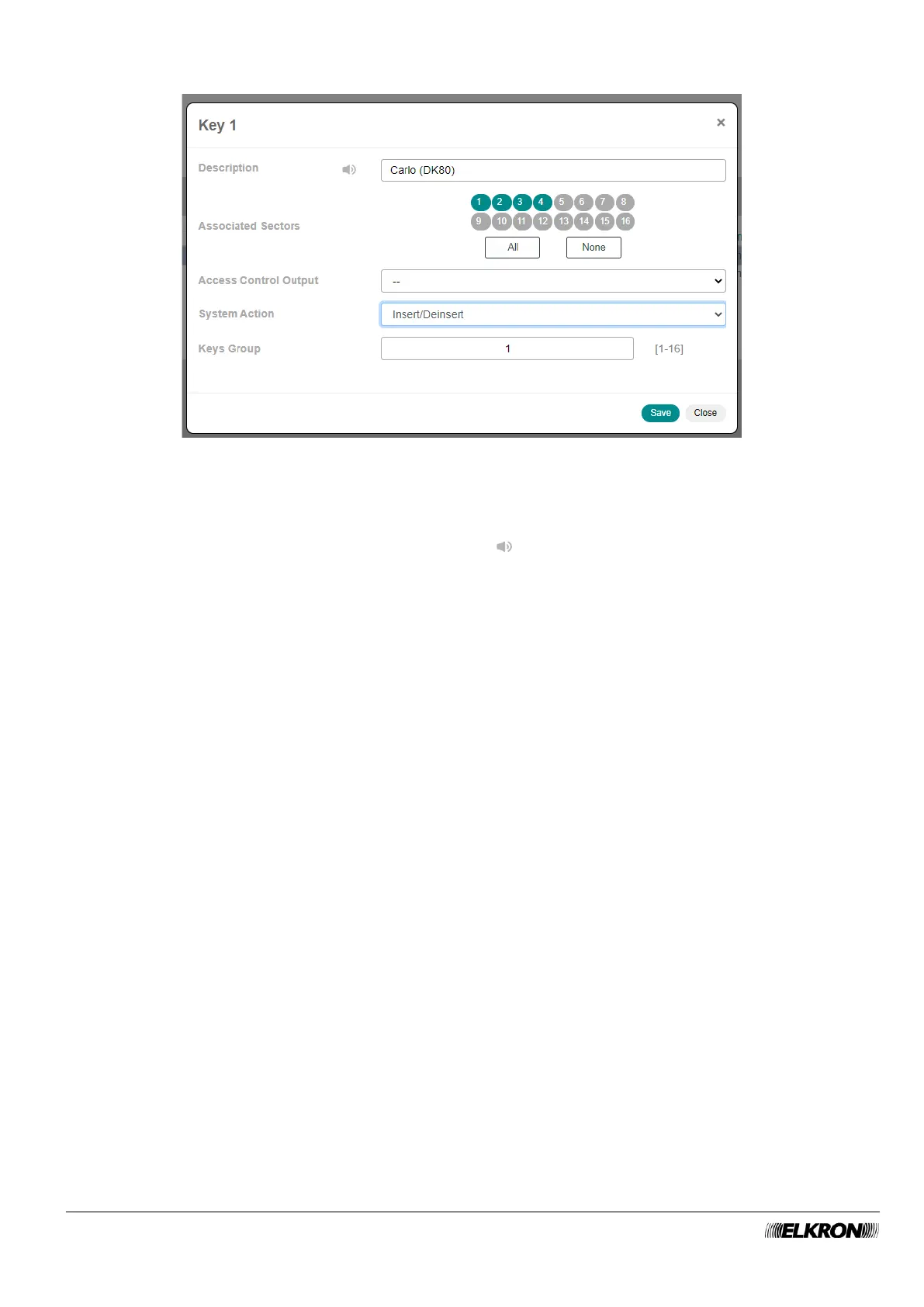
Double-click on the user code line to open a pop-up window.
Figure 62 - User key customisation
In the pop-up window you can:
• Enter the identification label of the user key in Description. The text entered is also used to generate
the voice messages as indicated by the symbol . Use only alphabetic characters, including
accented characters, numbers, and spaces. Maximum length of 32 characters.
• Associate sectors with the key (Associated Sectors), selecting them one by one by clicking on them
or selecting them all by clicking on the All button. The None button deletes all associations. To delete
a single association, click on the sector number.
• Associate the key with an output that is activated when the user code is entered (access Control
Output).
• Determine the actions that the key can perform on the intrusion detection system (System Action).
• Associate the key with a Group, which can be enabled or disabled according to time and day slots.
Click on the Save button to save the changes, the Close button to close the window and not save the
changes.
The following buttons (some are enabled only by highlighting a sector of the table) are shown below:
• Modify: This can be used to edit the data associated with the user code highlighted in the table.
• Remove: This can be used to remove a key and all of its programming.
• CSV: This can be used to export the user code table to a “.csv” file, which can be opened with a
spreadsheet.
• PDF: This can be used to export the user codes to a PDF file.


 To Next Page