56
Reference Manual
00809-0100-2460, Rev DE
Configuration
October 2018
Configuration
Step 2. Communication setup
1. Verify that the correct communication protocol channel is used. A communication channel needs to
be associated with a specific port (USB/COM) on the TankMaster
vb workstation in order to establish
proper communication with the connected Rosemount 2460 System Hub. See Figure 4-1 on page 52
and “How to check Communication Channel and Port” on page 57 for more information.
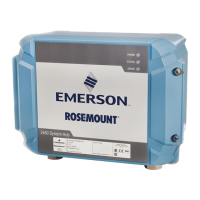
2. Verify communication between the Rosemount 2460 System Hub and the TankMaster PC. The 2460
can be connected to a PC via a Rosemount 2180 Field Bus Modem, or by using a RS232 or RS485
interface.
a. To verify communication with the Rosemount 2460, enter the System Hub’s Modbus Address
and click the Verify Communication button. The Device ID will appear if the correct Modbus
Address was entered (the 2460 is shipped with the default Modbus address=245).
b. In case you would like to change the current Modbus address, or the address is unknown, click
the Change Address on Device button and follow the procedure as described in “How to change
the Modbus address of the Rosemount 2460 System Hub” on page 58.
Note
In case several Rosemount 2460 System Hubs are connected using the same default address (245), you
will have to change the addresses of the system hubs before the Verify command can be used. See “How
to change the Modbus address of the Rosemount 2460 System Hub” on page 58 for more information.
3. Click the Next button to continue the installation procedure of the Rosemount 2460 System Hub.
Note
Host communication via the Ethernet 1 port and Modbus TCP must be configured via the Web based
graphical user interface (see Section 6: Service and Troubleshooting).


 To Next Page
 Loading...