Boot for the Fibre Channel Protocol User Manual P010096-02A Rev. A
7. Configure EFIBoot via UEFI HII (Human Interface Infrastructure) in a UEFI 2.1 System
Configure Adapter Parameters
96
Change the Link Speed
Use this feature to change, or force, the link speed between ports instead of
auto-negotiating. The supported link speeds depend upon the adapter. The menu only
displays options that are valid for the selected adapter.
Note: The Link Speed setting will be overwritten by the FC driver and will not take
effect during a regular boot into the local OS. Therefore, setting the link speed
from the BIOS utility should only be used with boot from SAN.
Possible link speed choices:
Auto negotiate – Default
1 Gb/s
2 Gb/s
4 Gb/s
8 Gb/s
16 Gb/s
To change the link speed:
1. From the Adapter Selection screen, select the adapter whose link speed you want to
change and press <Enter>.
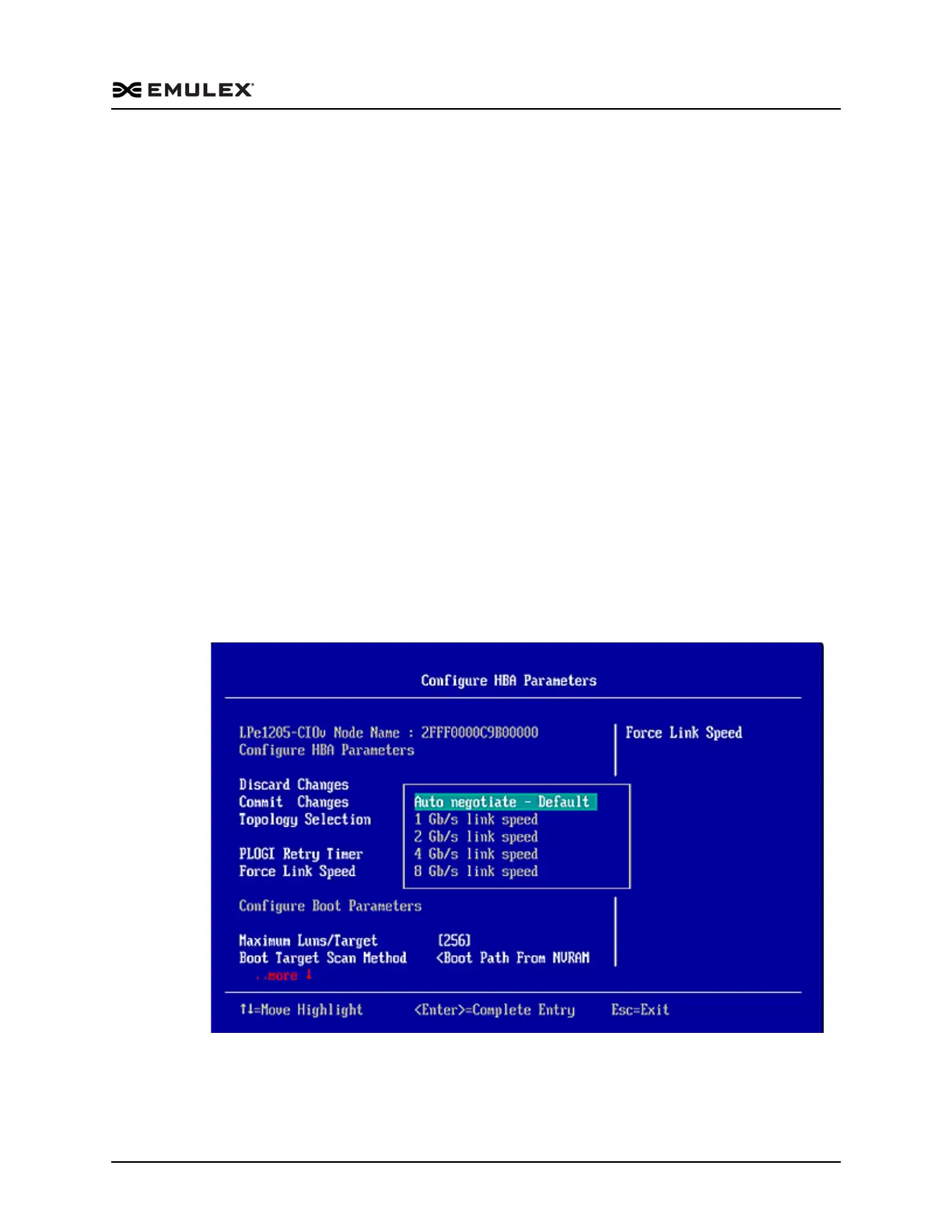
2. From the Configure HBA Parameters menu, navigate to Force Link Speed and
press <Enter>. The Force Link Speed menu appears.
Figure 7-17 Force Link Speed Menu Screen
3. Select a link speed and press <Enter>.


 To Next Page