Appendix B Telepresence Over the Internet
B-2 ER1 User Guide
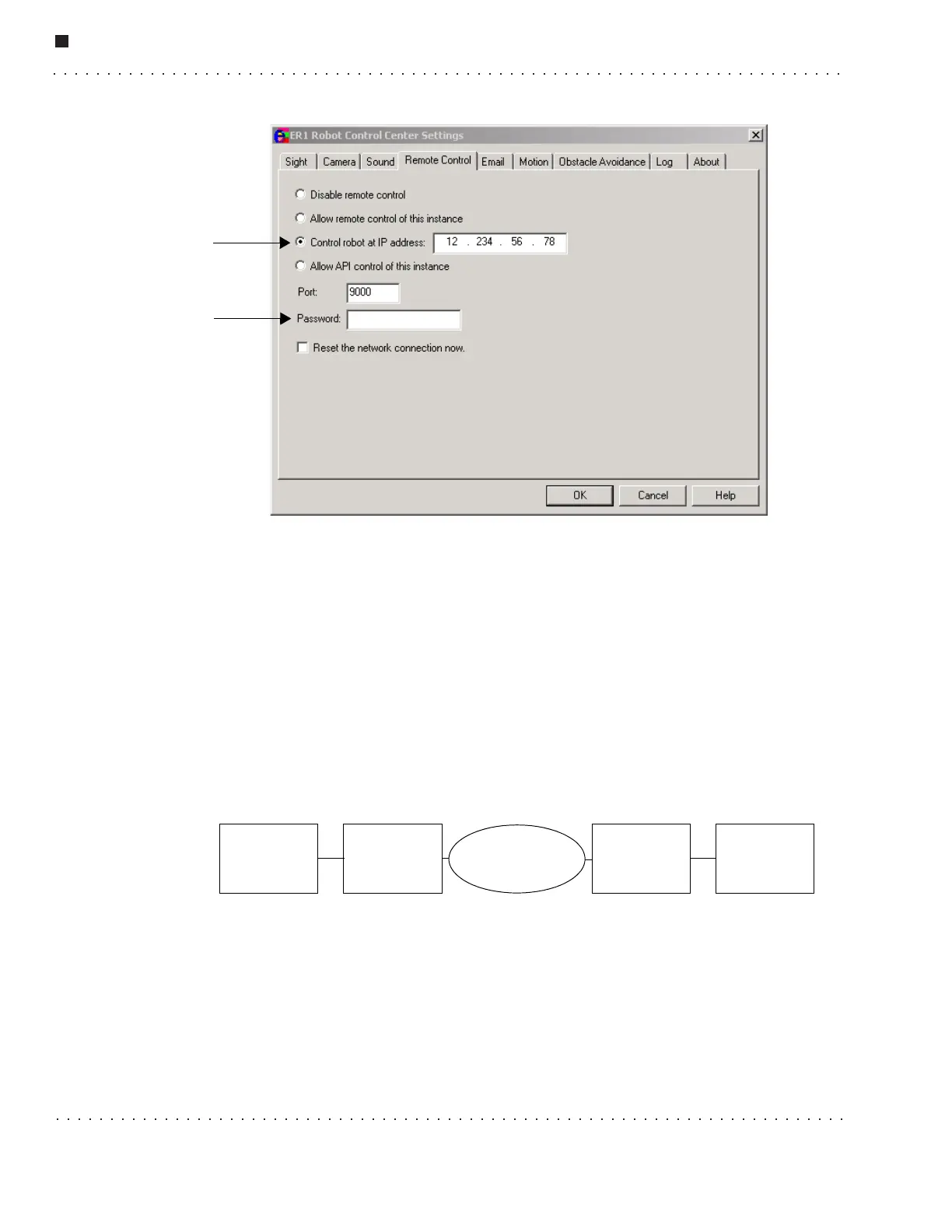
Once the IP address and teleoperation port number are identified, they can be entered into
the remote control settings page on the ER1 Robot Control Center running on the user’s
work computer. Click on the Settings button and then the remote control tab. Click on the
Control robot at this IP address checkbox and enter the IP address. The port number
should not need to be changed. (Remember to have the Allow remote control of this
instance set on your robot’s laptop.)
After the IP address and port for teleoperation are located and entered into the RCC
software, there is one last step: setting up port-forwarding to allow the work computer to
connect to the robot laptop at home through the your home firewall. The most common
network setup between a user at work and the robot at home is a double firewall situation.
At work, you are behind your workplace’s firewall. At home, the robot is on a wireless
network connected to a combination of wireless access point, router, and cable or DSL
modem that also functions as a firewall.
In order to control the robot via teleoperation, you must be able to connect from the work
computer to the robot through the home firewall. Most cable or DSL routers have a
service called port forwarding. This service forwards communication on certain ports to
certain specified computers behind the firewall. Assuming that you opt to use the default
port of 9000 for teleoperation, you will need to configure the home router to forward port
9000 to the robot laptop’s IP address on the your home network. Note that this IP address
is not the same as the external IP address assigned to you by the broadband provider. It is
typically of the form 192.168.x.x or 10.x.x.x, and can be obtained by typing in
ipconfig
Work
Computer
Workplace
Firewall
Internet
Home
Firewall
Robot
Laptop



 To Next Page