114
click in Planning on Route.
You can move or delete single route elements:
- With and you can move a selected element within its level up or down.
- With you can delete a selected element.
Print route
In the Trendline software you can print a route report.
Click on .
Select a route.
Click on OK.
Further information in the chapter "route report ".
4.7.3 Send templates and routes
If you have created templates or routes (see "Template and route planning ")
you can transfer them to the Detector.
The transfer of a new route or configuration to Detector deletes all
data stored on the instrument.
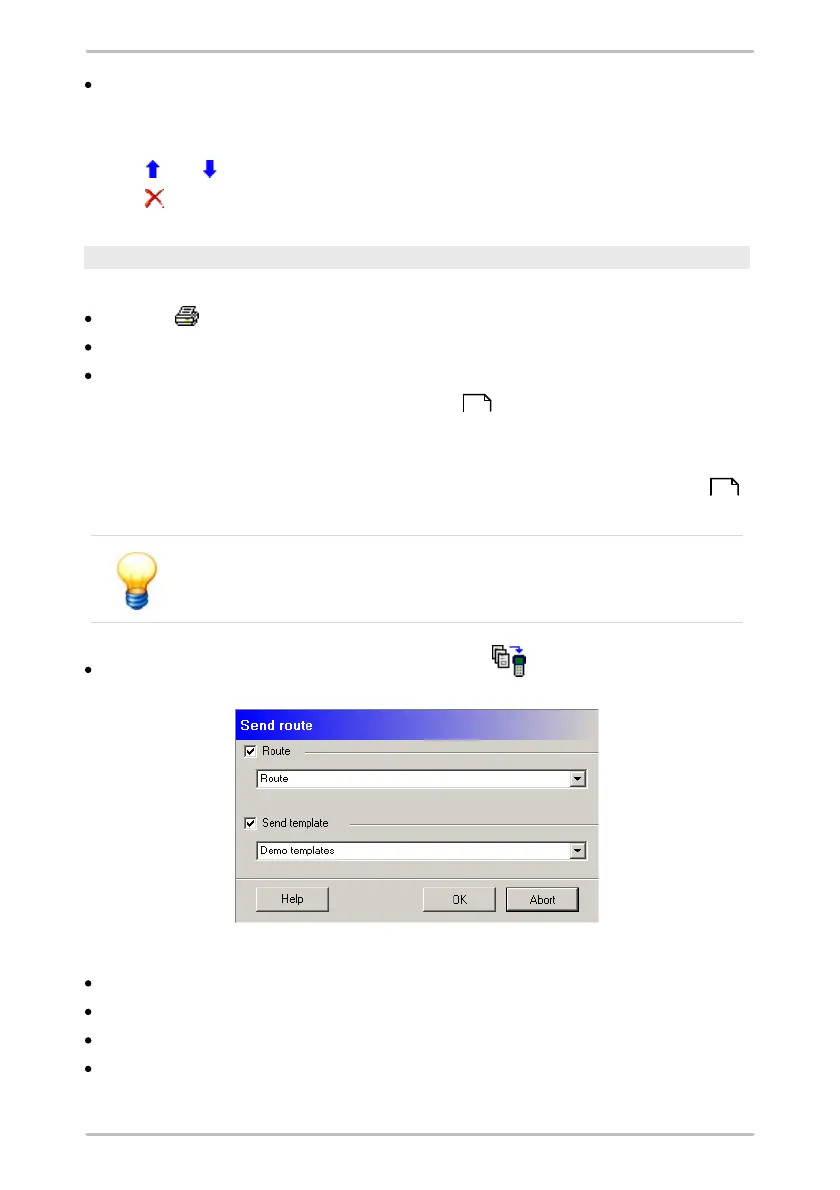
Click on Detector > Send route/template or on .
Now you can select a template and/or a route:
Activate Route and select the one you want to send to the Detector.
Activate Send template and select a template group.
Connect the Detector with the data cable to your PC and switch it on.
Click OK to send the route to the Detector.
Another way of sending a route to the Detector is directly from route planning by
133
109



 To Next Page