40
the machine where the measuring location is located and the section where the
machine is located.
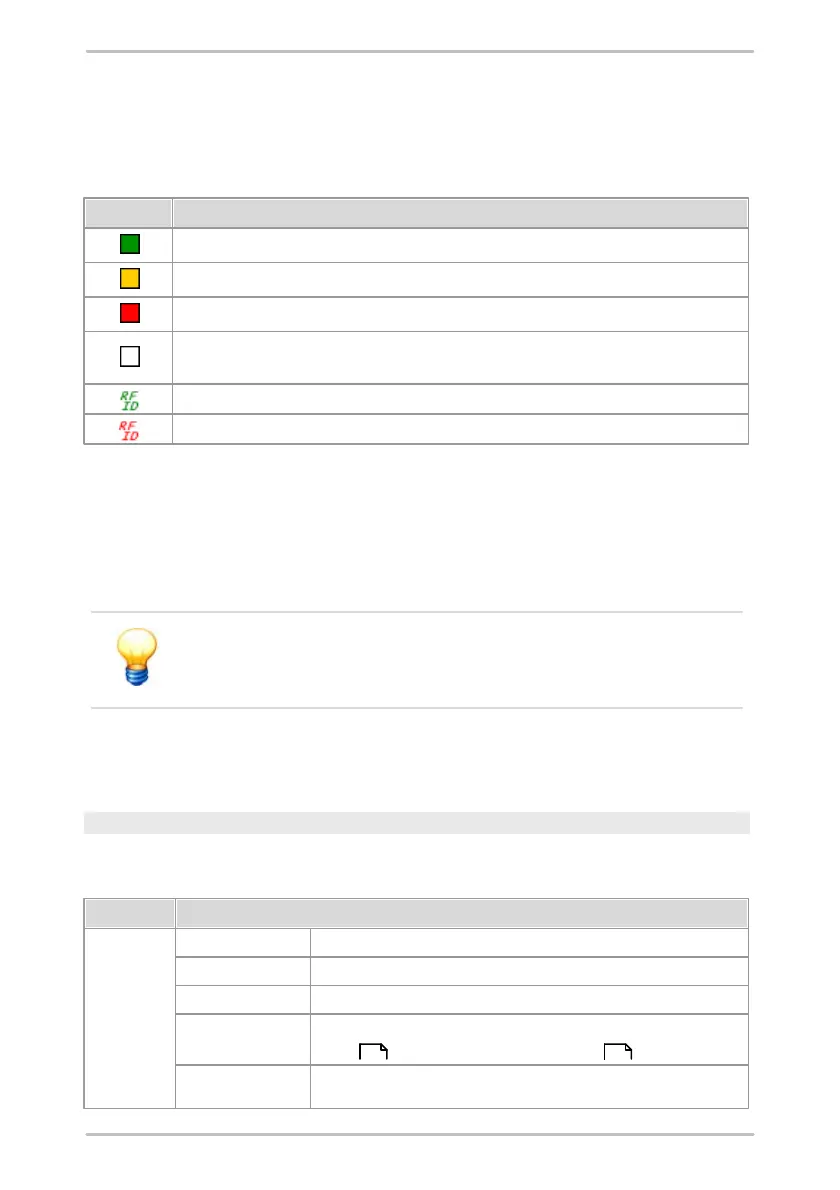
Next to the name of each element of the configuration and system structure you
will find a box that is highlighted in color. This indicates the alarm status for this
part of the system as shown in the following table.
For this level of the system structure no alarm is recorded.
For this level of the system structure a preliminary alarm was signaled.
For this level of the system structure a main alarm is recorded.
This level has just been created or
the alarm is not ready configured or has been canceled.
An RFID tag has been assigned to this measuring point.
An RFID tag in this part of the system has been marked as defective.
On the right-hand side next to the configuration and system structure you can
insert an image. At the highest level you will find the tab sheets, where you can
adjust the settings of the individual measuring points.
The dividing line between the image of the configuration and system structure
can be shifted towards the right or left by dragging with the mouse.
In the configuration structure, always one element is marked. The
properties of this element are depicted in the right-hand part of the
window.
4.2.2.2 Menu and toolbar
Menu bar
The menu bar allows access to the following functions of the Trendline software:
Opens an existing database.
Loads records exported with Trendline.
Exports part of a current measuring point structure using the Export
Wizard or export a single measuring point .
Trendline displays recently used databases at this point in the menu.
137 138



 To Next Page