179
FIS Viewer
1.
Click in the toolbar.
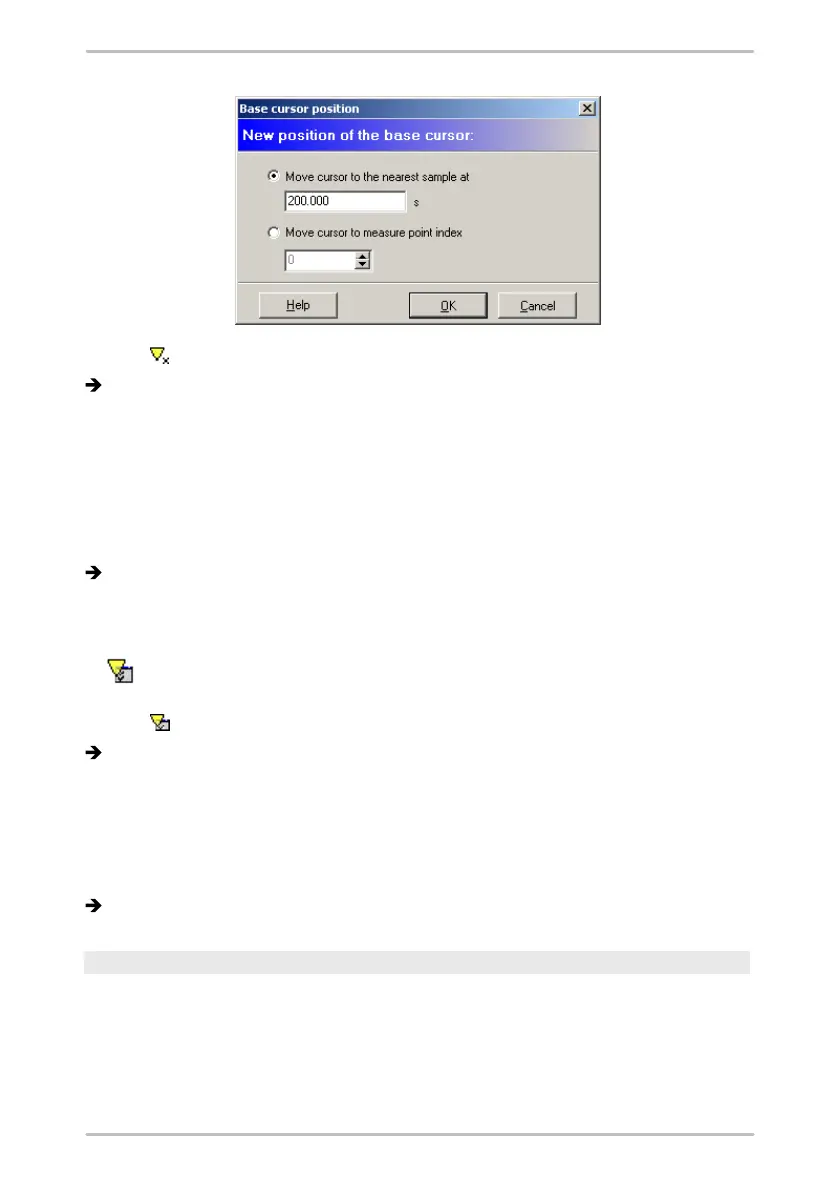
The base cursor positioning dialogue is displayed.
2.
Select the Move cursor to the nearest sample at option and enter any desired
value inside the diagram area in the input field.
or
3.
Select the Move base cursor to measure point index option and enter an
index value for the corresponding measured value in the input field.
4.
Click OK.
The base cursor is now positioned at the position you entered numerically.
5.3.7 Modify cursor properties
Using the cursor properties dialogue, you can change the properties of
the cursor currently selected.
1.
Click in the toolbar.
A dialogue showing the currently selected properties of the cursor tool will
open.
2.
Activate or deactivate the relevant fields in the dialogue window and pick one of
the values in the selection boxes or enter the respective value in the input fields
provided.
3.
Click OK.
The cursor properties are applied and saved.
General cursor properties
You can modify the general cursor options described below. These properties
apply to all available cursor types. To do this, activate or deactivate the
corresponding checkboxes in the dialogue window.



 To Next Page